Step 1: Scopes and categories
Open the Ambience panel from the Home Assistant sidebar. The panel lists every scope in your home: a House row at the top, followed by any floors you have defined (if any), and then any areas.
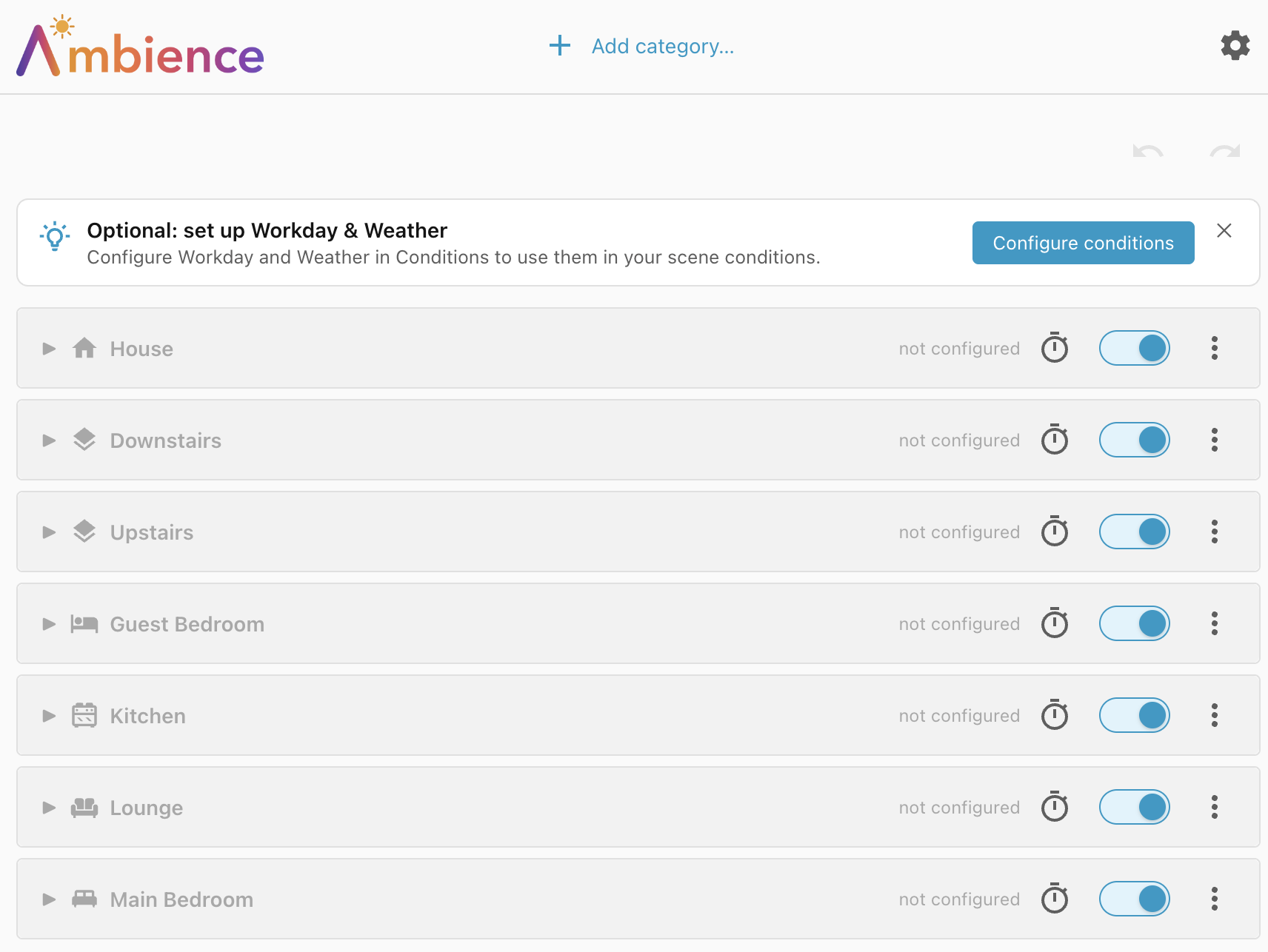
Optional: set up Workday & Weather
The Weather and Workday conditions depend on other services in Home Assistant. You can dismiss the suggestion to set them up for now. Later you will see how to configure them under Settings.
Add a category
We want to set up scenes to control the lights in the lounge. To start we will add a new category called Lights, by clicking Add category… at the top of the screen.
This link takes you to the Categories tab under Settings. Then click the + Add category button on this page and fill out the form as shown below:
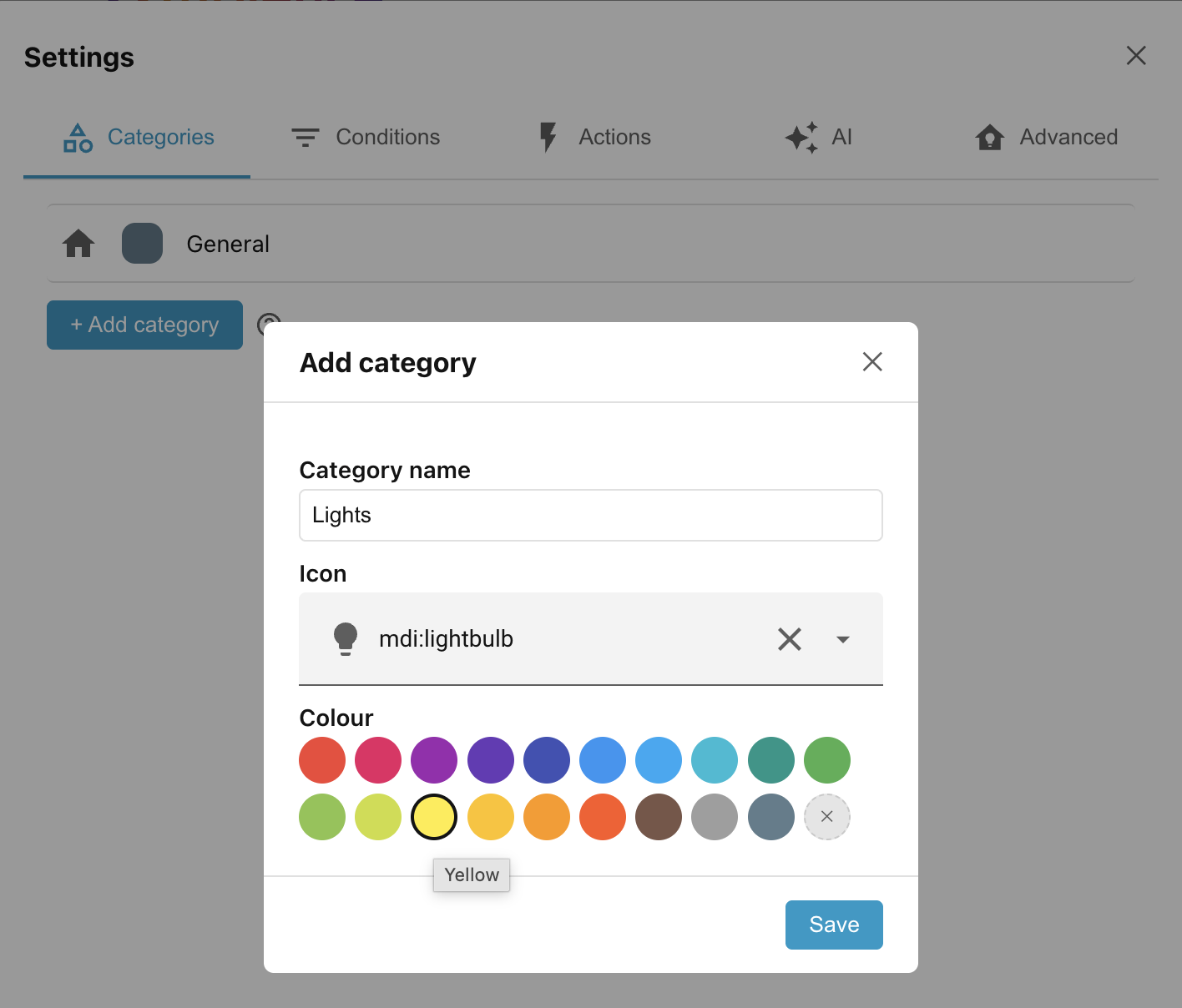
Click Save, then close the settings page with the X in the top right corner.
Select the Lights category from the Category filter at the top of the page.

Scope/category scene groups
Scopes and Categories allow you to segment your devices down into small related groups. All the scenes which control (for instance) the lights in the lounge should be added to the Lounge scope, under the Lights category — the Lounge/Lights scene group. That way you can be sure that there are no competing automations trying to control the same devices.
The actions in a scene can only target entities that belong to that scope (or to children of the scope if the scope is the House or a floor). Conditions, on the other hand, can reference entities anywhere in the house.
Besides the lights, maybe you also have window blinds in the Lounge. They would have a different lifecycle from the lights, although many of the conditions may be shared. For instance, your blinds might implement the following scenes:
| Conditions | Device state |
|---|---|
| The projector is on for movie time | Blinds closed |
| Between dusk and sunrise (but not before 8:00) | Blinds closed |
| Between sunrise (but not before 8:00) and dusk | Blinds open |
Both blinds and lights are impacted by the state of the projector and by the time of day, but lights don't depend on blinds and blinds don't depend on lights. They are independent of each other, although they share the same room.
We would use a separate Blinds category to manage the Lounge/Blinds scene group independently of the Lounge/Lights scene group.
Use categories freely
Categories are created globally, but don't be afraid to add new categories for concepts that exist in only a few rooms or even a single room.
General categories like Lights and Blinds are useful, but maybe you have an en-suite bathroom which belongs to a bedroom area. The lights and blind in the bathroom would have a different lifecycle to the lights and blind in the bedroom and so deserve their own dedicated Bathroom lights and Bathroom blinds category. And maybe in just one bathroom you have Shower lights which have a different lifecycle to the other Bathroom lights.
Categories are cheap — use them freely.
General category
The integration ships with a single default category called General. Feel free to rename or delete this category, as long as you have defined at least one other category.
Next: Step 2: Your first scene.