Step 8: Pausing & disabling scopes
By now your scenes are running automatically. Sometimes, though, you want Ambience to stop controlling a scope — either for good, or just for a while. Each scope row gives you two controls for exactly that.
Disabling scopes
The blue toggle to the right of each scope name allows you to disable Ambience completely for that scope. Disabled scopes will be moved to the bottom of the list and any scenes in a disabled scope will be ignored. This is useful to move scopes which won't have any scenes out of the way, or to disable an entire scope while you set up the scenes.

Pausing a scope
Automation is great, but sometimes you want to take control and do things manually, just temporarily. That is what a scope's pause switch is for.
Every enabled scope has its own pause switch: a switch entity named after the
scope, such as Lounge Ambience. The pause/resume timer button on the scope
row toggles the switch.

While a scope is paused, Ambience stops applying scenes there and leaves your devices exactly as they are. When you resume — manually, or automatically once the pause delay elapses — Ambience re-evaluates and applies the winning scene again.
Toggling the House or a floor switch cascades down to the scopes beneath it, so you can turn off Ambience in all scopes with the House switch (but then turn it back on for just a particular room, should you so desire).
And because each pause switch is an ordinary Home Assistant entity, you can pause and resume from a dashboard, an automation, or your voice assistant: "Hey Google, turn off Ambience" will turn off Ambience for just the room you are in.
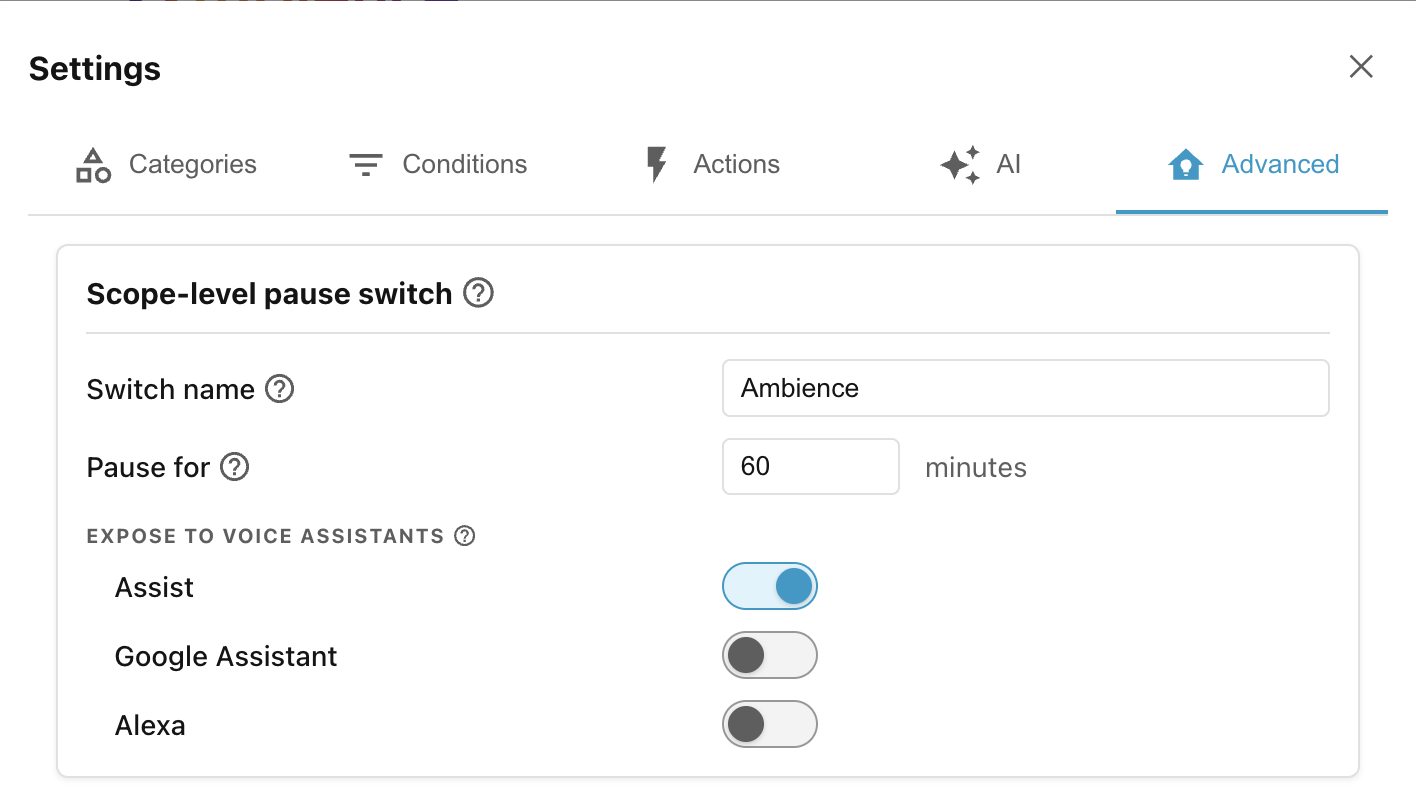
By default a scope stays paused until you resume it. To auto-resume after a set time, to rename the switches, or to expose them to voice assistants, see the Advanced tab in the Settings.
Next: Step 9: Debugging scenes.