Step 2: Your first scene
The first scene we'll add is the Vacant scene — what the lights should do when the room has been vacant for at least 1 minute.
Expand the Lounge scope
First, click the Lounge header to expand that scope:
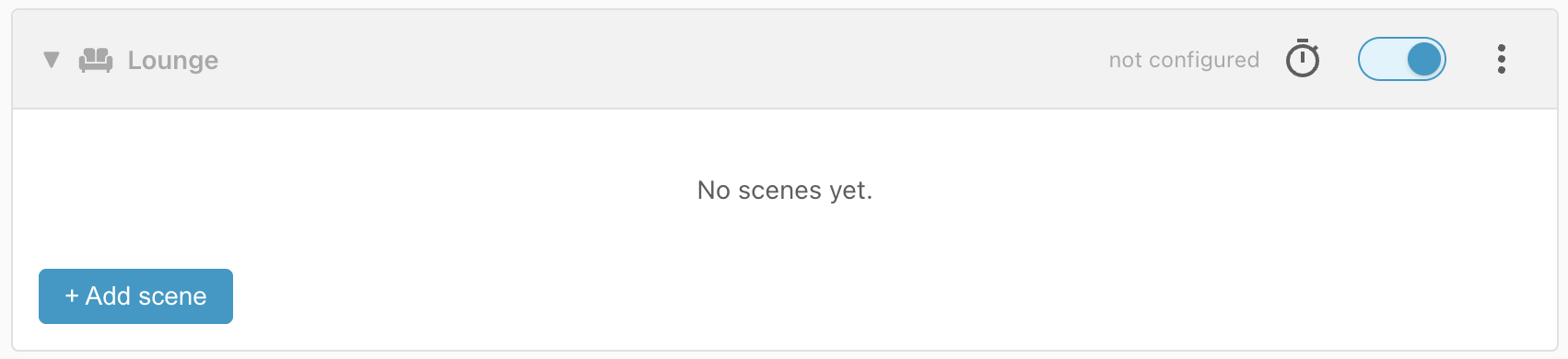
Then:
- Press the + Add scene button.
- Click on New scene to change the name to Vacant.
- The Category and Scope should already be set to Lights and Lounge respectively.
Add the Occupancy condition
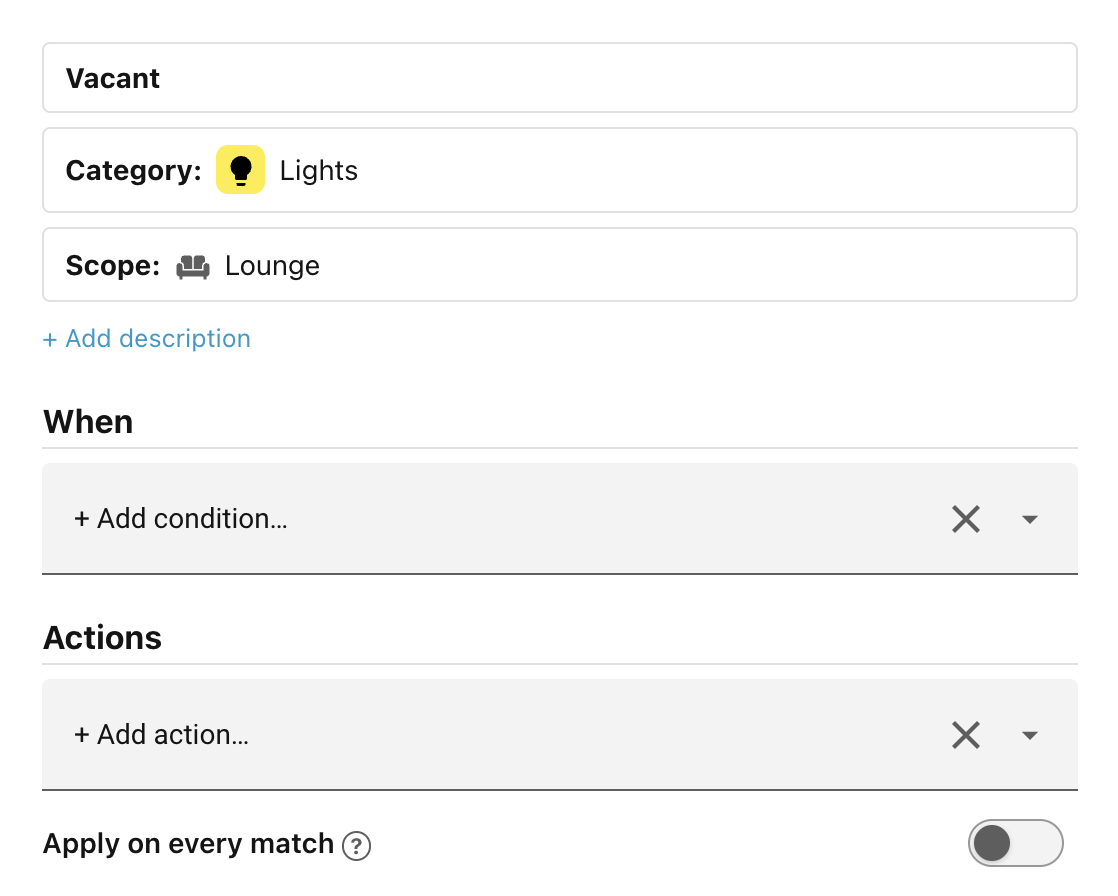
We want this scene to apply when the lounge has been vacant for at least one minute. So, under When:
- Click Add condition and choose Occupancy.
- Click Select an entity.
- Select the Lounge Presence entity.
- Change Detected to Clear.
- and set For to 00:01:00 (i.e. one minute).
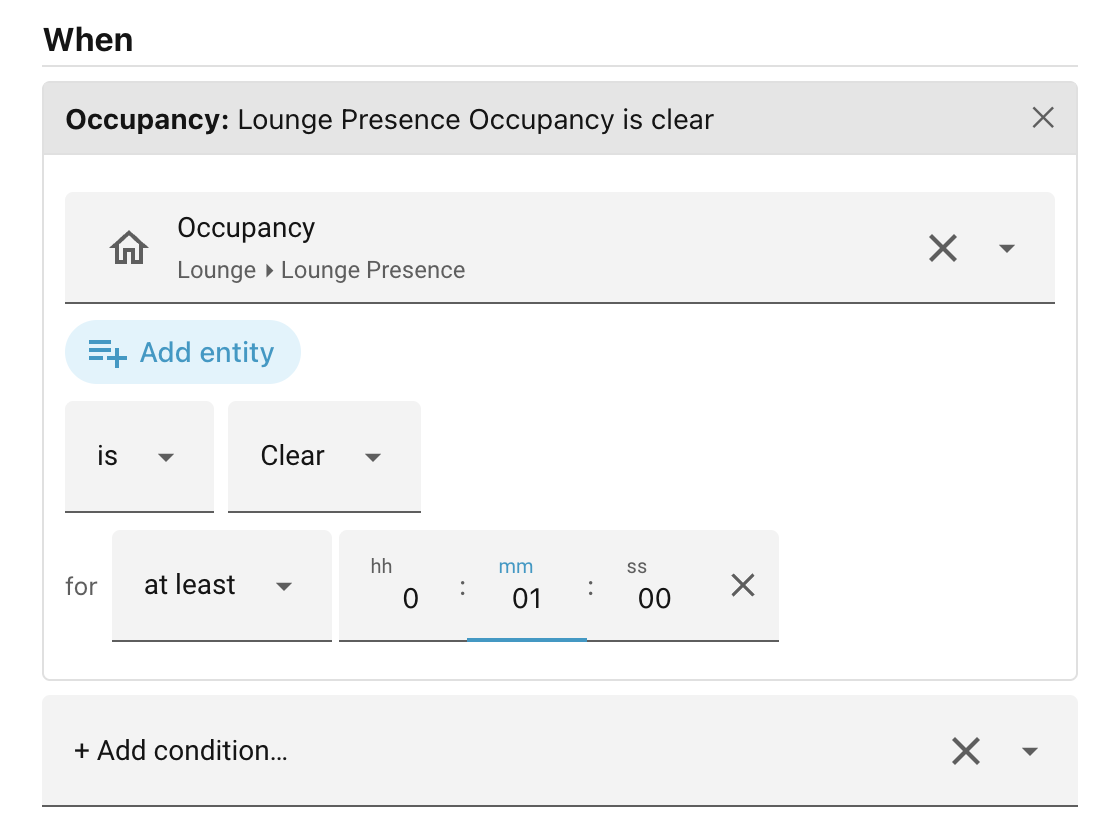
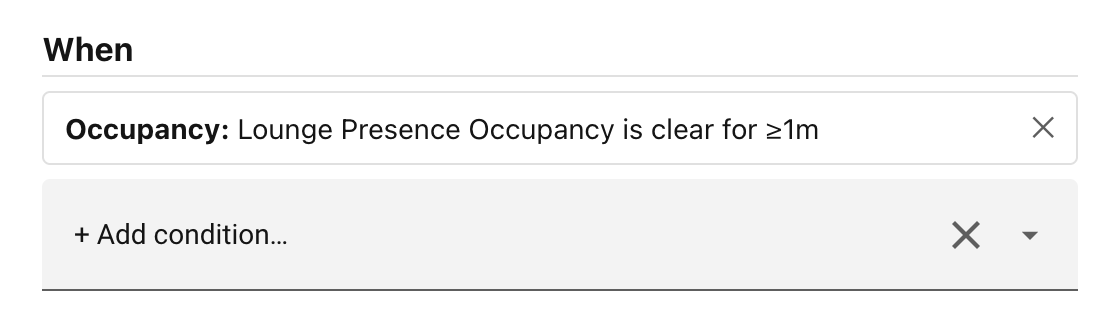
As soon as you click away from the condition you've just added, the form gets replaced by an easy-to-read summary of the condition you have specified:
Specify the actions
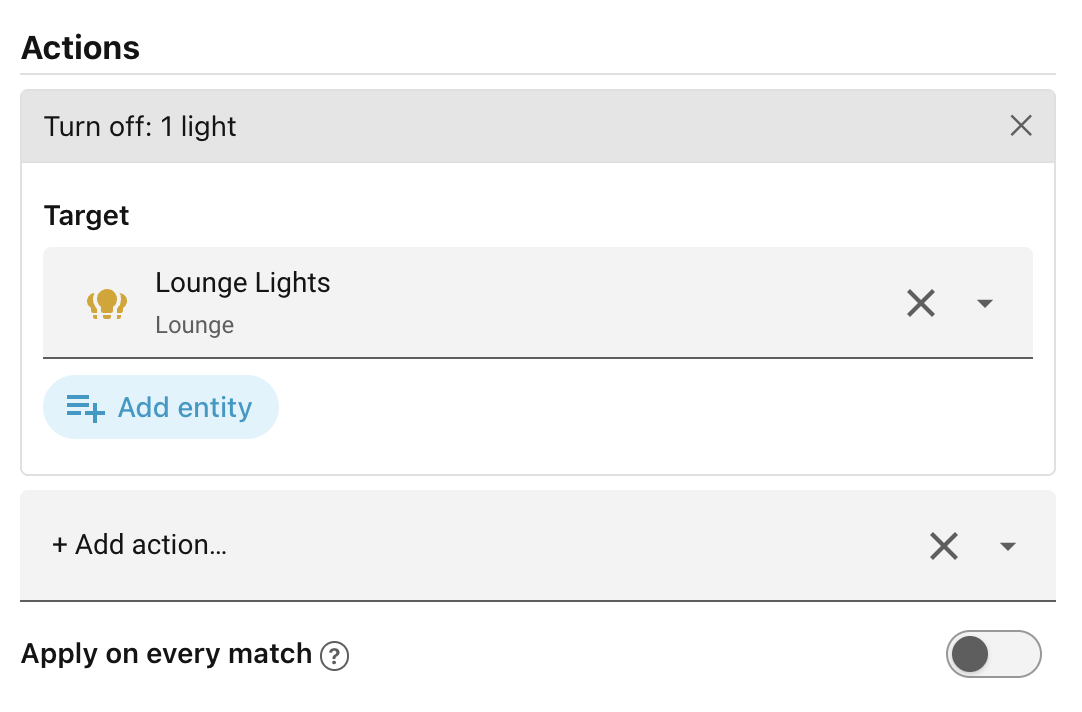
All that is left to do is to specify what should happen when this scene matches.
- Click + Add action.
- Select Turn off.
- Under Target, select the entity Lounge Lights.
- Click Save scene.
Completed scene
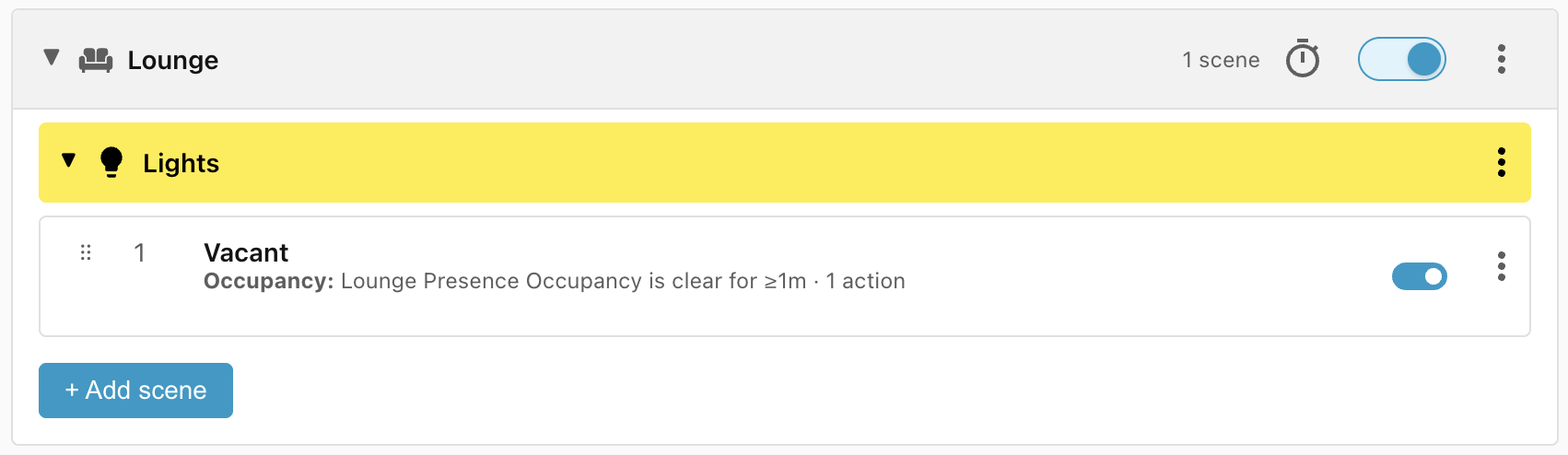
This takes you back to the scene manager and shows you a summary of the scene:
Disabling scenes
Use the blue toggle to the right of the scene name to temporarily disable a scene.
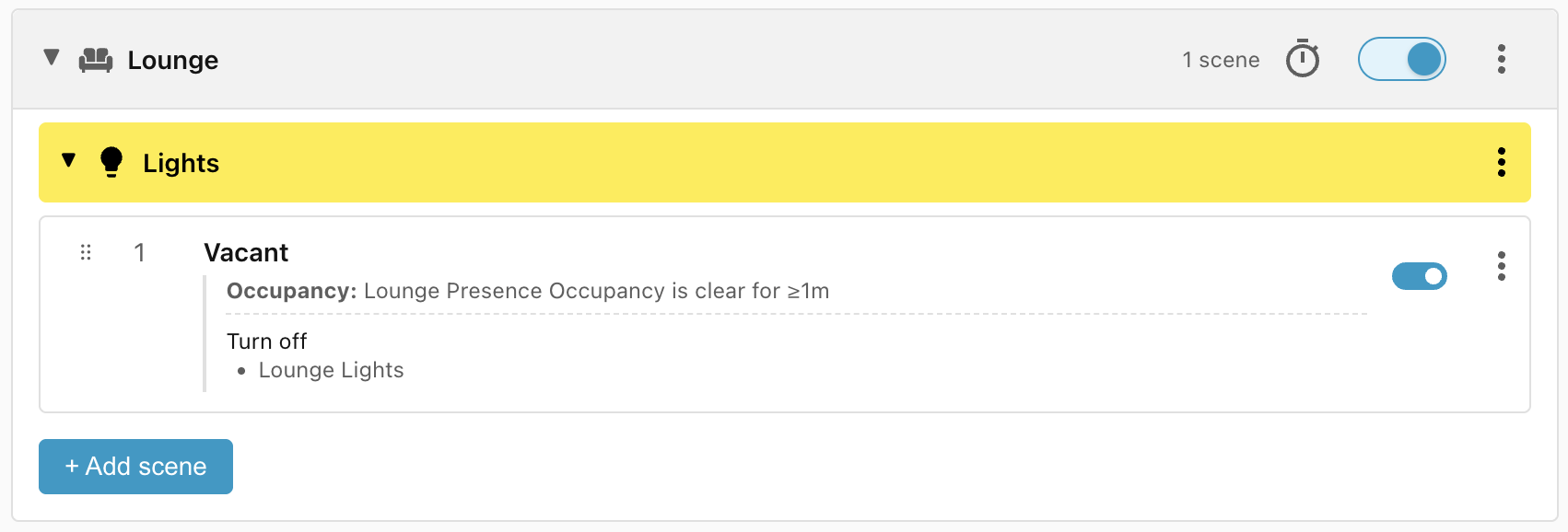
Click on the scene name to see the full details:
Green dot
The green dot to the left of the scene name tells you that this scene is the one that currently best matches the conditions that you have specified, that it is the winning scene.
Next: Step 3: Exposing actions.