Step 3: Exposing actions
Next we'll add the Nighttime scene — turn the lights to 25% as soon as anybody enters the room.
In order to do this we will need to add an action that understands how to set lights to a particular brightness:
- Click the cogwheel (⚙) in the top right corner of the Ambience panel.
- Select the Actions tab.
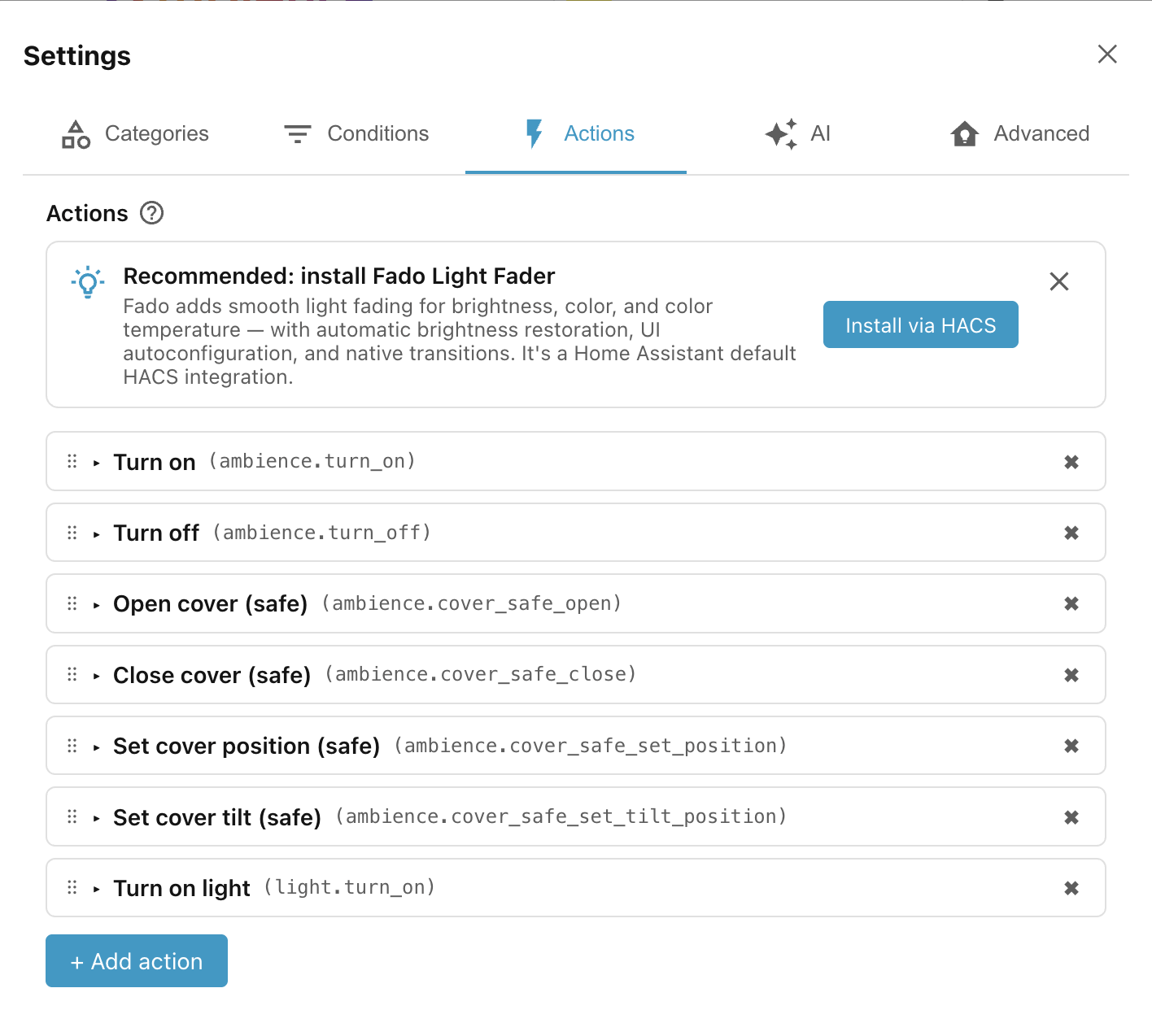
Built-in actions
You can see that Ambience ships with six built-in actions by default:
- Turn on and Turn off will turn on or off any entity that supports that
action, but it will check the current state of the entity before acting, so
if a light is already
onthe Turn on will not try to turn it on again. - Close cover (safe), Open cover (safe), Set cover position (safe), and Set cover tilt (safe) control covers like blinds, awnings, and curtains. They check the current state or position of the cover (or its tilt value) before acting, and so avoid activating the motor on a cover that is already in the correct position.
You are welcome to delete or rename the built-in actions.
Add a new action type
Besides the built in action, you will need to add any other actions that you
want to use, and specify which fields belonging to the action are of interest to
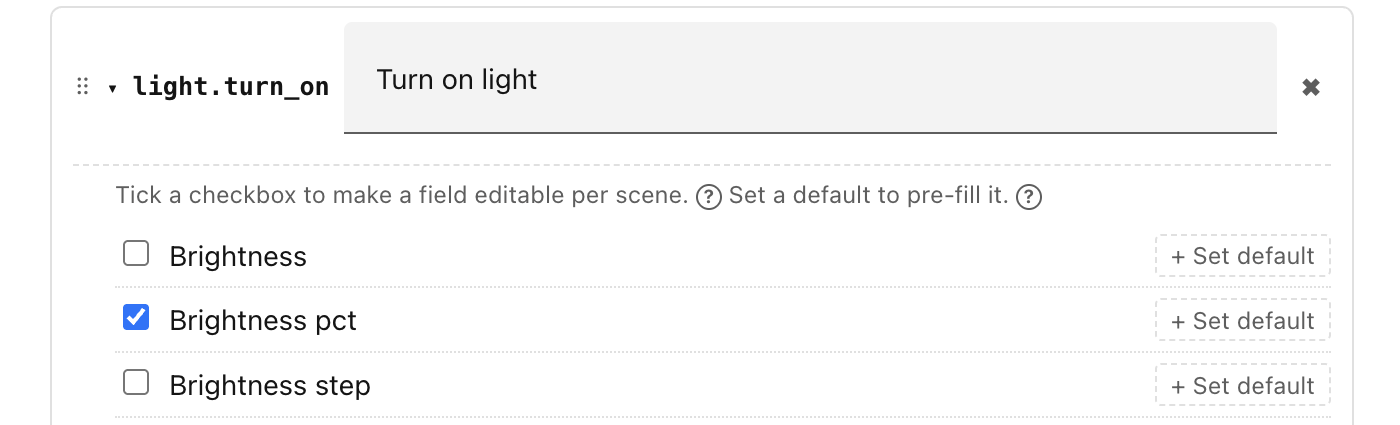
you. We will do this for the Turn light on (light.turn_on) action:
- Click + Add action and click on the Action drop down.
- Search for and select Turn on light.
- The only field that we need is Brightness pct, so select just that one.
- Close the settings by clicking the X in the top right corner.
Fado Light Fader
The Turn on light action has a transition field which allows you to specify over what time the light should transition to the new brightness, e.g. Fade to 50% brightness over 3 seconds. Unfortunately, many lights don't support these native transitions.
The Fado Light Fader custom HACS integration solves this problem by providing smooth light fading for brightness, colors, and color temperatures, with automatic brightness restoration, autoconfiguration via a UI, and support for native transitions.
Add the Scene
- Click + Add scene.
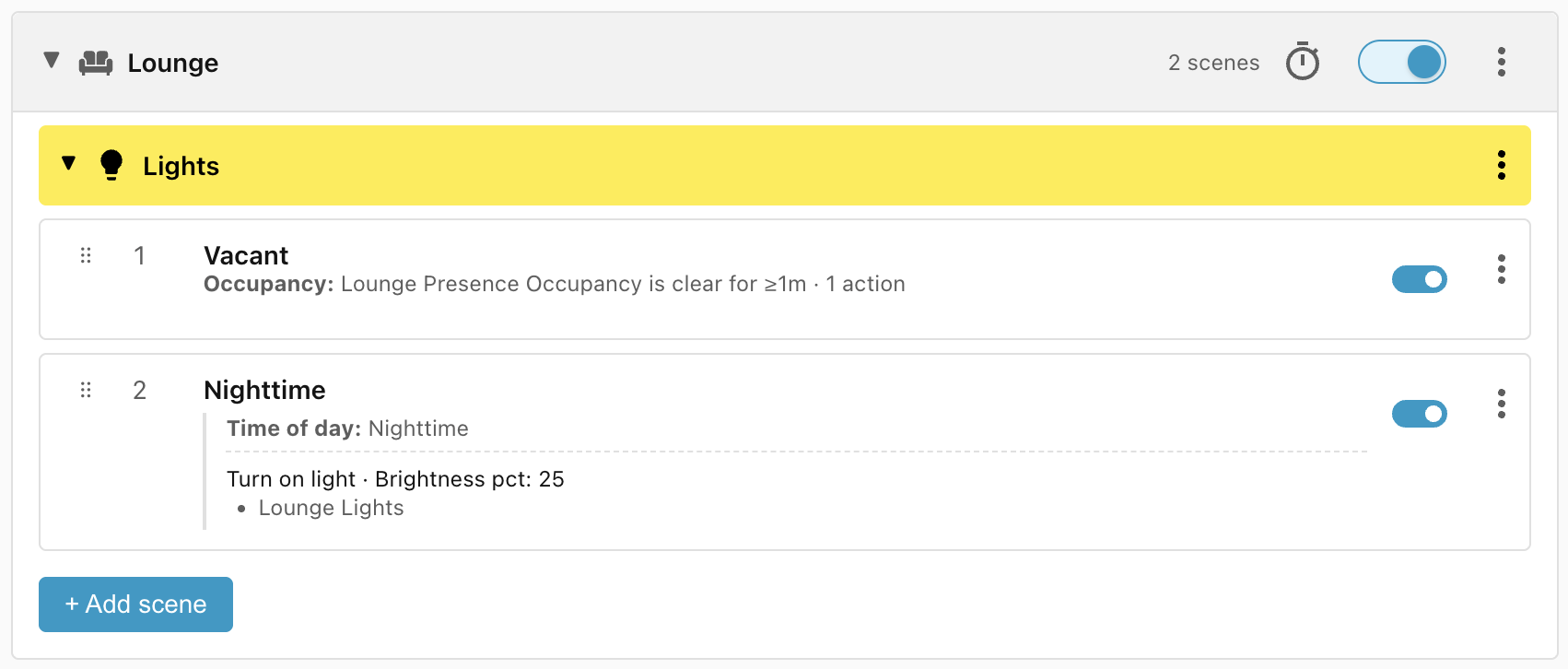
- Change the name to Nighttime.
- Add the condition Time of day and select Nighttime.
- Add the action Turn on light, select target Lounge Lights, and set the Brightness pct to 25%.
- Click Save scene
Why no occupancy condition?
You may have expected that we would need to add an Occupancy condition to check whether somebody has entered the room before we turn the lights on. It is not required because we already have the Vacant scene in place.
Each scene is evaluated in order and if it matches, then that scene wins and no further scenes are evaluated. This means that, for evaluation to reach the current scene, the conditions in all the previous scenes are guaranteed not to match.
The Vacant scene checks whether the room has been vacant for at least one minute. If that scene didn't match then we know that the room is either currently occupied or has been vacant for less than one minute, in which case the lights should be on.
Next: Step 4: Weather conditions.