Introduction

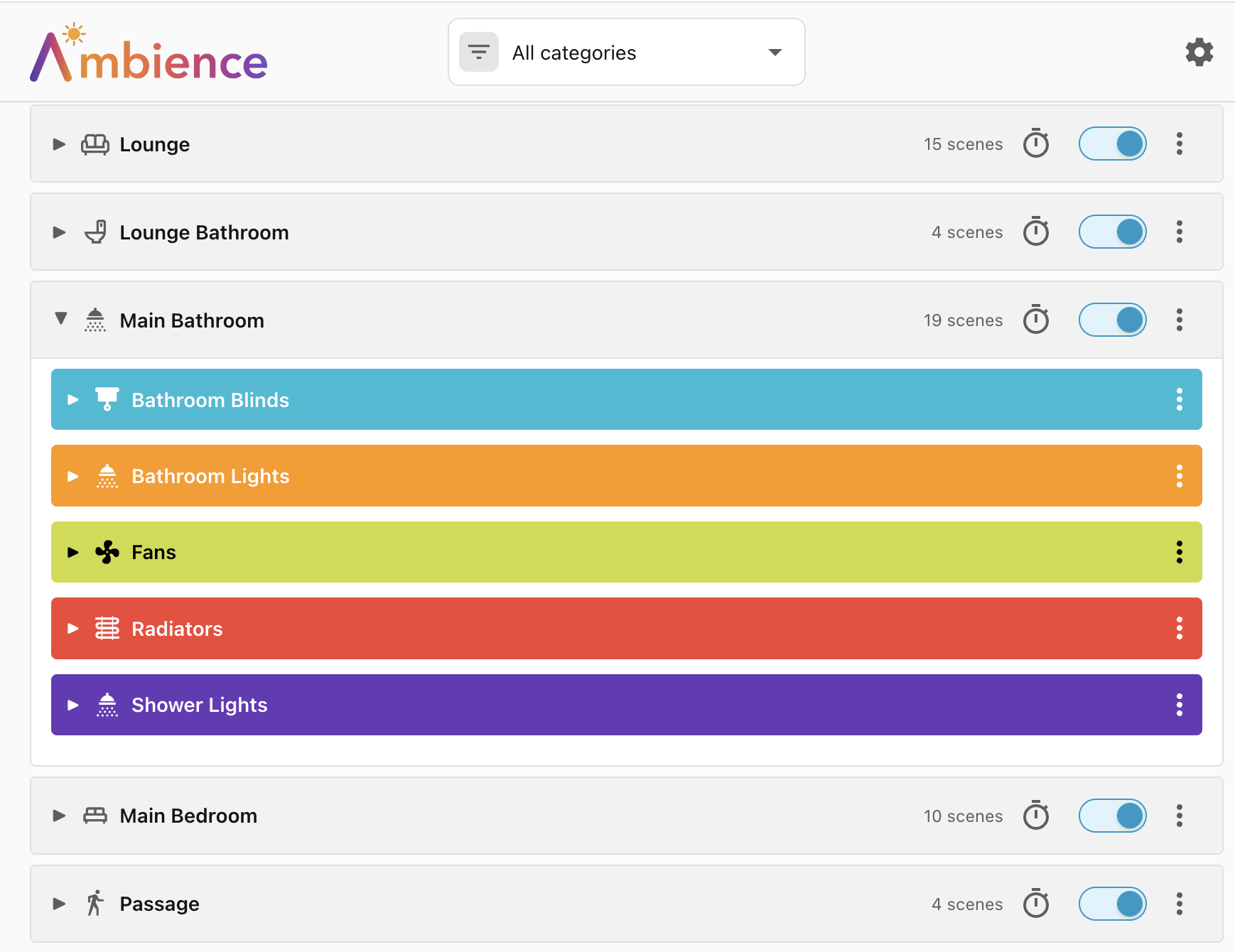
Ambience is a condition-based scene engine for Home Assistant. You describe scenes for a room — "Room is empty", "Movie time" — along with the conditions under which each scene should apply — "Projector is turned on", "Person in room", "Daytime", "Cloudy weather". Ambience watches your home and applies the best-matching scene automatically.
The problems with Scenes
Home Assistant already has a concept called Scenes.
- They describe the desired state of the devices in the room, not how those devices should reach that state. For instance, I want lights to fade in and out, not just turn on or off.
- They can be verbose, difficult to read, and it is difficult to compare one with another.
The problems with Automations
Automations are powerful, flexible, configurable, and generic. You can do anything with them but, most of the time, you just want to do a few things easily.
- They can be verbose and difficult to read, and it is difficult to compare one with another.
- They are trigger-based: "When a person enters the room, then turn the lights on." But what happens if the person is already inside the room? How do you apply the correct scene based on the current conditions?
- Competing automations can clash with each other for control over the same device.
- In spite of automation tracing, they are difficult to debug.
- It's not easy to detect dead or unreachable configuration.
- There's no simple way to disable all automations for a room or floor or house. You can disable individual automations, but when you re-enable them the room doesn't automatically update to the current desired state.
What Ambience does differently
Ambience changes the way to think about scene management. You can build sophisticated lifecycles out of a series of simple scenes.
Conditions, actions, and auto-triggers
Instead of defining the events that trigger a change of scene — somebody enters the living room, or somebody turns on the projector — think about the conditions that define the scene — somebody is in the room, or the projector is on.
Then, given that context, think about the state that the devices in that scene should be in, and how they should reach that state:
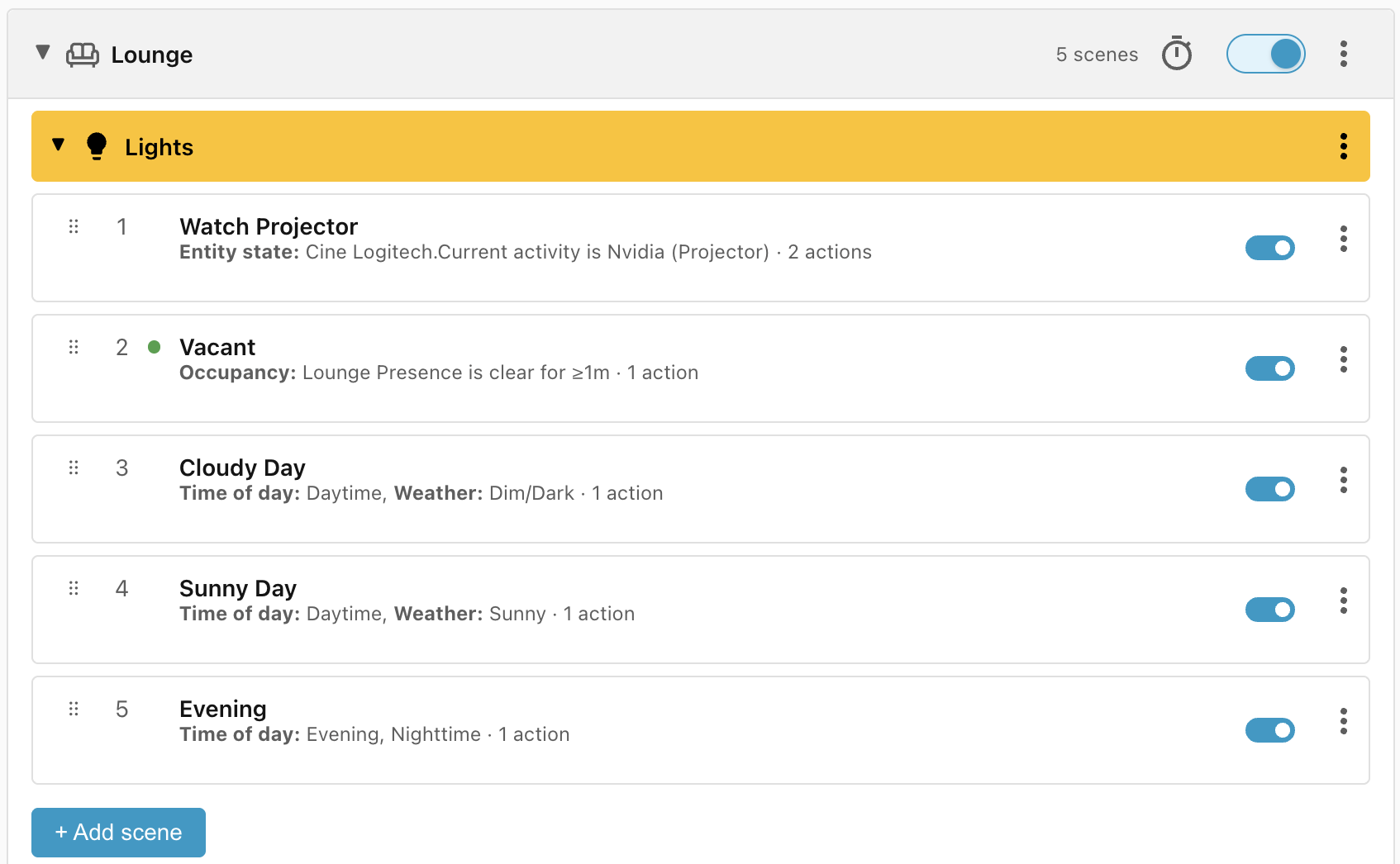
| Conditions | Device state |
|---|---|
| The projector is on for movie time | Fade lights off, except side-table lights at 10% |
| The room is vacant for more than 1 minute. | Fade lights off |
| The room is occupied during the day, when it is sunny | Fade lights to 40% |
| The room is occupied during the day, when it is cloudy | Fade lights to 60% |
| The room is occupied during the evening or nighttime | Fade lights to 25% |
These conditions are automatically sorted by priority and specificity, and they are used to automatically derive triggers so that you don't have to think about it. When one of these triggers fires, the conditions are reassessed, the highest priority matching scene wins, and the winning scene is applied by calling the specified actions.
Scopes and categories
A scene (a named set of conditions and actions) belongs to a scope (i.e. the whole House, a Floor, or an Area or room). While conditions can reference entities anywhere in the house, actions are limited to the devices in the chosen scope. This is to make them simpler to manage and specify.
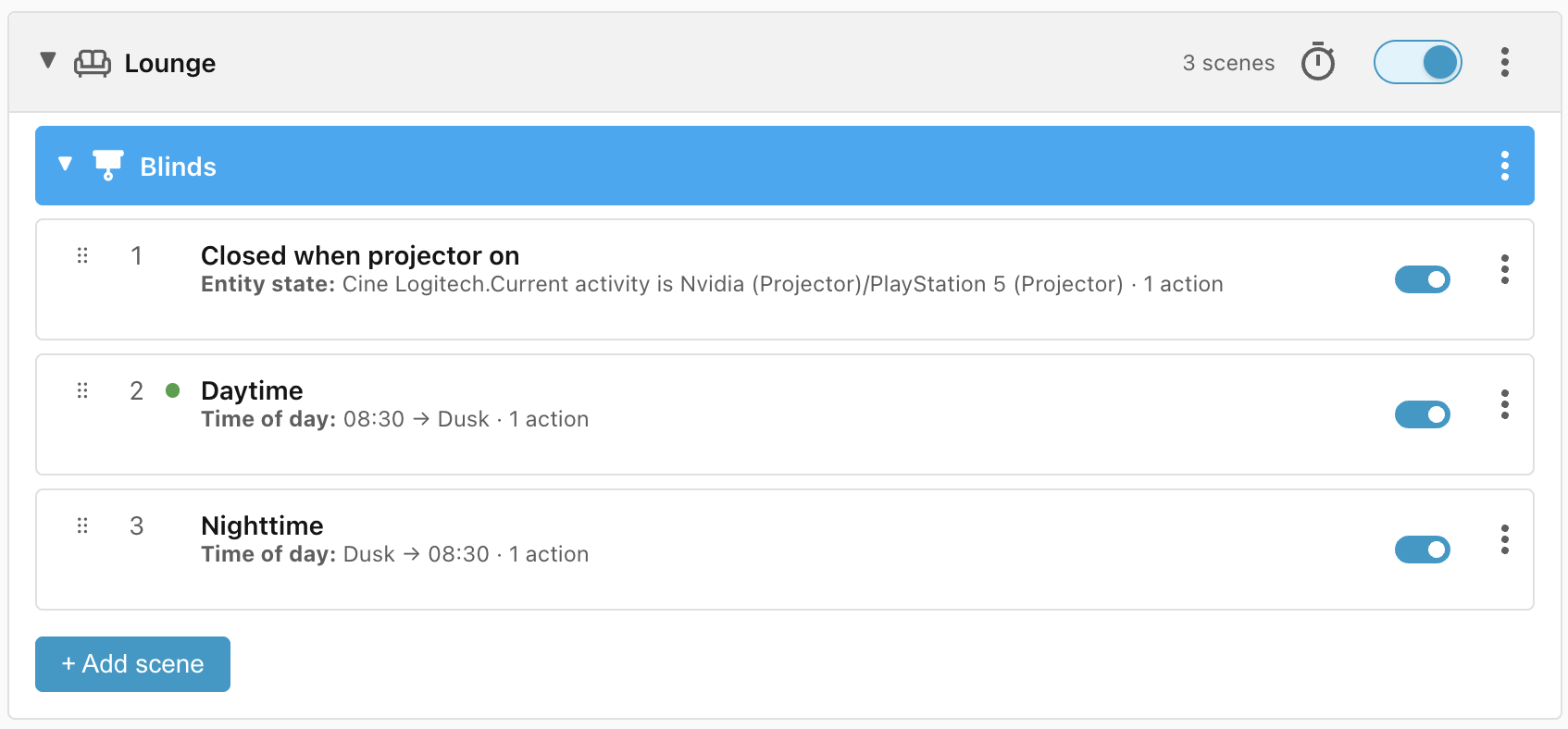
On top of that, different categories of devices are subject to different lifecycles. The lights from our previous example are governed by different conditions than would be window blinds, although some of those conditions might overlap:
| Conditions | Device state |
|---|---|
| The projector is on for movie time | Blinds closed |
| Between dusk and sunrise (but not before 8:00) | Blinds closed |
| Between sunrise (but not before 8:00) and dusk | Blinds open |
A single winning scene is chosen only from the scenes belonging to the same scope and category, known as a scene group. Because exactly one scene wins per scene group, there is no way for two rules to clash over the same device; the winner is always well defined.
Actions
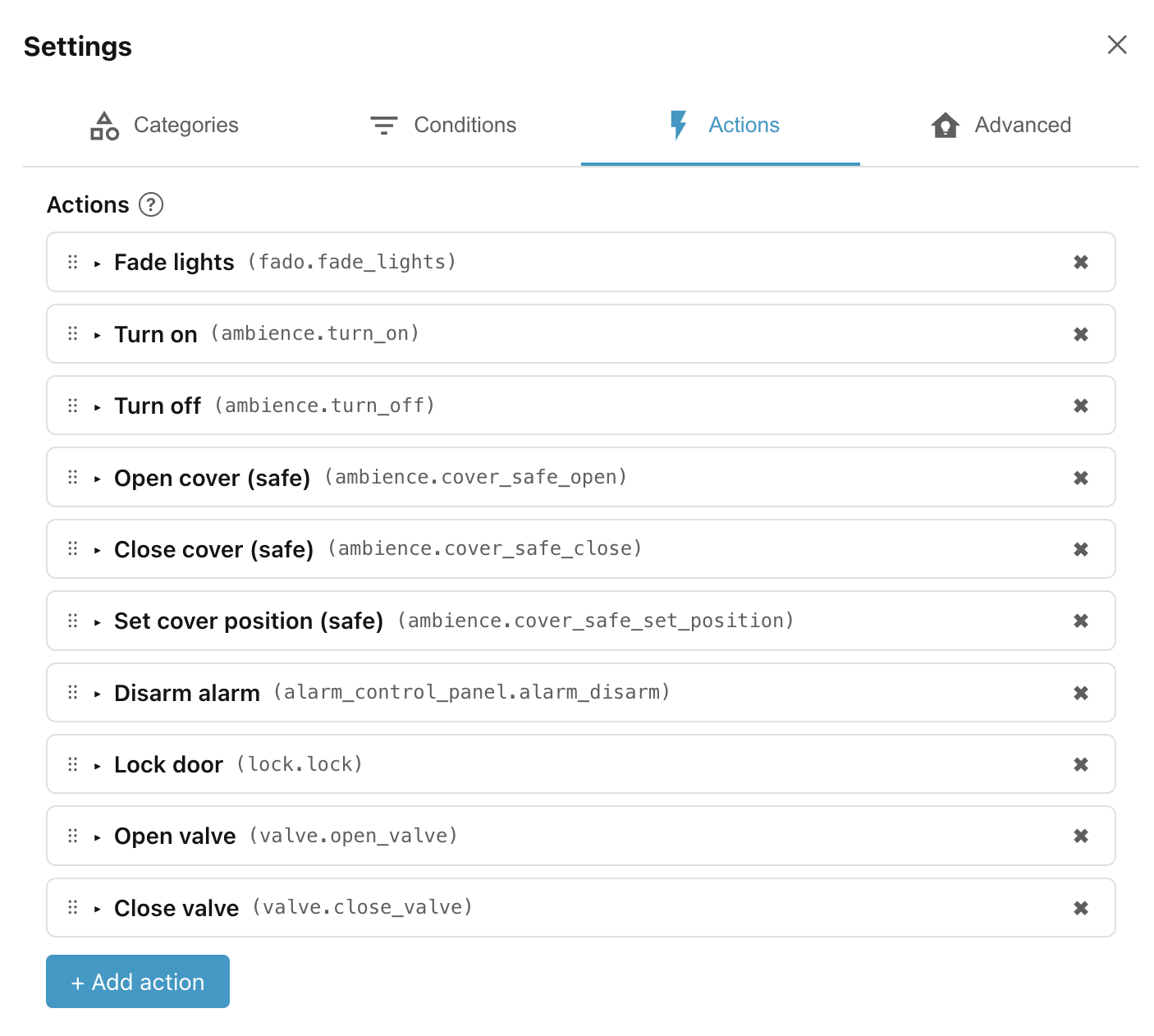
Home Assistant Scenes allow you to specify the state that you want devices to achieve. In Ambience you specify which actions to call to apply the new state. That means you can control how entities achieve the desired state.
For instance, many lights don't support the transition parameter provided in
HA Scenes. Instead you can use the
Fado Light Fader custom integration
that provides smooth light fading for brightness, colours, and colour
temperatures, and support for native transitions where available.
To make scene configuration simpler, you expose just the actions that you need, with just the fields that matter to you.
Triggers
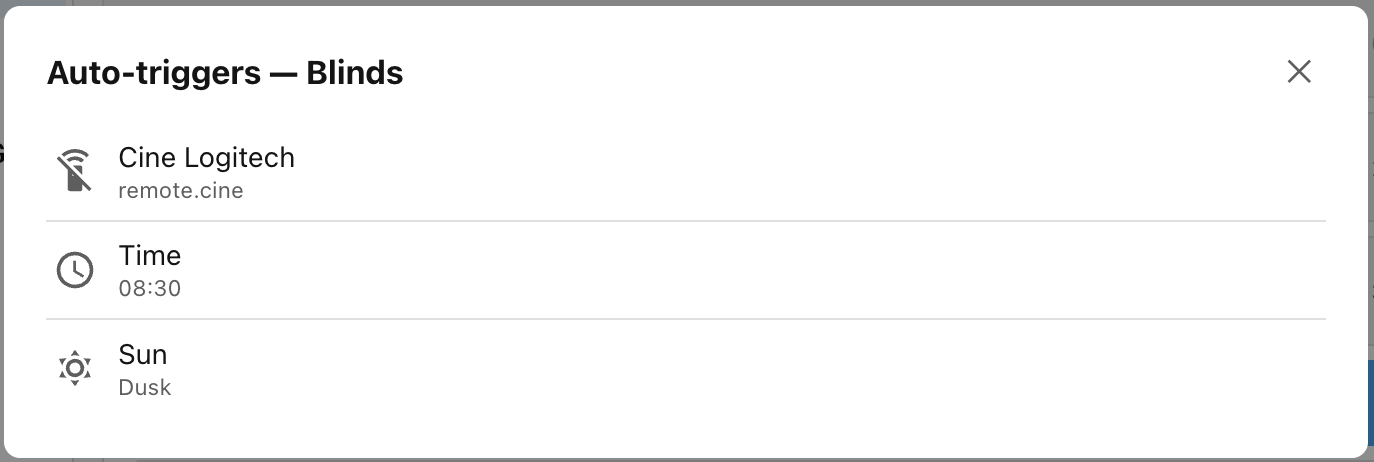
Ambience examines all of the conditions in a scope/category group and automatically generates a list of triggers to install. When any of those triggers fires, all of the scenes in that group are reassessed and the winning scene is applied.
Switches
Each scope has its own independent toggle that pauses or resumes Ambience's automatic control for that scope. The House and Floor toggles cascade downwards, so if you turn off the Floor toggle it will also turn off the Areas on that floor, and if you turn off the House toggle it'll disable Ambience everywhere. But because toggles are independent, you can, for example, turn off the House toggle and then reenable just the room you are in.
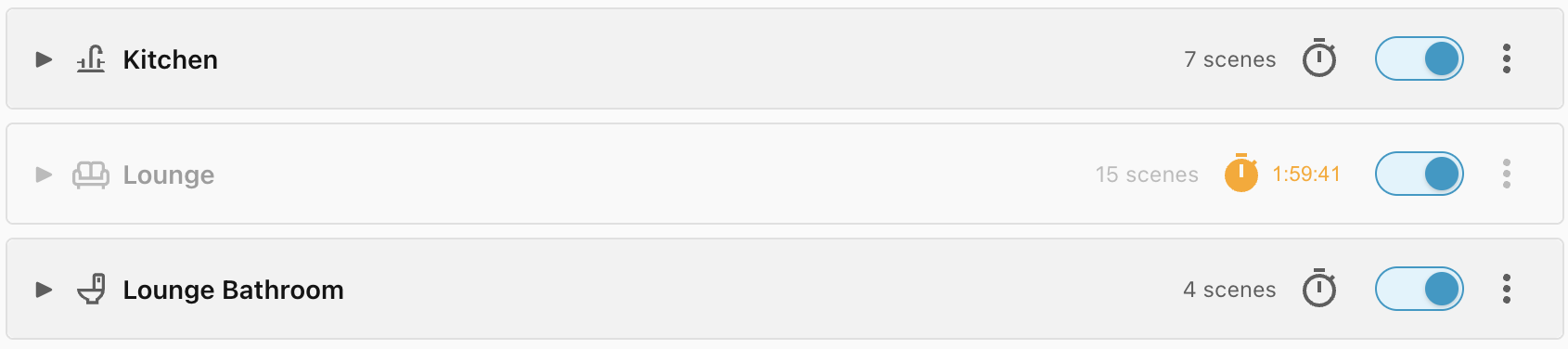
These switches can be added to a dashboard or exposed to your voice assistant so that a simple "Hey Google, turn off Ambience" will pause automations in your current room until you turn them on again, or for a configurable number of minutes.
Readable, traceable, and testable
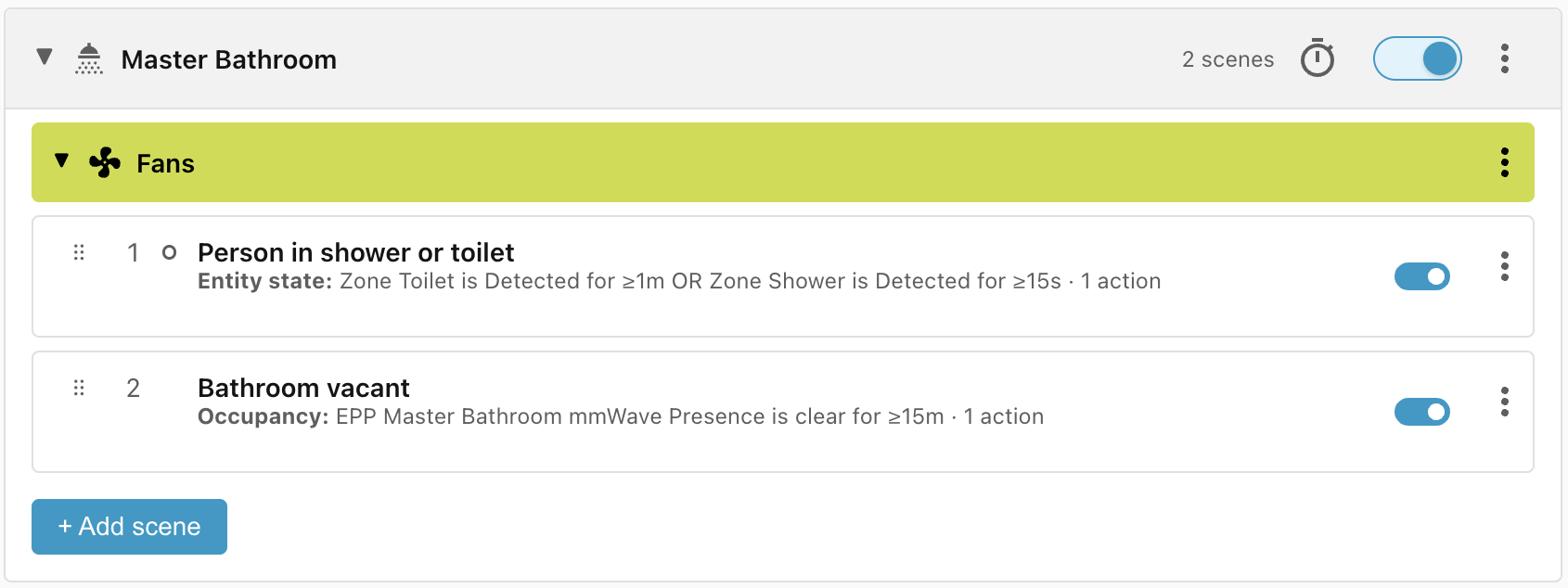
Scenes are described using human-friendly language with a compact format that makes them easy to understand and to compare with each other.
Here are two simple rules which control an extractor fan in a bathroom:
- Person in shower or toilet: When a person has been in the shower for at least 15 seconds, or on the toilet for at least 1 minute, then turn on the extractor fan.
- Bathroom vacant: When the bathroom has been vacant for at least 15 minutes, turn off the fan.
Tracer
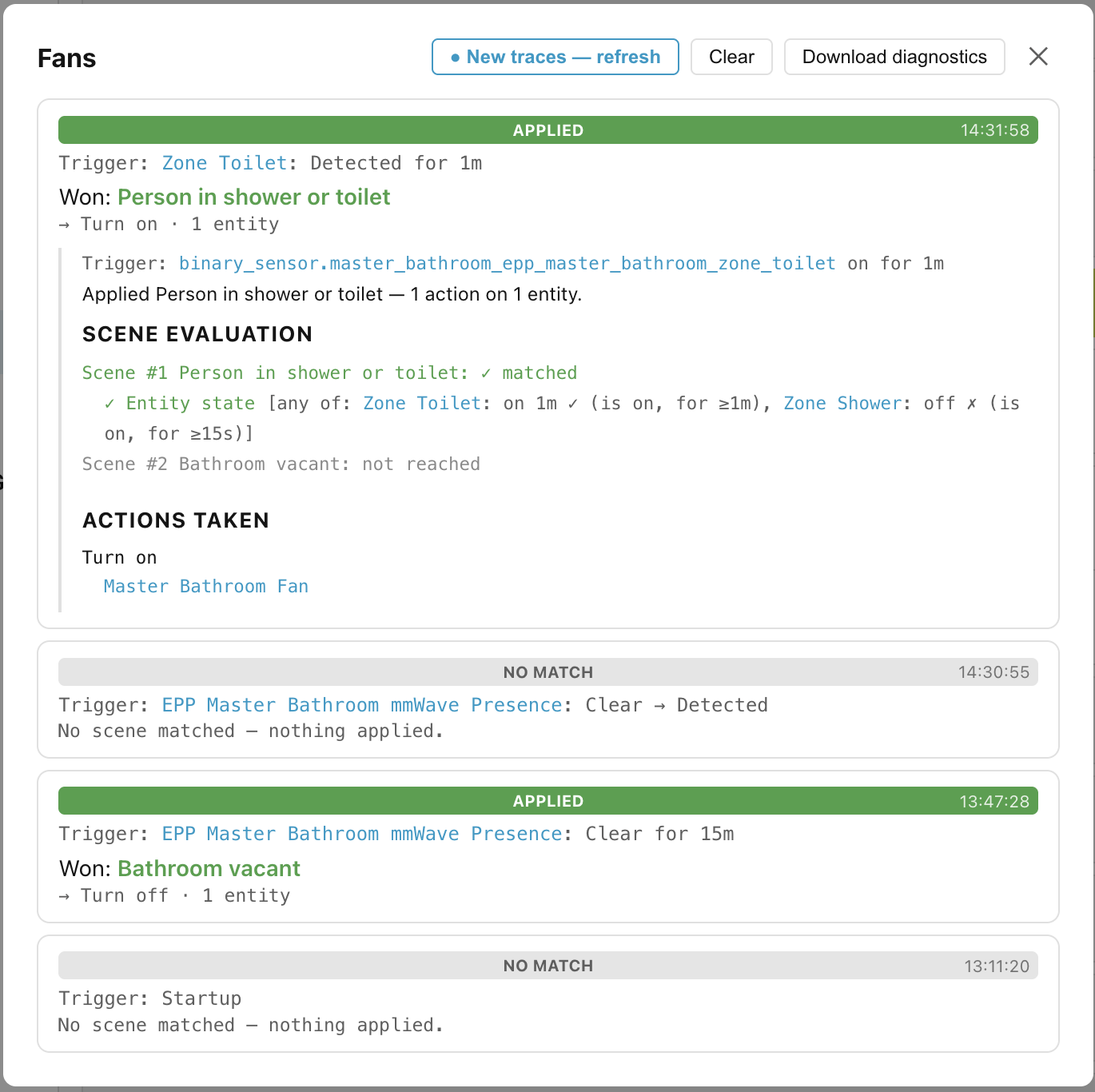
The details of the five most recent executions can be viewed to determine which scene won and why the other scenes failed to match. Below is a trace explaining why the Person in shower or toilet scene won.
Simulator
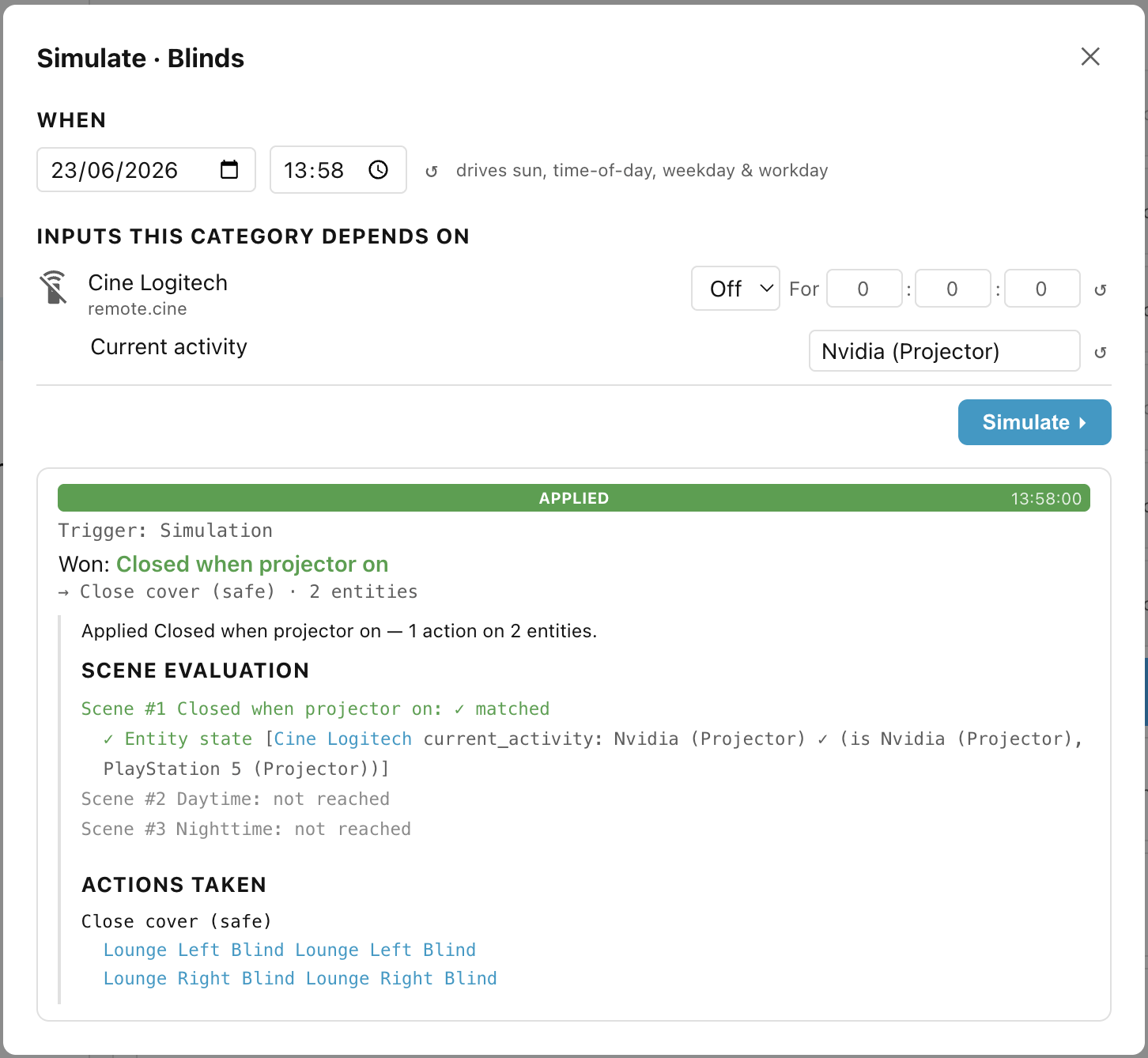
You can even use the simulator to change the current conditions (e.g. time or weather) to see if your conditions are working as you expected.
Flagged problems
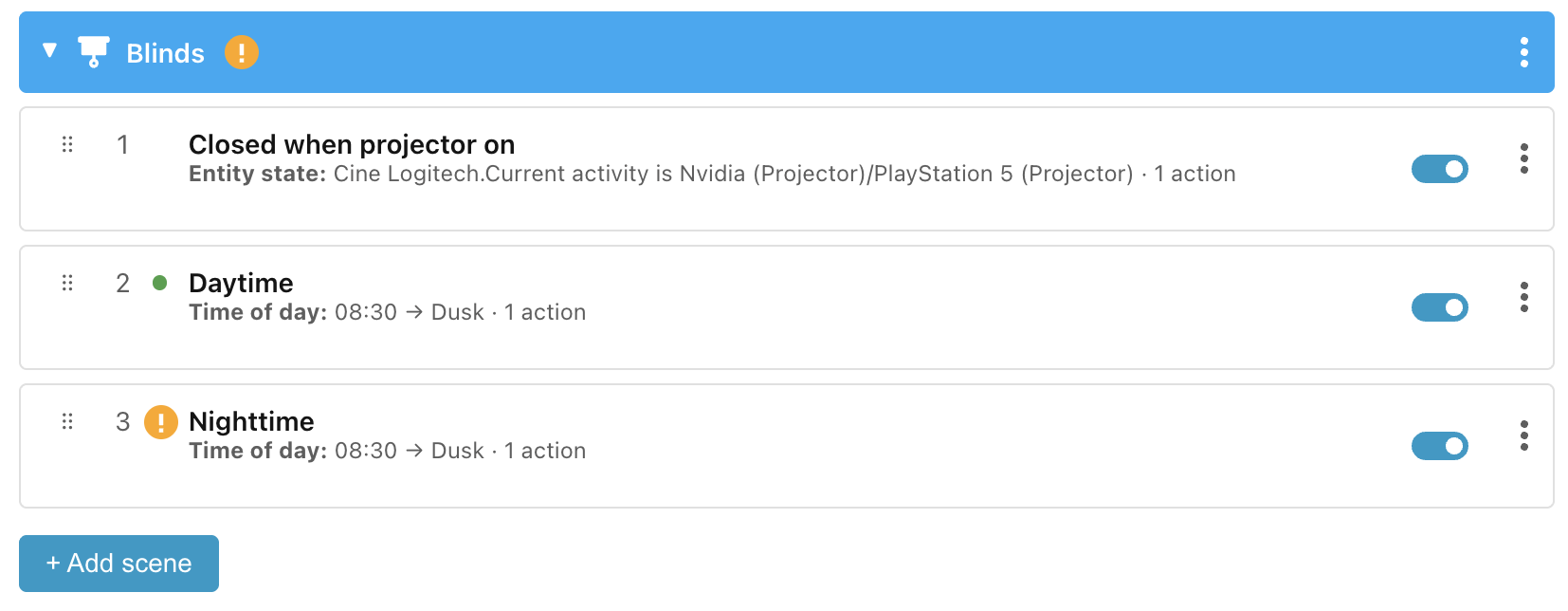
The editor also flags unreachable scenes — scenes that can never win because an earlier scene will always match first, making it obvious where problems need to be solved.
Ready to try it? Start with Installation.