Step 7: Blocking scenes
The pedants amongst us will have noticed that we only turn off the lights once the room has been vacant for one minute. We never check that the room is actually occupied. How is it possible for the room to not be recently occupied, but for it to be vacant for less than one minute?
This will happen when we restart Home Assistant. The occupancy sensor state will be Unknown before switching to Clear. For the next 60 seconds, the lights in the Lounge will come on until the Vacant scene matches again.
We can prevent this by checking that the room is actually occupied, but we don't want to have to add the check to all four Movie, Nighttime, Daytime Sunny, and Daytime Cloudy scenes, all of which currently benefit from the single occupancy check in the Vacant scene.
Adding a blocking scene
Instead, we can add a blocking scene — a scene with conditions but no actions:
- Click + Add scene.
- Change the name to Block until room occupied.
- Add the Occupancy condition with entity Lounge Presence, and change is to is not (and the default Detected).
- Click Save scene.
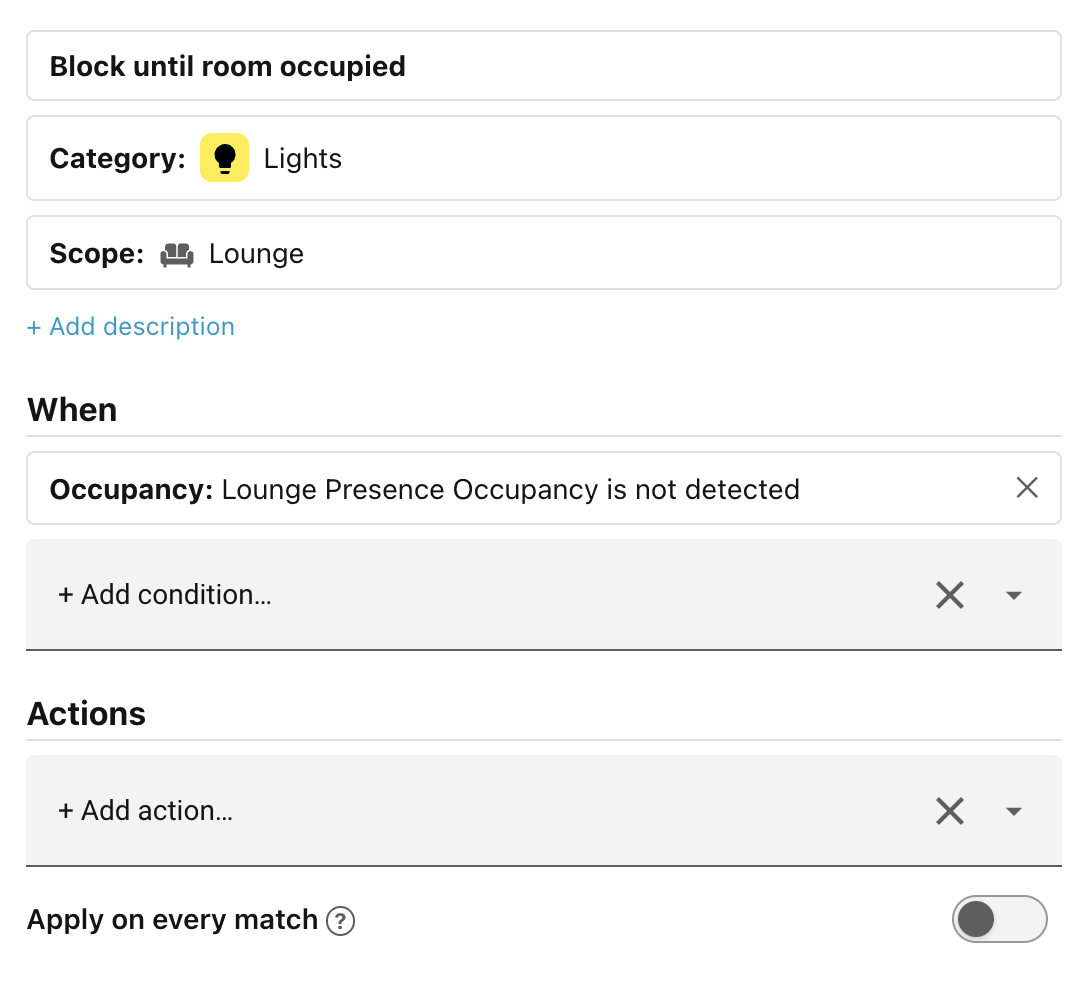
By default, this scene sorts below the Movie scene, so you may want to drag it to just after the Vacant scene instead, to make sure that all scenes except Vacant are gated on actual occupancy.
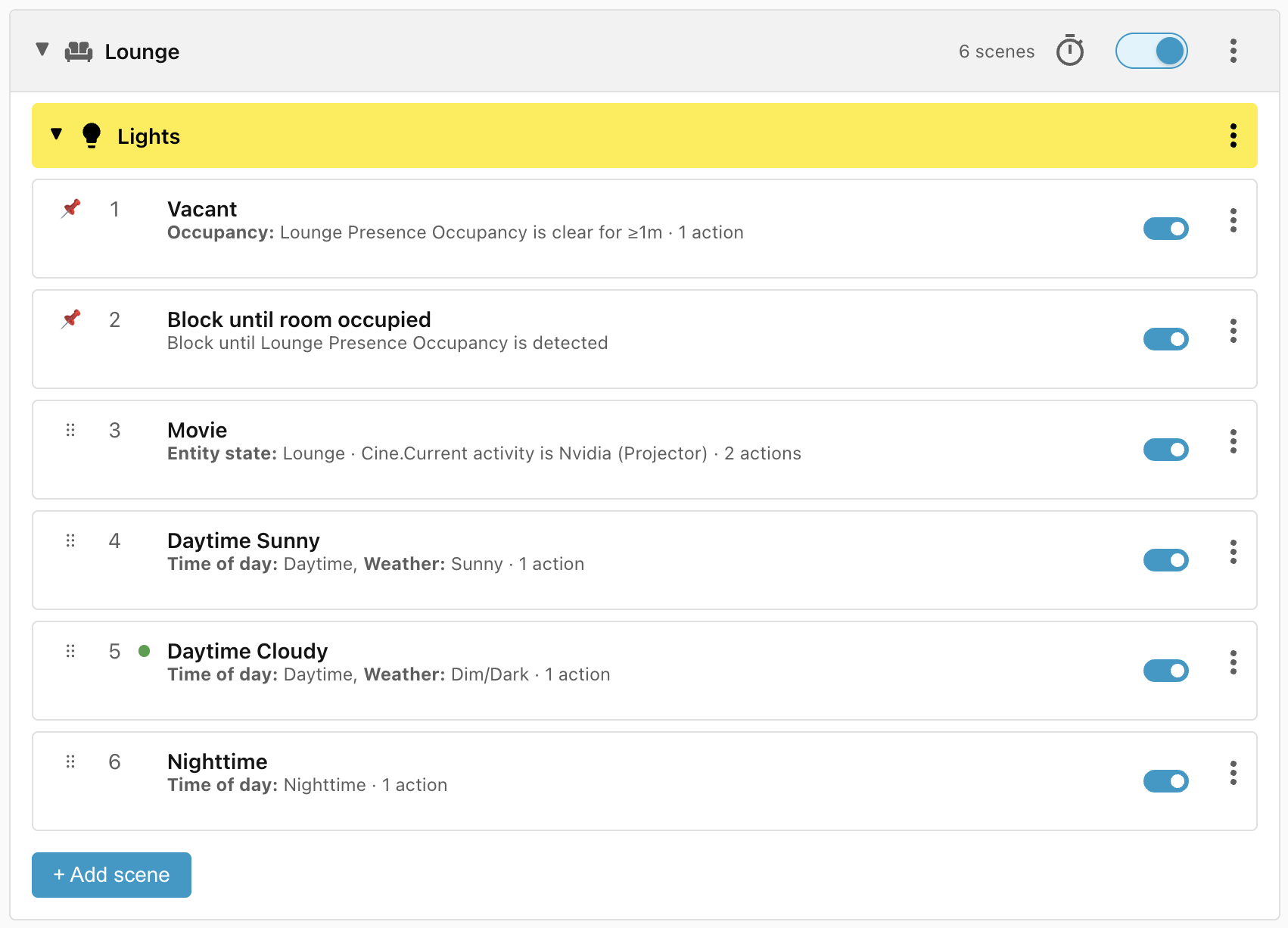
Writing blocking conditions
Sometimes it can be a bit confusing figuring out how to express the right blocking condition, especially when many AND, OR, or NOT clauses are involved. The easiest way to think about it is to say "In what situation should execution pass to the next scene?" Write that condition, then add a NOT in front of it.
Execution of blocking scenes
When a blocking scene is the current best matching scene, then it is marked with the winning scene green dot. However, it has no actions to apply, so the last scene with actions that were applied is marked with a grey hollow dot.
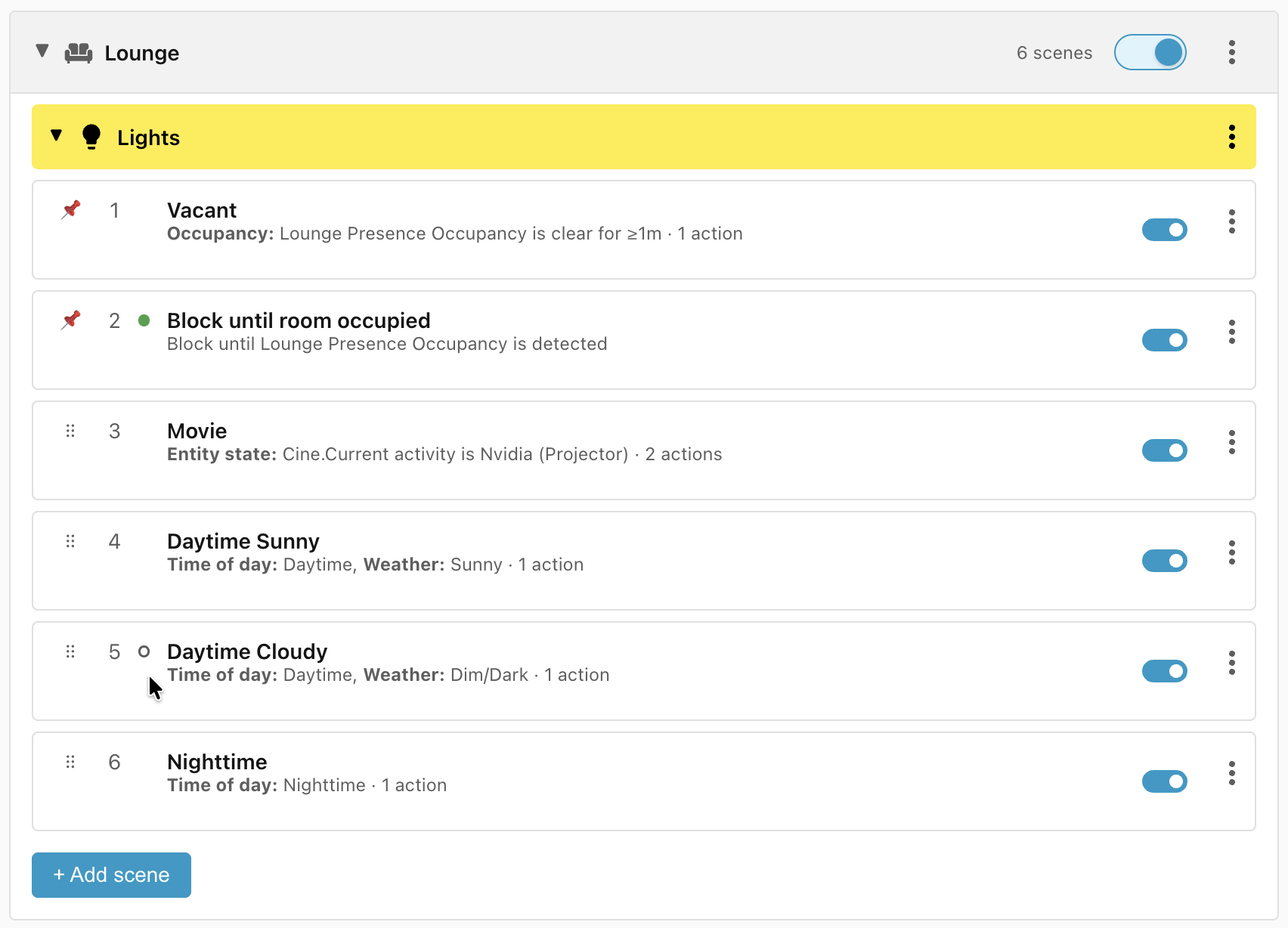
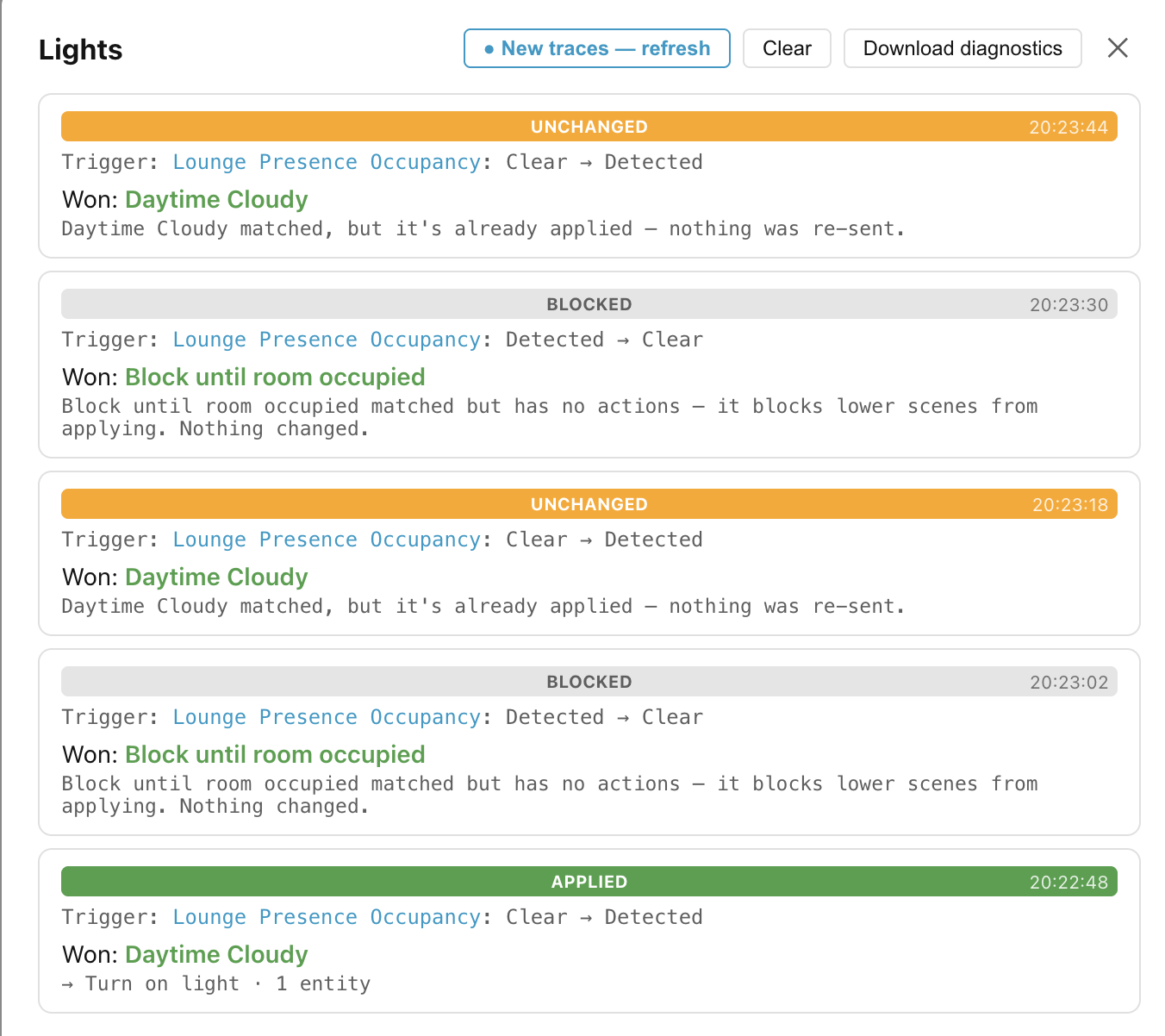
If the scene with the grey dot wins again directly after a blocking scene, then the actions are not re-applied because we assume that they are still in force from the previous time this scene won.
This can be seen in detail by clicking the ⋮ icon to the right of the Lights header and selecting View traces:
No match
It is possible to have a scene group where none of the scenes match, in which case the Trace records a No match result, and no scene is marked with a green or grey dot. This is distinct from the blocking scene case. When a scene does match after a no match, its actions will be applied, even if it was the scene which had won the previous time.