Step 4: Weather conditions
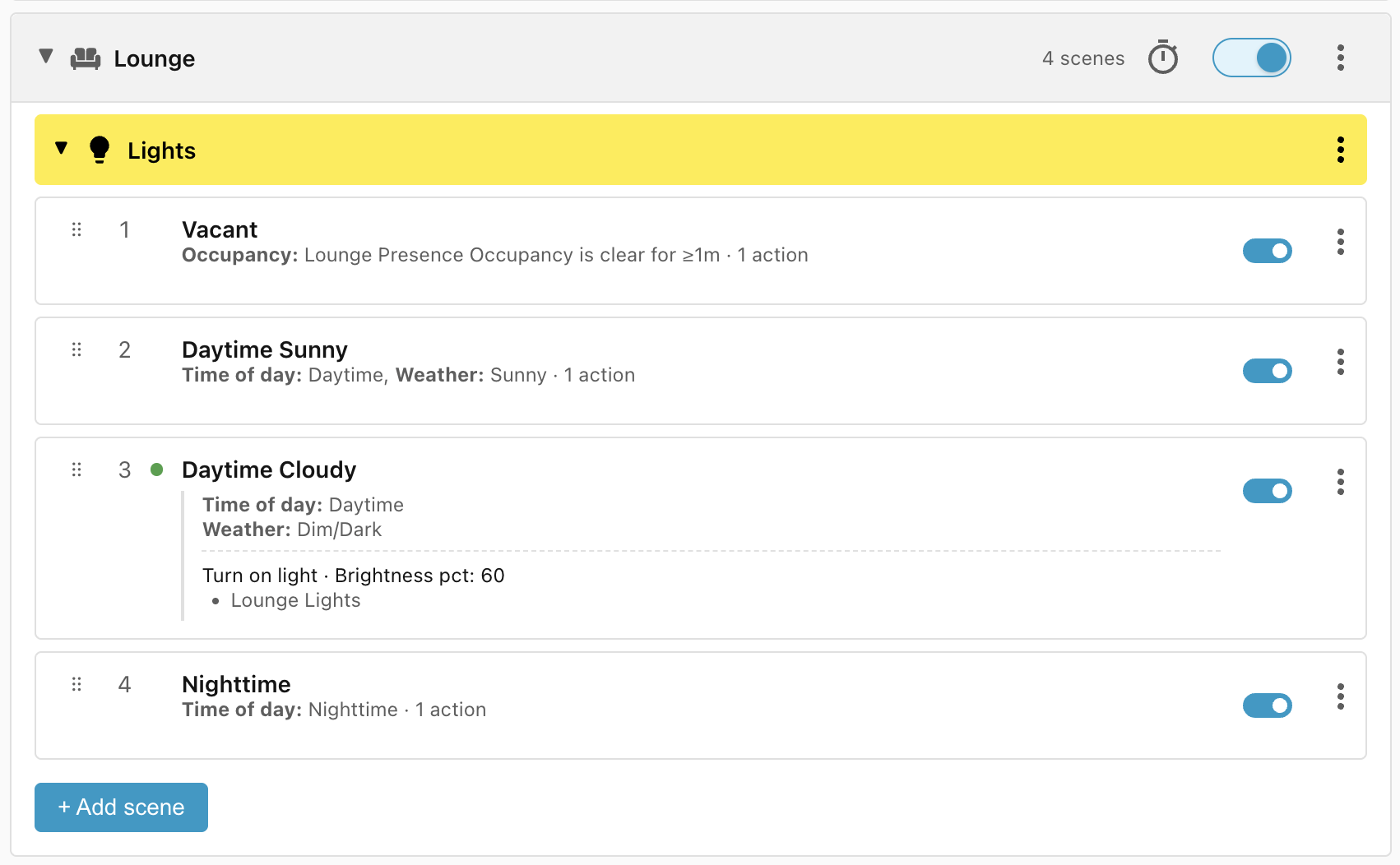
Next up are the Daytime scenes, one for when the weather is sunny and one for when the weather is cloudy.
Add a Weather integration
To use the Weather condition, it needs to know which Weather integration you prefer. If you don't already have a Weather integration set up, you can just use the built-in Meteorologisk institutt:
- Click: Settings > Devices & services > + Add integration.
- Search for and select "Meteorologisk institutt".
- You probably don't need to change any of the configuration, maybe Elevation.
- Click Submit
Weather services
For more info about the various weather integrations available in Home Assistant, see the Definitive guide to Weather integrations.
Configure the Weather condition
Now that we have a weather integration set up, we need to configure the Weather condition to use it:
- Open the Ambience panel.
- Click the cogwheel (⚙) in the top right corner.
- Select the Conditions tab.
- Click on the Weather condition to expand it.
- Click Select an entity and select your newly created weather forecast.
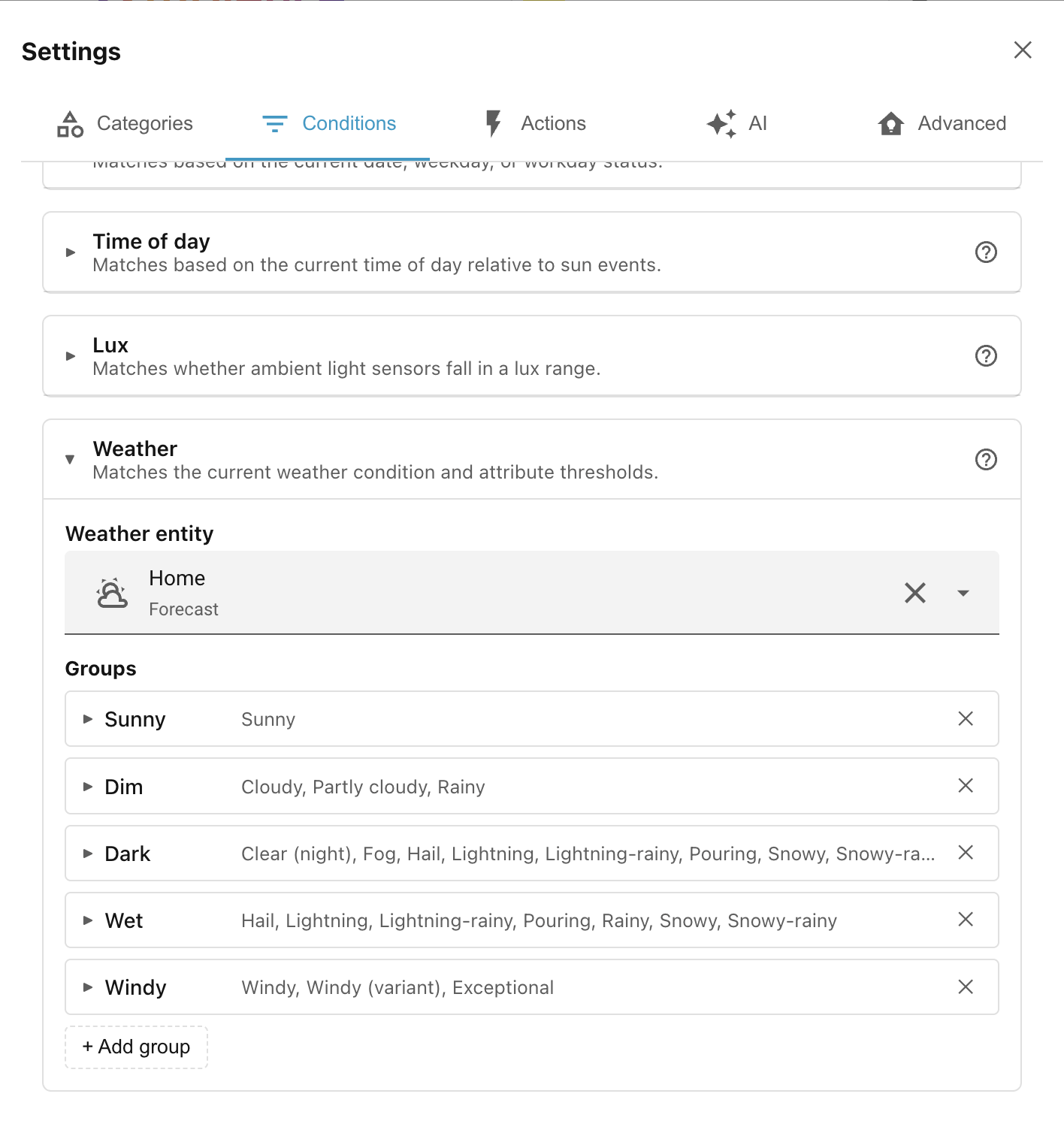
You can see that the Weather condition comes preconfigured with various groups. For instance the Dim group includes Cloudy, Partly cloudy, and Rainy. You can add your own groups and even override the built in groups to suit your needs.
Using the Weather condition
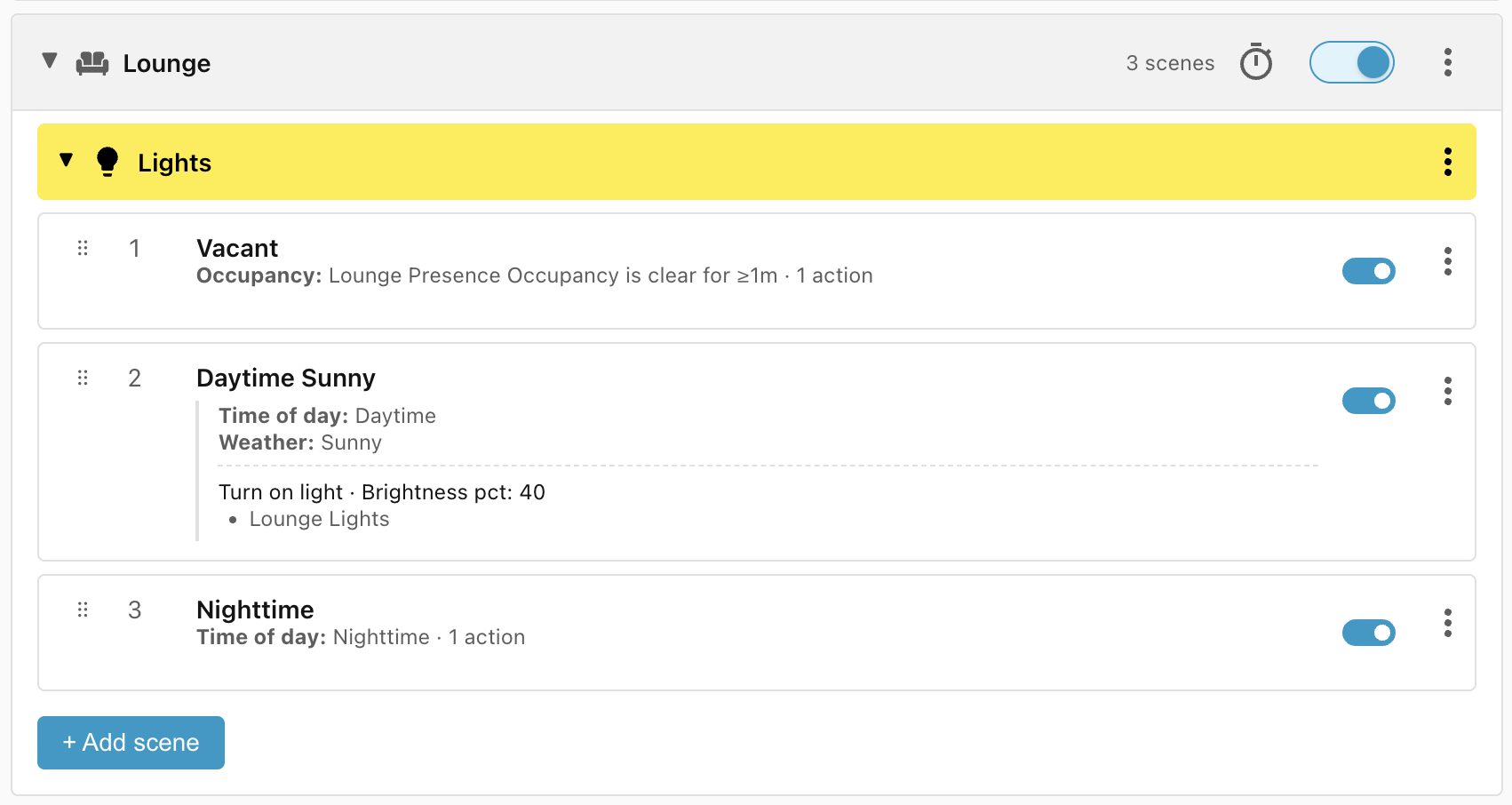
Now that the Weather condition is set up, we can use it in our Daytime Sunny scene — set the lights to 40% when it is sunny:
- Click + Add scene.
- Change the name to Daytime Sunny.
- Add condition Time of day and select Daytime.
- Add condition Weather and check Sunny.
- Add action Turn on light, select target Lounge Lights, and set the Brightness pct to 40%.
- Click Save scene.
Duplicating a scene
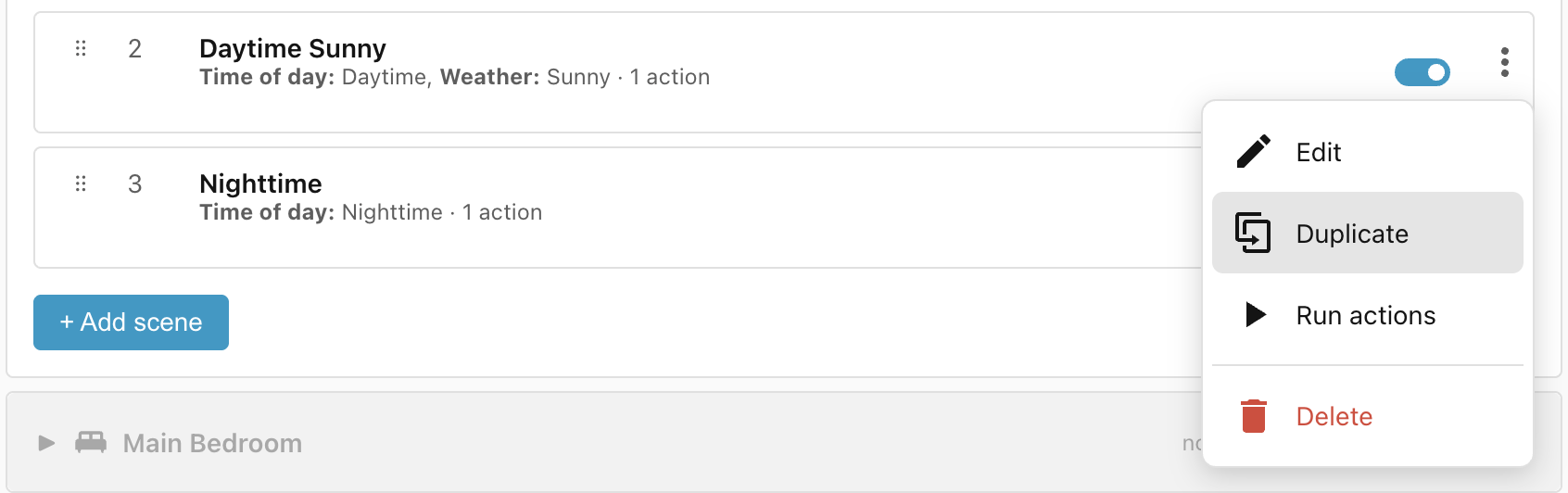
The Daytime Cloudy scene is almost identical to Daytime Sunny so we can just duplicate that one and edit it:
- Click the ⋮ icon to the right of the Daytime Sunny scene and select Duplicate.
Duplicating to other scene groups
The Duplicate function is also useful for copying a scene into other scopes or categories, for instance if you need to replicate a lifecycle from one bedroom to another.
Then:
- Change the name to Daytime Cloudy.
- Click on the Weather condition to edit it and check Dim and Dark instead of Sunny.
- Click on the Turn on light action and change the Brightness pct to 60%.
- Click Save scene.