Step 9: Debugging scenes
Ambience gives you several ways to see what your scenes are doing and why: a record of what has already happened (the activity log), plus a set of live tools in the ⋮ category menu.
Activity log
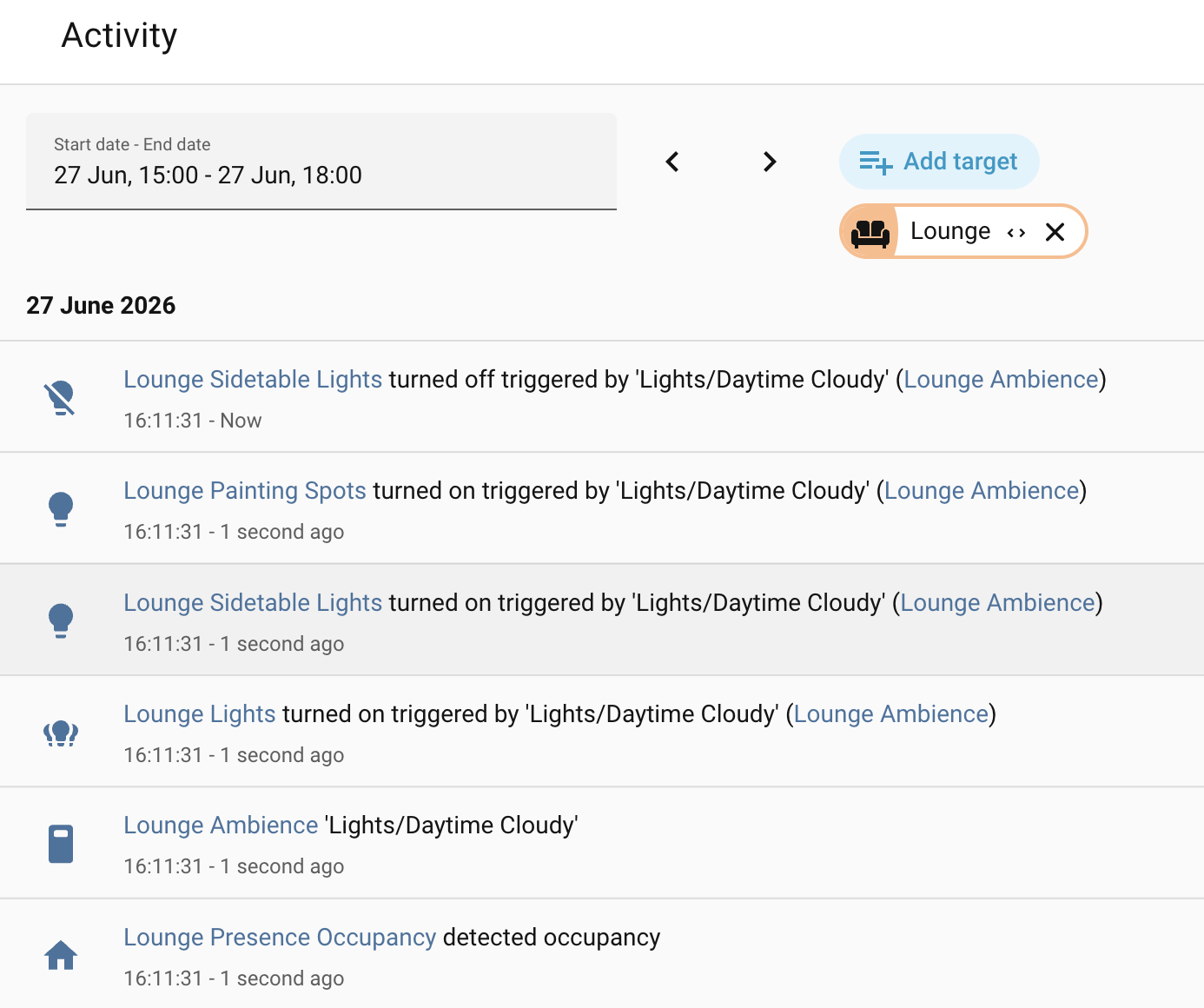
Every time a scene is applied, Ambience records it in Home Assistant's Logbook, against that scope's pause switch.
Because each area's switch is tied to the same area, you can open the Logbook and filter by area to see only the scene activity for that space. The devices the scene changed are attributed to it as well so you can trace a device's change back to the scene that caused it. Entries persist for as long as Home Assistant's Logbook retains history; there is no separate Ambience limit.
The category menu
The rest of the debugging tools live in the menu behind the ⋮ icon to the right of the Lights category header.
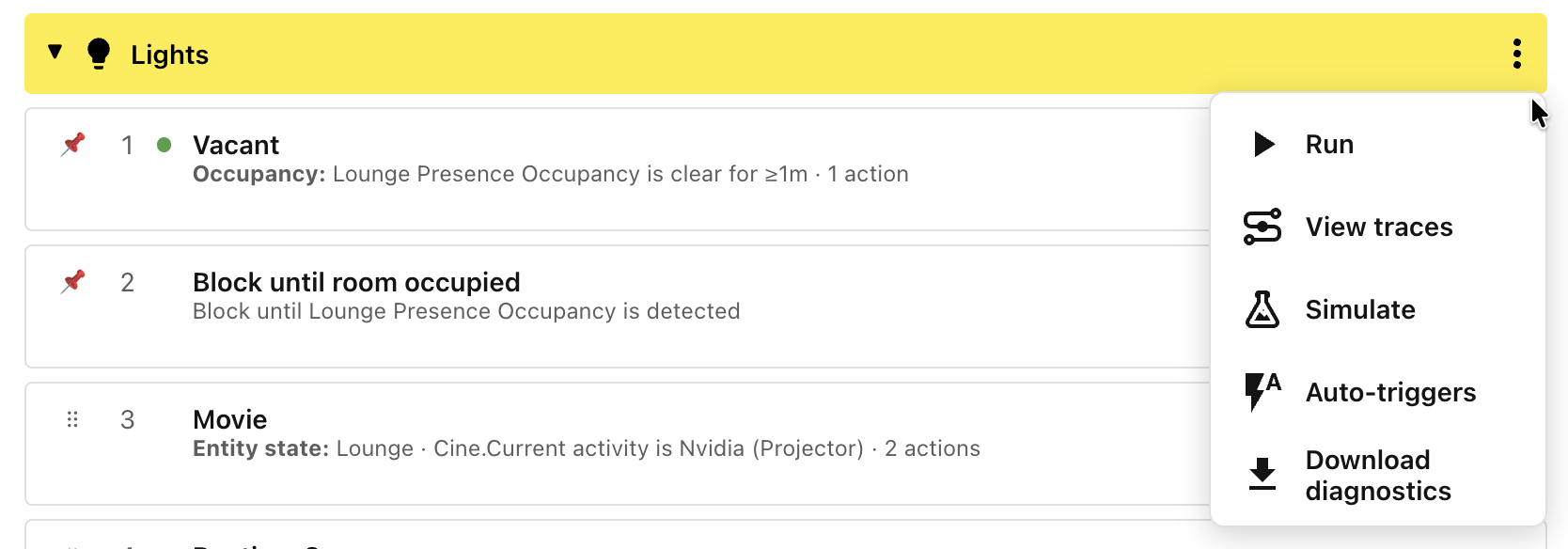
Auto-triggers and Run
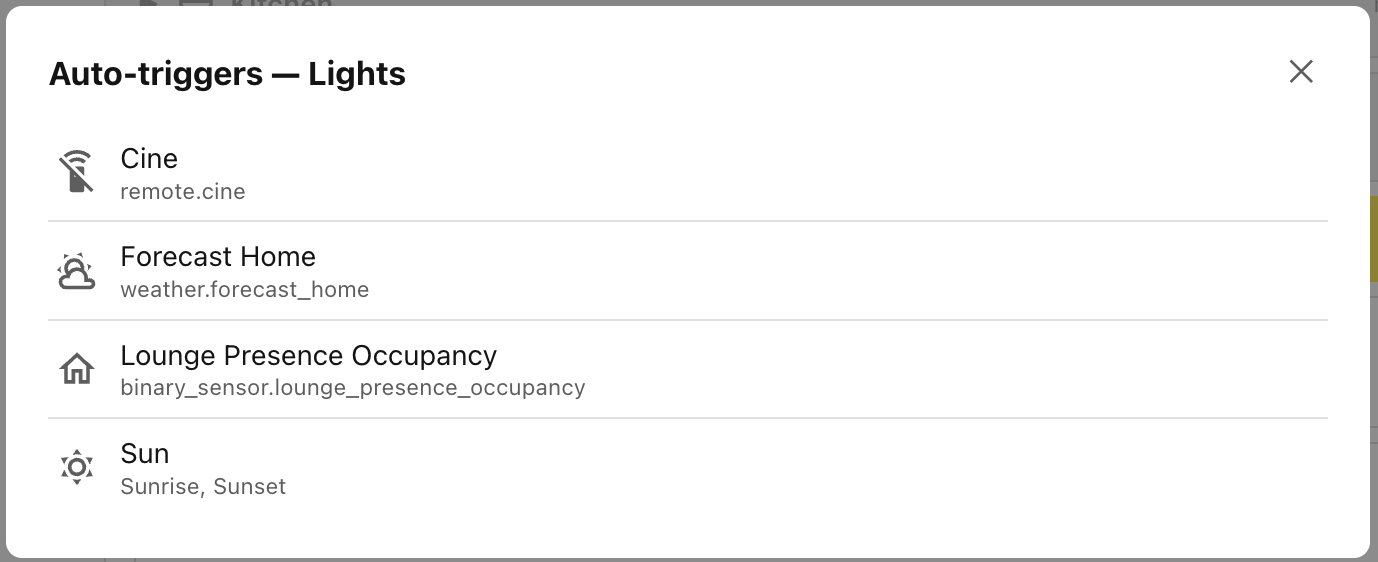
The Auto-triggers option will show a list of all of the triggers automatically derived from the various conditions that you have specified. They are specific to the scenes in the scope/category group. Whenever any of the triggers is fired, all of the scenes in the scope/category group are reassessed to determine the new winning scene (if any).
You can force the scenes to be reassessed without waiting for a trigger by clicking the Run option.
Traces — why a scene won
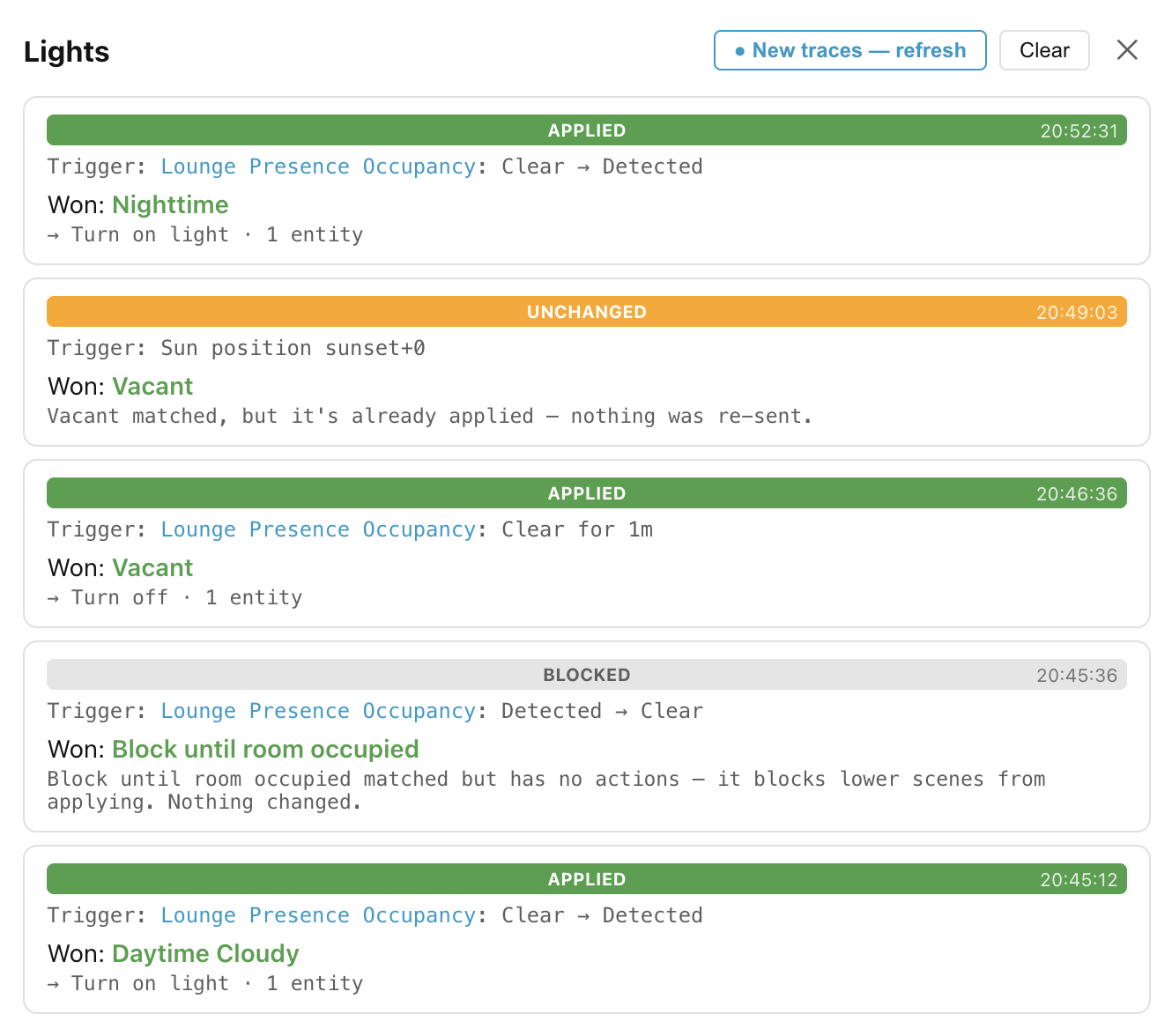
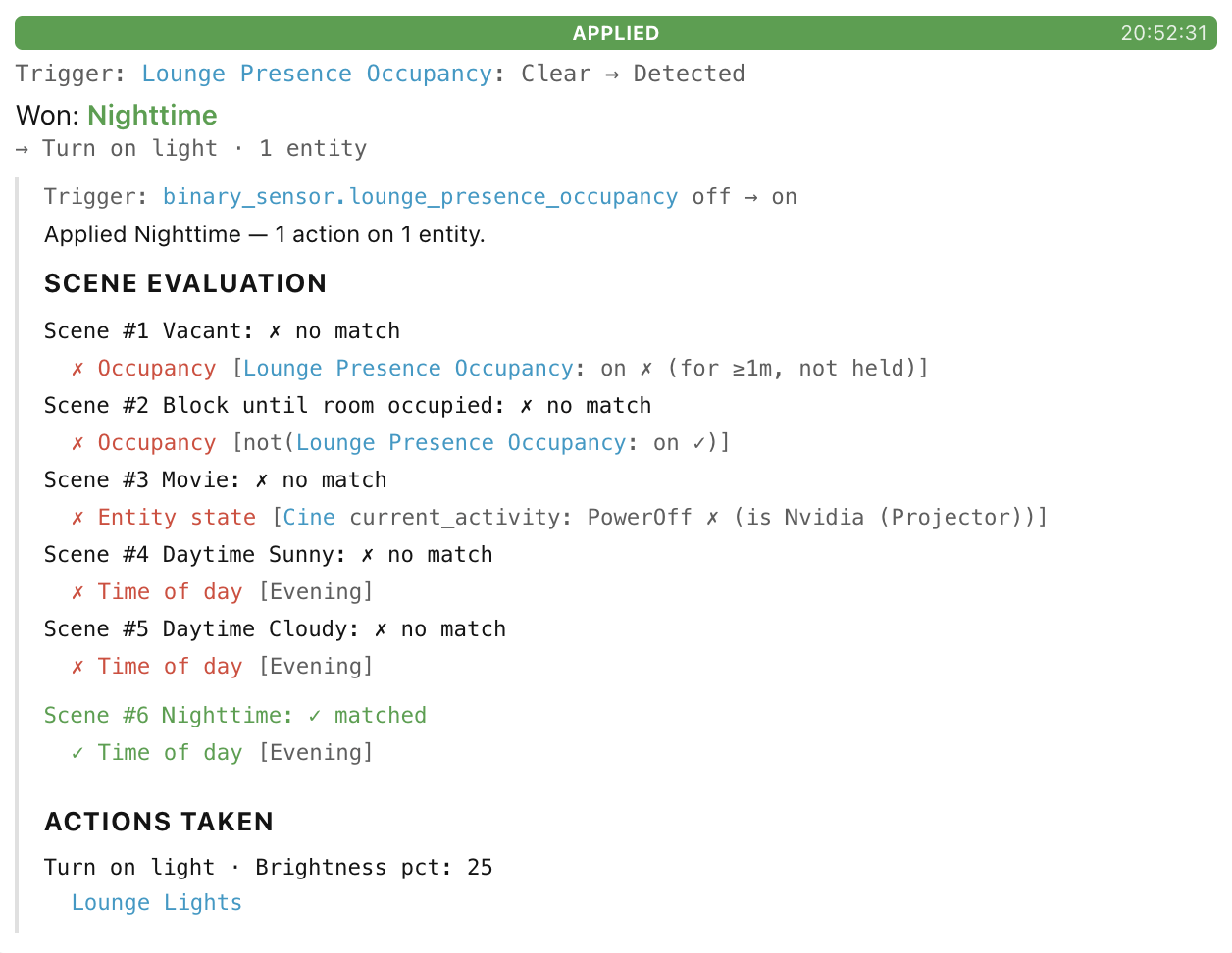
Every time Ambience evaluates a scope/category pair it records a trace: what triggered the evaluation, which scene won (if any), and how each condition came out. Click View traces in the category menu to browse these recent evaluations without leaving the panel. A Refresh button appears highlighted when Ambience has recorded newer entries since you opened the viewer.
Reading a trace entry
Each entry has a coloured outcome bar:
-
applied (the winning scene's actions ran, also when triggered by Run or a Re-run),
-
blocked (a scene won but has no actions to run — a pure blocker),
-
unchanged (a scene won, but it is the one already applied, so its identical actions were suppressed),
-
no match (no scene matched), or
-
skipped (the unit was not evaluated — expand it to see why: the scope's pause switch is off, the scope is disabled, or the triggering entity dropped out).
Below the bar, each entry shows:
- the Trigger that caused the scene group to be evaluated, such as an entity state change, the Time of day, Sun position, Startup of Home Assistant, the scope config was Reloaded, and more,
- and the scene that Won (if any).
Expanding the detail
Click a trace's outcome bar to expand it — the whole bar is the toggle. The expansion adds two sections:
-
Scene evaluation lists every scene that was considered, whether it matched or not, and why.
-
Actions taken lists every service call that was made, with the action name, any parameters (for example
Turn on light · Brightness: 60), and the entities targeted. An action whose service is no longer exposed is tagged skipped (not exposed).
Simulate
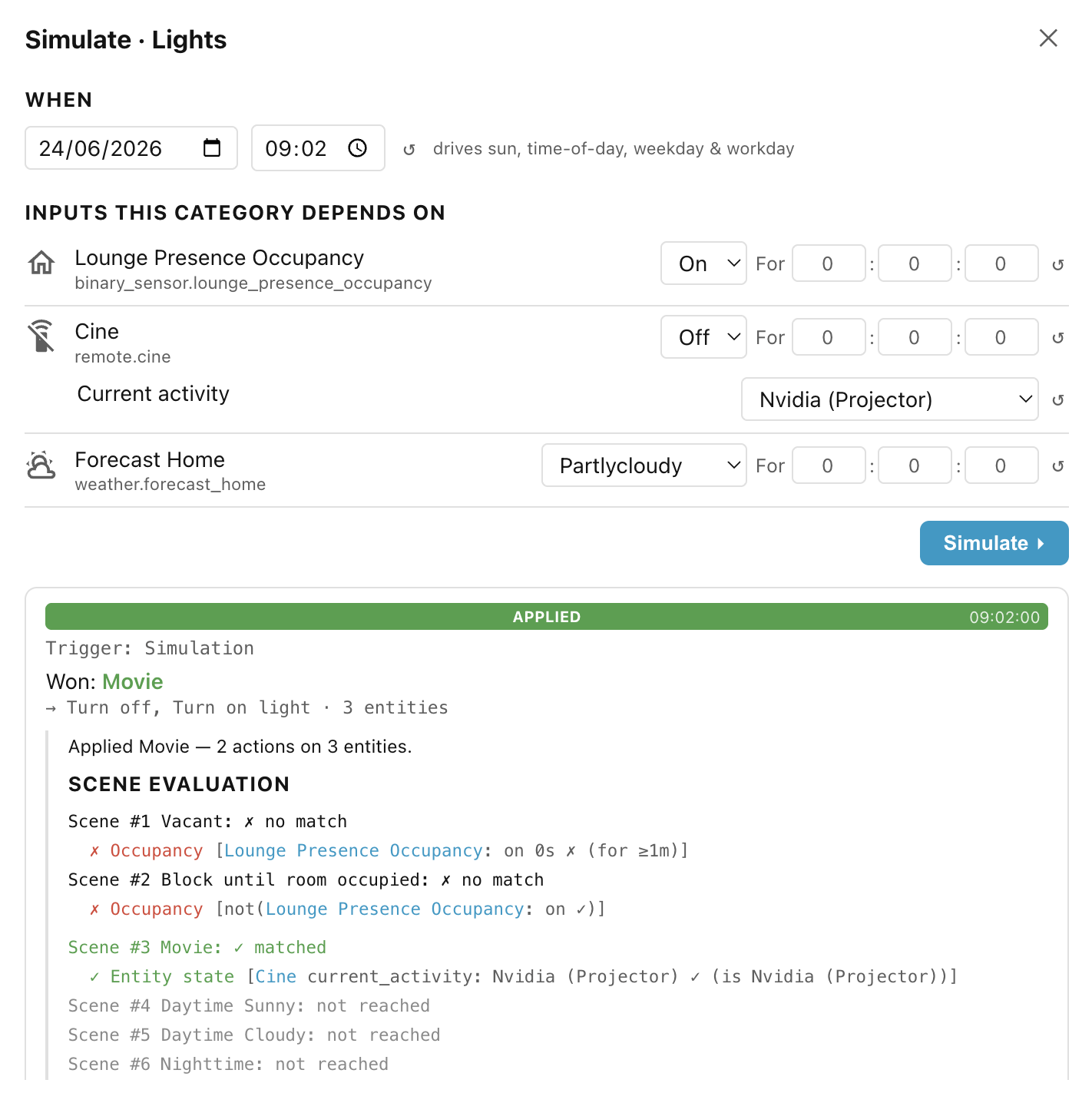
The Simulate option lets you ask "what would Ambience do if conditions were different?" without touching your home. It runs a full scene evaluation against invented inputs and shows the result using the same trace-detail view as the traces above. It opens pre-filled with live values from your home, so the first run (before you change anything) shows what Ambience would decide right now.
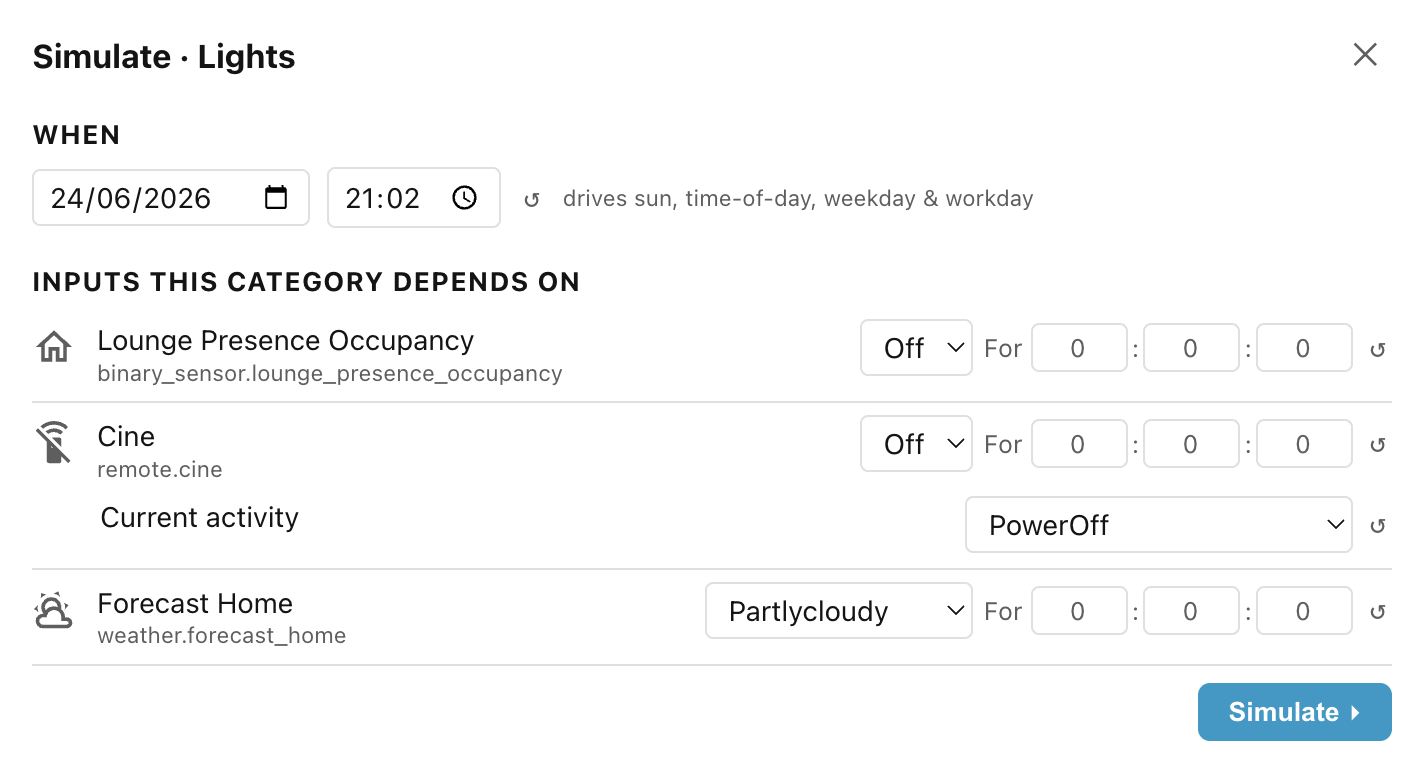
You can change:
- Date and time — if any condition depends on time (time of day, sun, weekday, workday), a When row appears with a date and a time picker. Changing them drives all time-derived conditions at once.
- Entity states and attributes — each entity a condition depends on appears as a row: a dropdown for known state sets (presence, weather), a number field for numeric entities, a text field otherwise. Relevant attributes appear as indented rows beneath, and each row has a reset button (↺) that restores the live value.
- Opaque condition verdicts — conditions that cannot be broken into entity controls (a template, or a third-party integration) appear as true/false dropdowns labelled with the condition name.
Click Simulate ▸ to run. The result appears below as a single trace-detail card you can expand to see which conditions passed and which actions would have run. It describes what would happen, not what actually happened in your home (so it never shows unchanged).
Download diagnostics
The Download diagnostics option saves a JSON snapshot scoped to that one (scope, category): its configuration, the global context needed to read it (categories and conditions), and its recent traces. It is the quickest thing to attach to a bug report when you already know which scene group is misbehaving. See Reporting an issue for what the file contains and for the whole-integration alternative.
If a problem still has you stuck, see Reporting an issue for how to capture diagnostics and debug logs.
Next: Conditions.