Step 5: Entity-state conditions
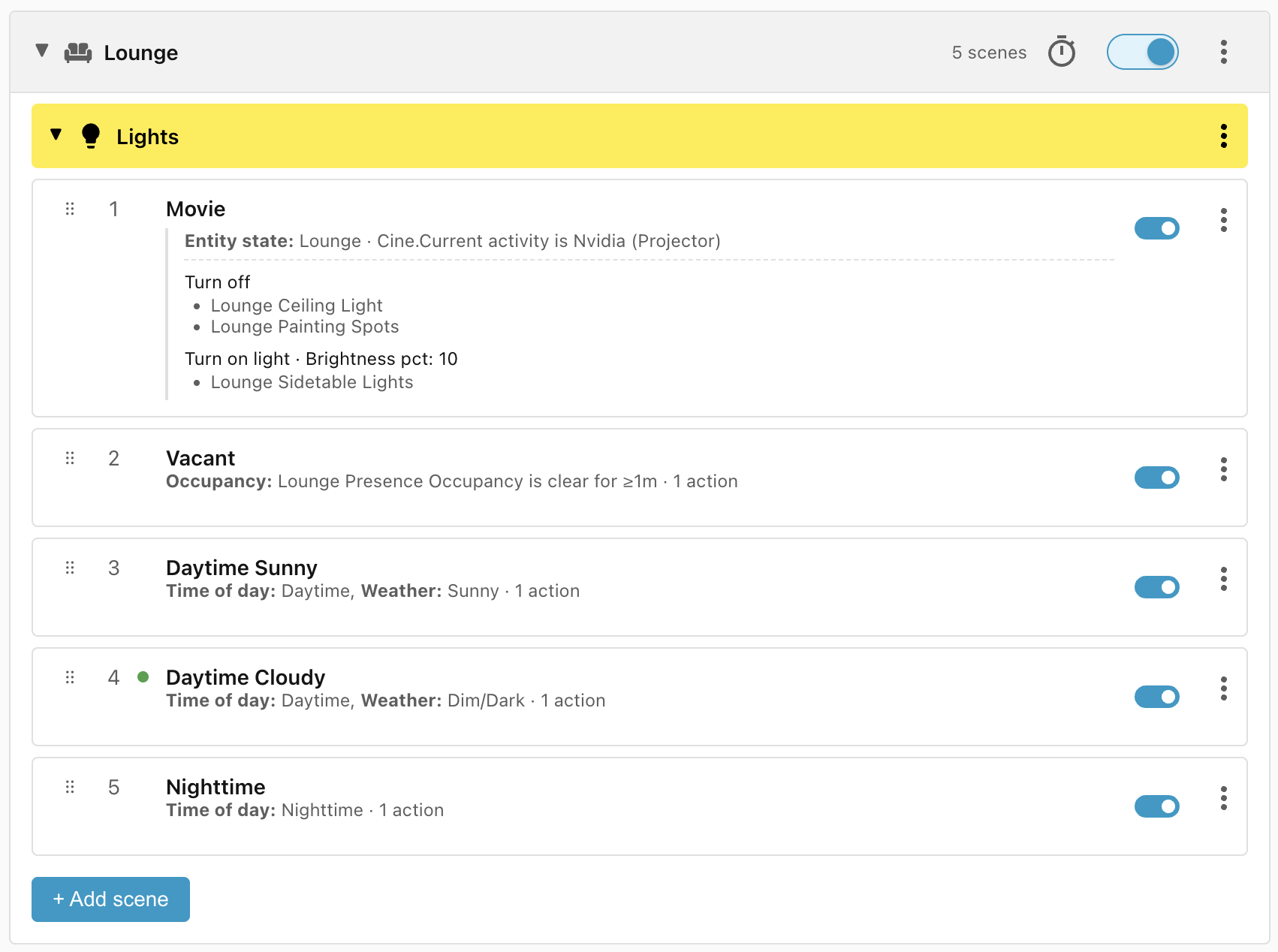
The last Lounge/Lights scene to add is the Movie scene — when the projector is on, turn all the lights off except the sidetable lights, which should be set to 10%.
We can determine when the projector is in use because our Cine remote control sets its Current activity attribute to Nvidia (Projector). Of course, your own setup is likely to be different.
Add the scene
For this we will use the Entity state condition. This is a particularly powerful condition which allows you to query the state of an entity, or the value of any of an entity's attributes. On top of that, it allows you to use Boolean logic to combine AND, OR, and NOT conditions to apply sophisticated logic.
To add the scene:
- Click + Add scene.
- Change the name to Movie.
- Click + Add condition and select the Entity state condition.
- Click the + Add clause button.
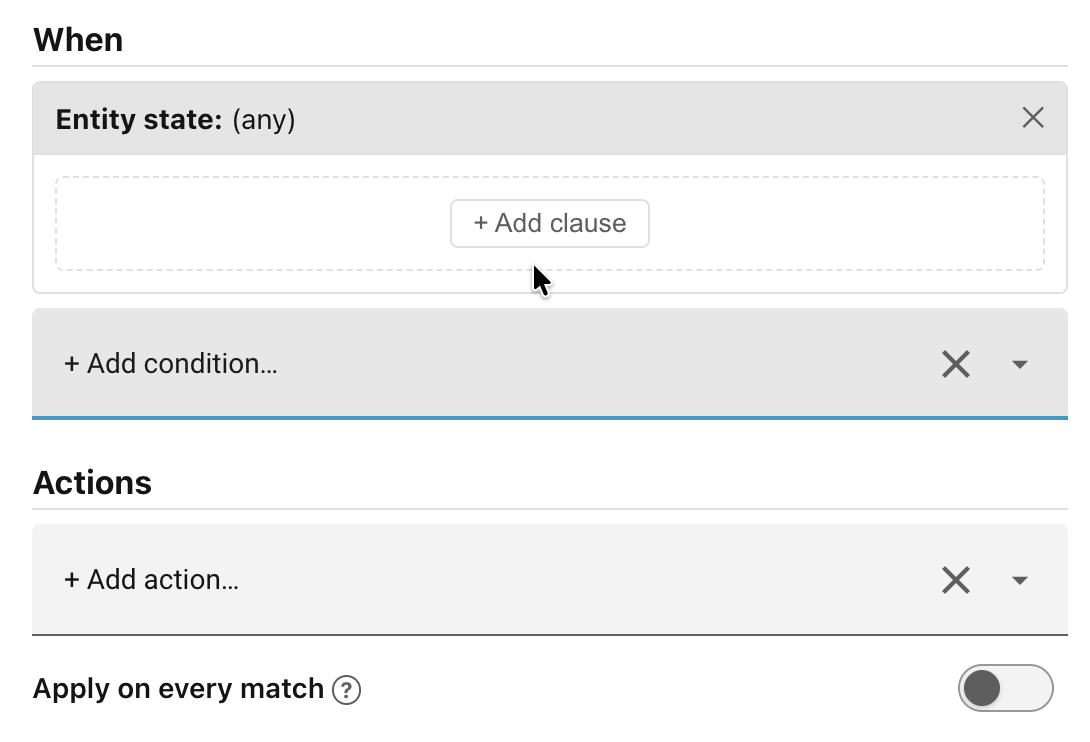
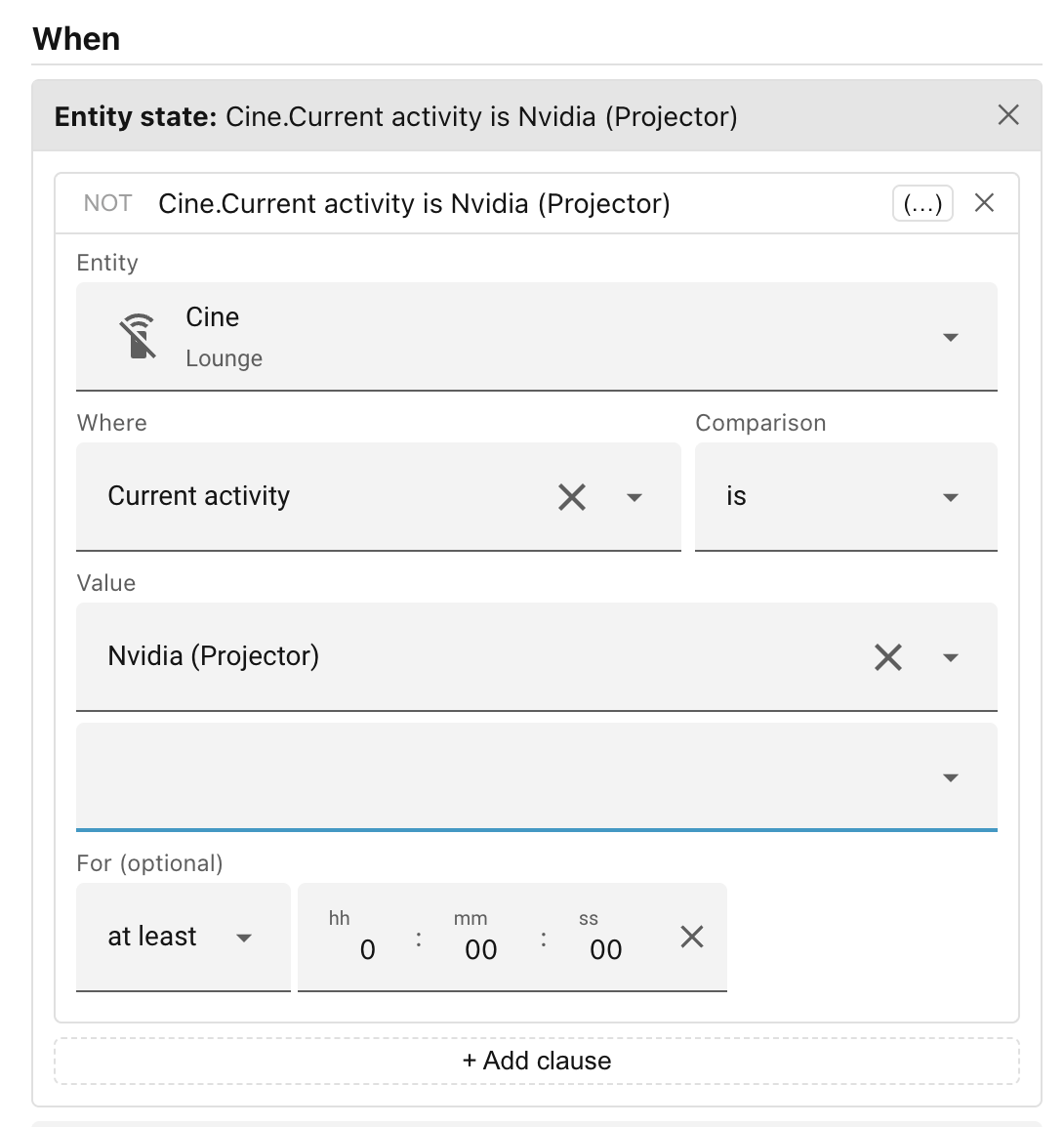
- Click Select an entity and search for the Cine remote control.
- Change the Where field from State to the attribute Current activity.
- Set the Value to Nvidia (Projector).
Finally, configure the actions to take:
- Click + Add action and select Turn off.
- Target the Lounge Ceiling Light and the Lounge Painting Spots.
- Click + Add action and select Turn on light.
- Target the Lounge Sidetable Lights and set Brightness pct to 10%.
- Click Save scene.
Next: Step 6: Scene priority.