Overlays
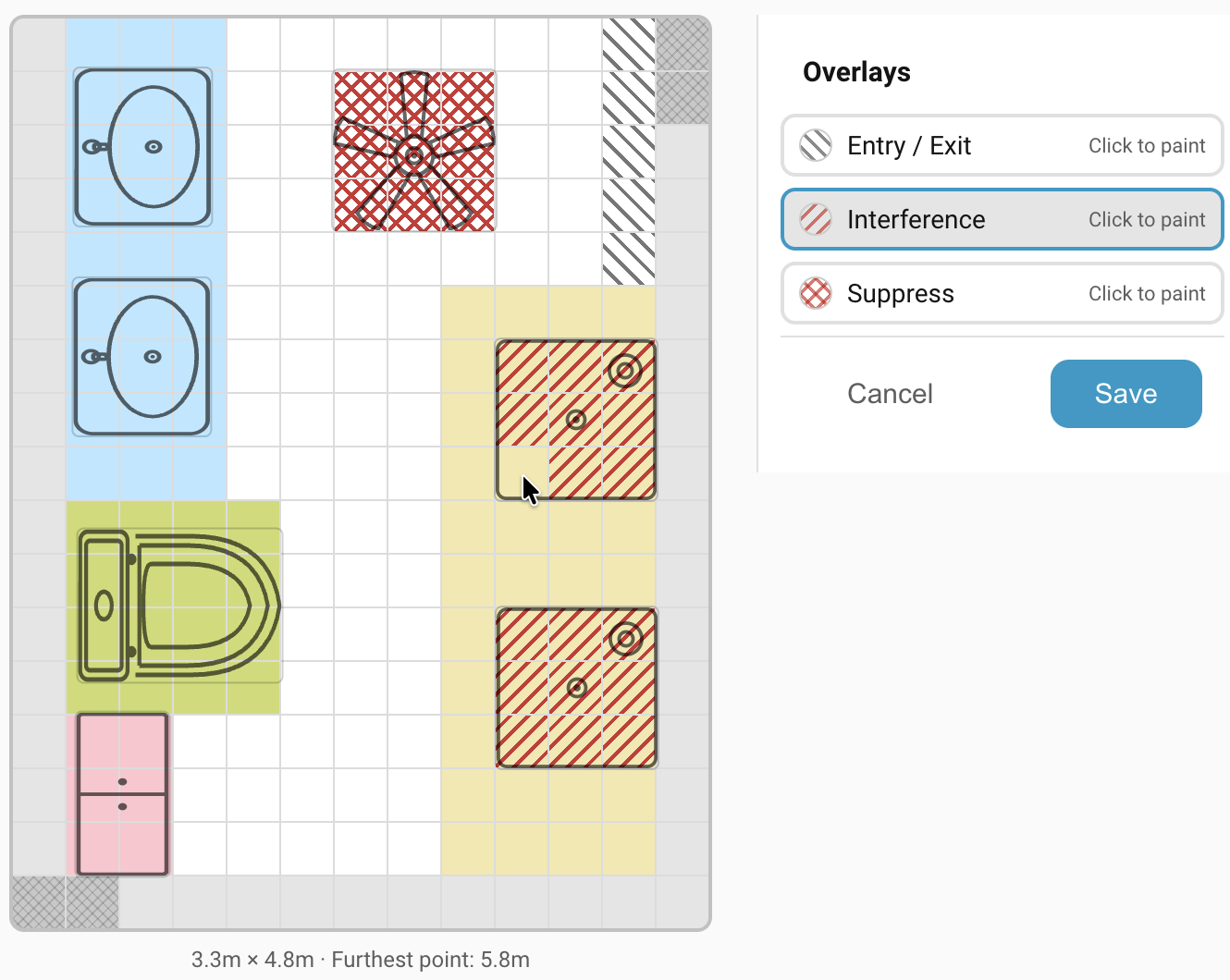
Overlays add extra information to specific cells to tell the zone engine how to interpret detections in that cell. A cell can belong to a zone and carry an overlay at the same time.
There are three overlay types:
| Overlay | Appearance | Purpose |
|---|---|---|
| Entry/Exit |  |
Mark entrances and exits to a room |
| Interference |  |
Mark cells near noise sources such as fans or curtains |
| Suppress |  |
Mark cells to ignore entirely |
Drawing overlays
- Switch to the Overlays editor mode in the sidebar.
- Click the overlay-type button you want (Entry/Exit, Interference, or Suppress).
- Click and drag on the grid to paint cells, with the same interaction as zone painting. The first cell you press on sets the action for the whole stroke: if that cell already has the overlay, the stroke erases; otherwise it paints.
- Click the active overlay-type button again to exit paint mode.
Only one overlay-type paint mode is active at a time. Clicking another overlay type switches to it.
Note
Overlays only paint on cells that are inside the room. If a cell near a wall refuses to paint, extend the room boundary first via the Room zone in the Detection zones editor.
Entry/Exit
When to use it
Any entry or exit point in a room — anywhere a target could legitimately appear out of nowhere. Paint the overlay across the entire walkable area of the opening, not just a single cell at the edge.
How it affects detection
The Entry/Exit overlay changes two things about how the zone engine handles targets on those cells:
Instant entry. Normally, when a target first appears in a clear zone, the engine applies gating — it requires two consecutive frames at a raised threshold before it will activate the zone. That filters out one-off ghost detections. On an Entry/Exit cell, gating is bypassed and the zone activates immediately on a single frame at the configured Trigger threshold. A target appearing at a doorway is almost certainly a real person walking in.
Faster exit. When the last target in a zone disappears from a non-overlay cell, the zone waits for the full Presence timeout before clearing. When the last target disappears from an Entry/Exit cell, the zone uses the shorter Handoff timeout instead.
Interference
When to use it
- Ceiling fans and oscillating pedestal fans.
- Curtains and blinds that move in a draught.
- Large reflective surfaces near the sensor — mirrors, glass cabinets, metal radiators.
- TV screens on walls (some LCDs produce interference).
Interference is the right tool when the cell occasionally has a real person on it too. A living-room ceiling fan is a classic case: you don't want the fan triggering presence, but you do want to detect someone sitting underneath it.
How it affects detection
The Interference overlay makes the zone engine much harder to convince in two ways:
No first appearance. A target can't activate a clear zone from an interference cell. It has to have been tracked continuously from a clean cell first. Once the zone is already occupied, targets on interference cells count again — the restriction only applies to the initial activation. So a fan can't trigger a zone on its own.
Hardened renew threshold. When a zone is already occupied, the engine normally uses the zone's configured Renew threshold to decide whether a target is still present. On interference cells, the Renew threshold is forced to the maximum signal level (9). Only a very strong radar return — a real person — can sustain occupancy from an interference cell.
Suppress
When to use it
- A pet's bed.
- Plants in stable positions that consistently show up as false targets.
- Fish tanks, aquarium pumps, or other fixed moving-fluid setups.
- Robot vacuums parked on their dock.
- Any cell where you've tried Interference and it wasn't strong enough.
Suppress blocks detection entirely. Use it sparingly, and try Interference first.
How it affects detection
Complete rejection. The zone engine skips suppressed cells entirely. No target tracking, no zone entry, no signal processing — as far as the engine is concerned, those cells are blank.
Troubleshooting
| Symptom | Likely cause | Fix |
|---|---|---|
| Clicking a cell doesn't paint an overlay | No overlay-type paint mode is active | Click Entry/Exit, Interference, or Suppress in the sidebar first; that button stays depressed while paint mode is active. |
| Cell outside the room won't accept overlay paint | Overlays can't paint outside the room boundary | Extend the Room zone (zone 0) in the Detection zones editor to include the cell, then paint the overlay. |
| Interference overlay painted but ghosts still appear | Interference threshold isn't strong enough for that source | Escalate those cells to Suppress, which blocks them entirely. |
| Entry/Exit overlay painted at the doorway but zones still flap on entry | Overlay doesn't cover the full walkable area of the doorway | Paint overlay cells covering the entire door opening, not just one cell to the side of it. |
Still stuck? See Troubleshooting for how to open an issue.
Where to next
- How detection works → — the engine behind the scenes: signal strength, the zone state machine, gating, and the Occupancy entity.
- Furniture → — place furniture on the grid so you can read the live overview at a glance.