Calibration
The LD2450 reports target positions in its own distorted coordinate system, so straight physical lines (walls, the edge of a sofa) don't come back as straight lines. The Everything Presence Grid's calibration function maps the four corners of your room to the corresponding sensor coordinates, and the integration uses that mapping to draw the grid in real-world geometry. Once calibrated, targets sit where they actually are in the room.
Before you start
- Device running Everything Presence Grid firmware and visible in the panel. See Flashing firmware if not.
- A clear view of each of the four corners of the room. You need to be able to stand at each one, or close to it. The wizard has an option for corners you can't reach.
- Only one person in the room. The wizard picks up a single target and records its position.
Note
It doesn't matter whether the sensor is mounted the right way up or upside down. If it's upside down, left and right appear swapped while you mark the corners, but the calibration corrects for it. Once you've saved, targets sit in the right place either way — there's nothing extra to do.
Tip
If your room isn't rectangular, superimpose a rectangular shape onto the room for calibration purposes. You can always add or remove room cells from the grid later on.
Running the wizard
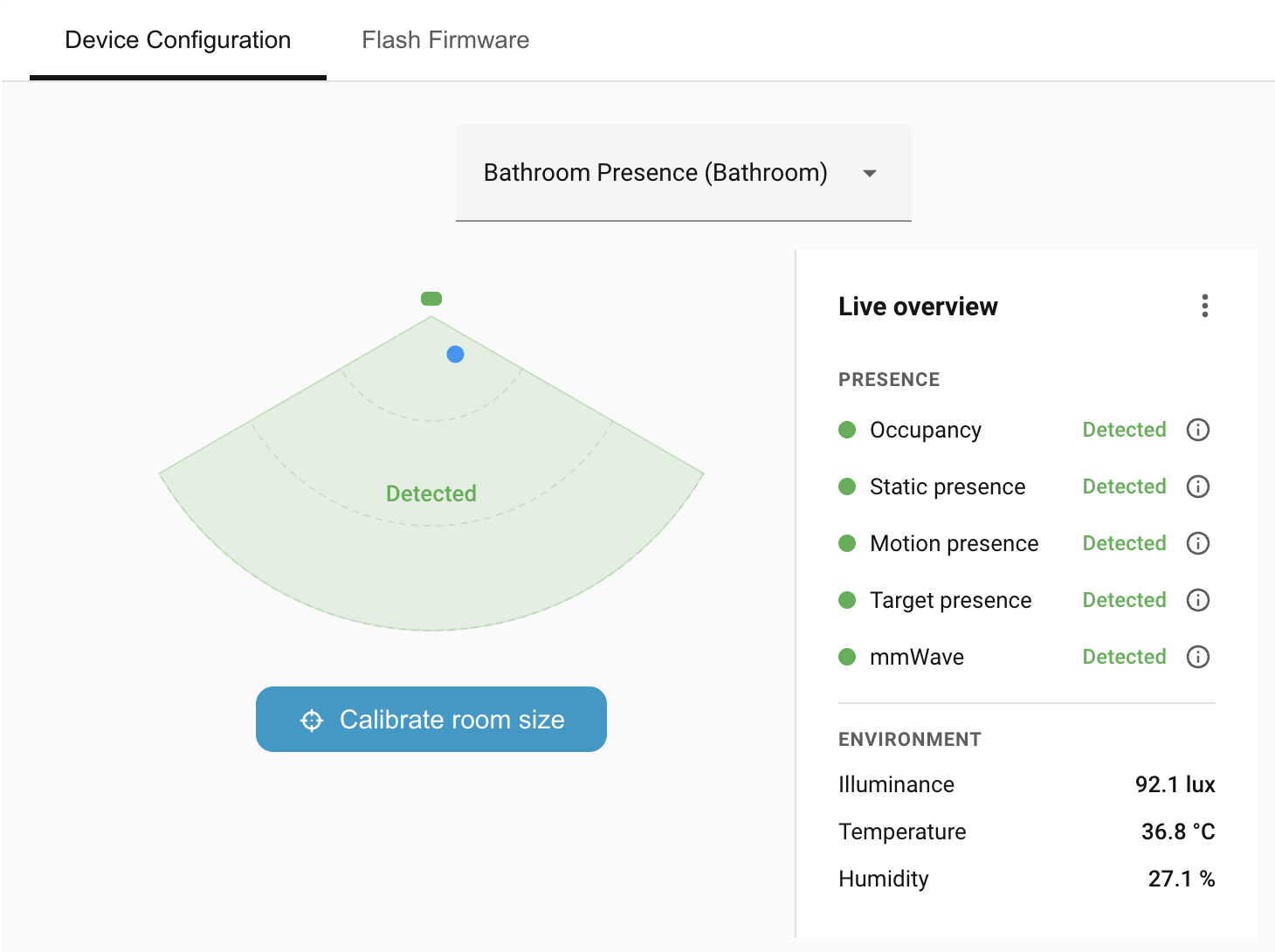
The wizard is accessed from the Live overview screen on the Device Configuration tab. Look for the Calibrate room size button.
1. Read the calibration tutorial
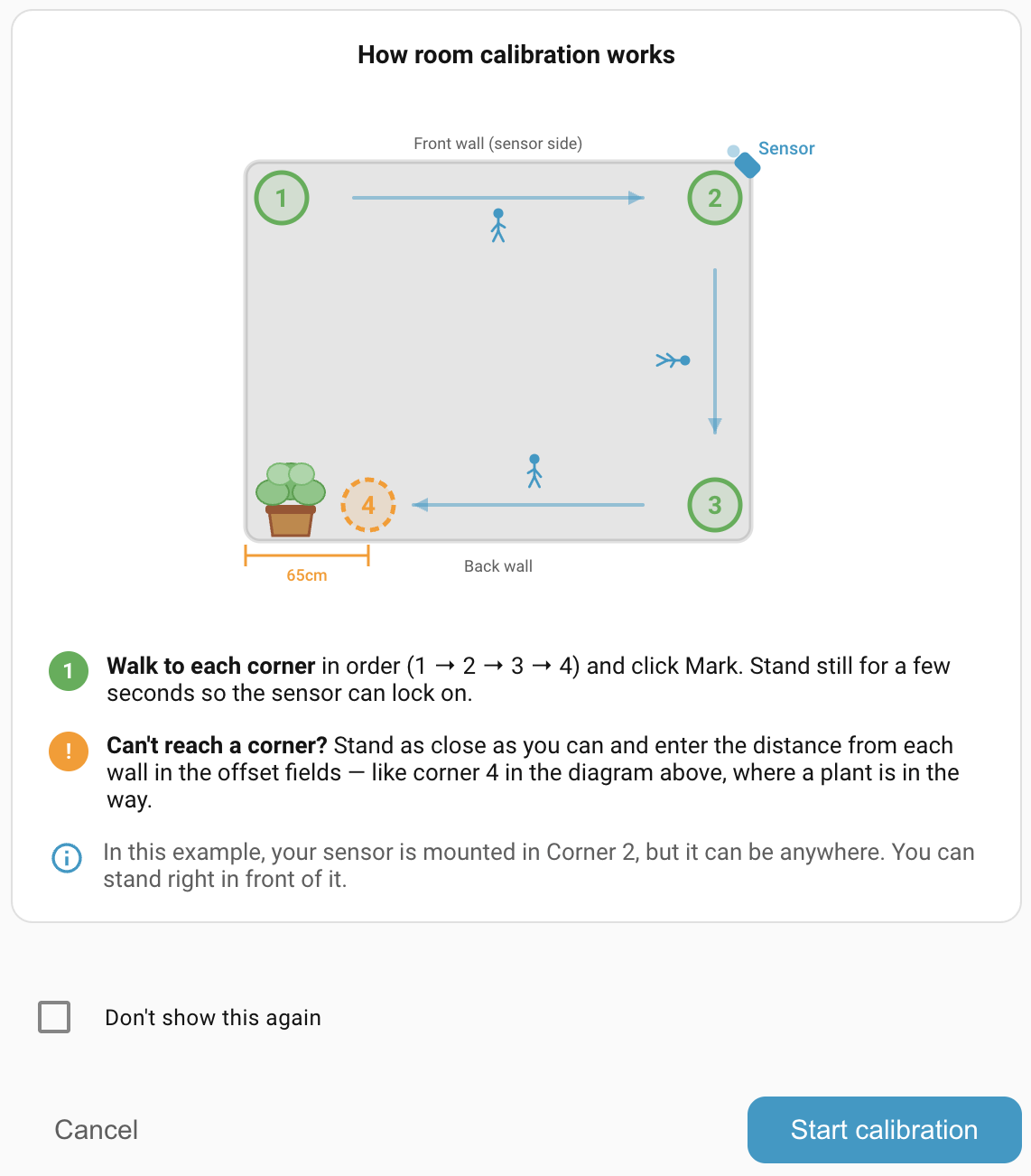
The first screen shows a diagram of a room with the four corners numbered 1–4 and the sensor marked (in the example diagram, the sensor sits at corner 2, but it can be anywhere). Skim the instructions, then click Start calibration.
Tip
Tick Don't show this again before clicking Start calibration to skip straight to corner marking on future calibrations. You can re-enable the guide from the integration's options under Show room calibration tutorial.
2. Mark each corner in order
The 4 corners are labelled Front-left, Front-right, Back-right, Back-left, but it is up to you to decide which wall is Front and which is Back.
For each of corners 1 through 4:
- Walk to the corner.
- Click Mark {corner N}.
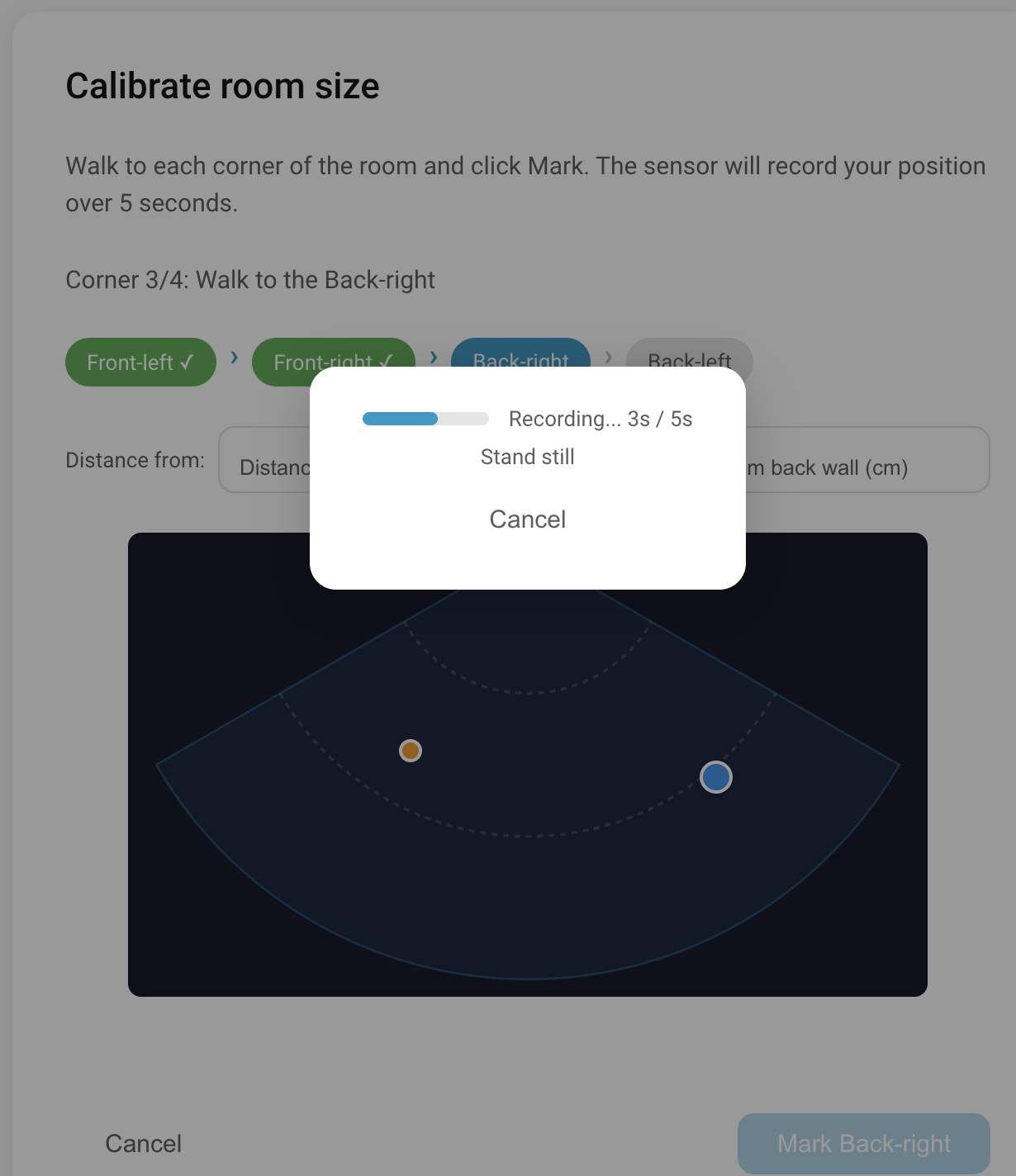
- Stand still for 5 seconds while the wizard records your position.
The wizard collects radar samples over that 5-second window and averages them. Small sways are absorbed by the average; real movement is flagged and you can re-mark the corner.
Warning
Stay still during each capture. The wizard is averaging samples over 5 seconds; if you move, the corner position gets smeared and the resulting grid won't match the real room.
If a corner is unreachable (a plant in the way, built-in furniture), stand as close as you can and enter the side and front-back distances from the actual corner in the offset fields (in cm). The wizard will treat your position as the corner plus those offsets.
3. Re-mark if anything looks off
At any point during the calibration you can re-mark a corner position if it looks wrong. Just click the corner you wish to recalibrate.
4. Save
Click Save. The wizard pushes the calibration and room dimensions to the device and the grid is live.
Checking the result
After saving, it takes you back to the Live overview screen where you can check that:
- Walls line up: The edges of the grid should follow the visible edges of your room's floor plan.
- A real target tracks correctly: Walk a short path along a wall and check that the marker stays close to the grid edge.
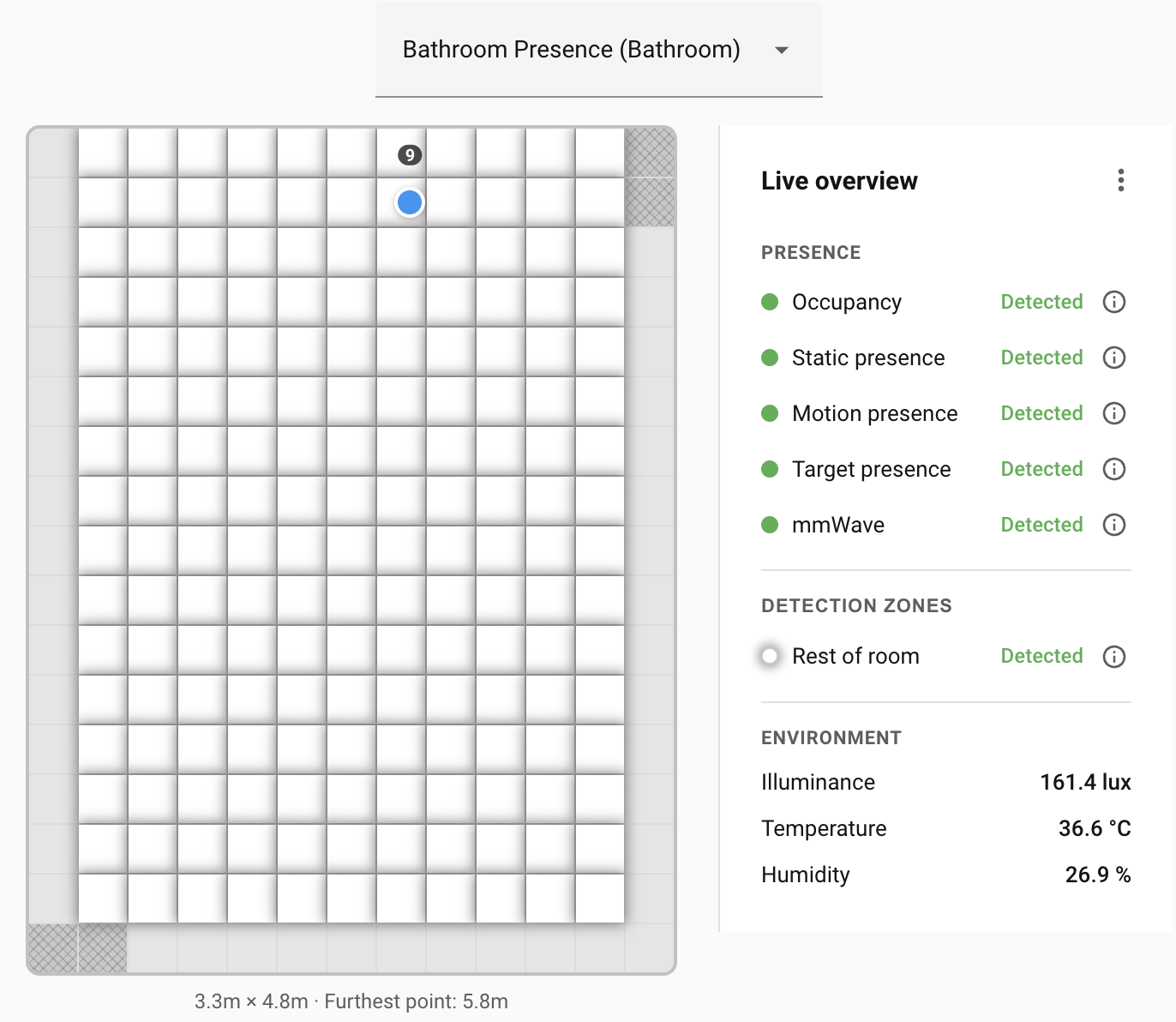
You can use the Detection zones editor to increase or decrease the size of the grid, or you can re-calibrate the room size if things look wrong.
When to re-calibrate
Re-run the wizard if:
- The grid dimensions don't correspond with the real room layout.
- You moved or rotated the sensor. Even a small angle change throws the calibration off.
- You rearranged the room significantly, particularly if furniture or walls near a corner moved.
You can recalibrate the room size from the Live overview menu.
Troubleshooting
| Symptom | Likely cause | Fix |
|---|---|---|
| Wizard shows "No target detected" during a capture | You're not in the sensor's field of view, or you're too still | Step into the middle of the room and wait a few seconds for the LD2450 to lock on before clicking Mark. |
| "Multiple targets detected" during a capture | Another person or pet is moving in the room | Be the only moving target in the room during calibration. Pets that won't move off the bed are also targets. |
| Corner position drifted during the 5-second capture | You moved mid-capture or noise from the sensor | Re-mark the affected corner. Stand still for the full 5 seconds; small sways are absorbed by the average. |
| Walls don't line up with the grid | One corner's captured position is off | Redo the room calibration |
Still stuck? See Troubleshooting for how to open an issue.
Where to next
With calibration done, you're ready to explore the live overview. See Live overview.