Logging
The per-component log levels for the device firmware are useful when you're debugging an unfamiliar problem: raise the level on the relevant component, reproduce the issue, read the logs. Once you're done, set everything back to None so you're not paying for verbose logging that you don't need.
The controls live under Settings → Logging in the panel.
Components
Each row is a logical group of log tags inside the firmware. Set the level high to see more from that group. Leave it at None to use the firmware's compiled-in default (effectively quiet: errors and the firmware's own boot output).
Every component is always listed, whether or not the matching hardware is fitted. A row with no hardware behind it — CO2 on a device without the module — simply stays silent.
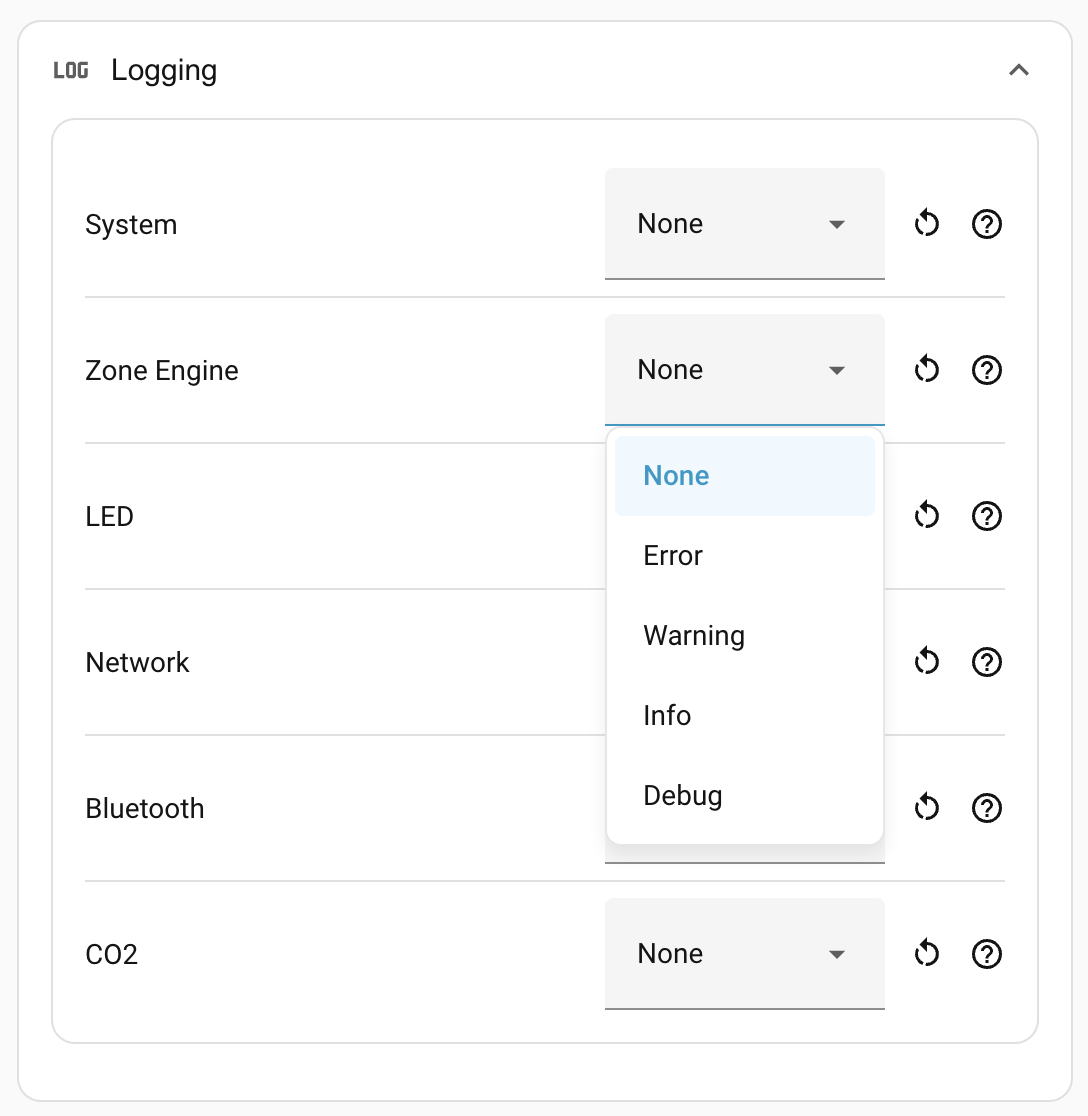
| Component | What it covers |
|---|---|
| System | Everything not owned by another row: OTA, API client, mDNS, I²C, the radar feed (LD2450) and other sensor drivers (SHTC3, BH1750, SEN0609), plus control entities (lights, switches, numbers, selects, buttons). Zone and target entity updates do not appear here — they belong to Zone Engine. |
| Zone Engine | The zone-detection engine itself: target tracking, cell mapping, the zone state machine, configuration changes — and the zone/target/motion entity states (zone target counts, target positions, Motion Presence). Raise this when a zone is misbehaving. |
| LED | LED control script: mode transitions and the decision tree that picks the displayed colour. |
| Network | Wi-Fi or Ethernet connection events, DHCP, link state. |
| Bluetooth | BLE scanner and proxy logs. |
| CO2 | SCD4x sensor logs. |
Levels
| Level | What you get |
|---|---|
| None | Default. Use the firmware's compiled-in level. |
| Error | Only error-class messages. |
| Warning | Errors and warnings. |
| Info | Notable events: state transitions, configuration applied. |
| Debug | Frame-by-frame detail. Quite chatty; expect a lot of output, especially from Zone Engine. |
The levels are cumulative: Debug includes everything below it.
Reading the logs
Setting the firmware level here is only half the picture: messages don't reach Home Assistant's logs until you also enable debug logging on the integration. See Troubleshooting → Capture debug logs for the full walkthrough.
Resetting
Each row has a ↺ reset button that returns just that component to None.
Where to next
- Device groups → — combine several sensors into one virtual presence device for whole-room coverage.