Flashing firmware
The first flash of Everything Presence Grid firmware happens over USB from your browser. Once flashed, future updates happen over the air — see Firmware upgrades.
Flash buttons greyed out?
The in-panel Flash Firmware and Configure WiFi buttons only work when
you open Home Assistant over a secure (HTTPS) connection. If you reach Home
Assistant over plain HTTP (for example http://homeassistant.local:8123), your
browser blocks USB access and the buttons are disabled. In that case, use the
Web flasher instead — it runs over HTTPS and works
regardless of how you reach Home Assistant.
Prerequisites
- Chrome or Edge browser. Flashing uses the Web Serial API, which only works in Chromium-based browsers.
- A secure connection to Home Assistant. Web Serial needs HTTPS; over plain HTTP the panel's flash buttons are disabled — use the Web flasher instead.
- A data USB cable. Charge-only cables show no ports in the browser picker.
- The device plugged into the same computer as the Chrome/Edge browser.
Flashing
-
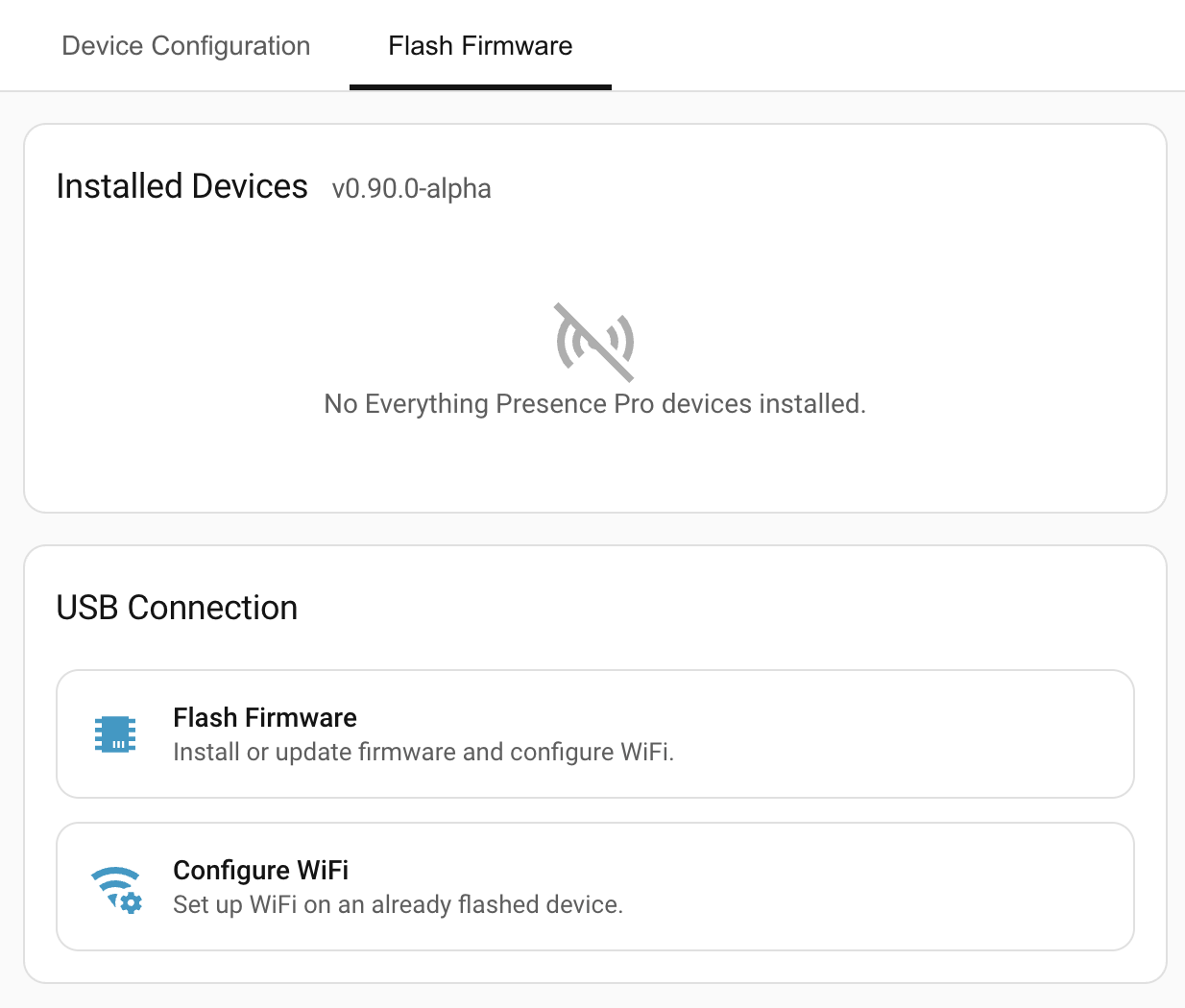
Open the Flash Firmware tab in the Everything Presence Grid panel.
-
Click Flash via USB.
-
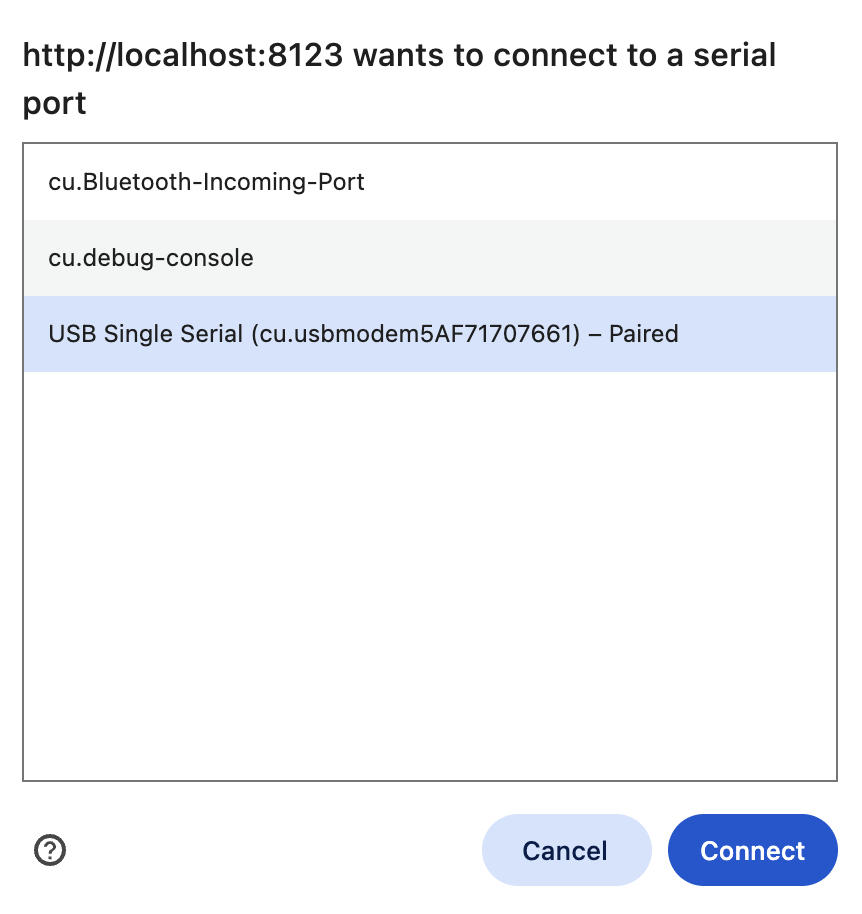
In the browser's serial-port picker, select your device and click Connect.
-
The panel identifies the connected device and picks its firmware automatically:
-
Everything Presence Lite — flashing starts straight away; there's nothing to choose.
-
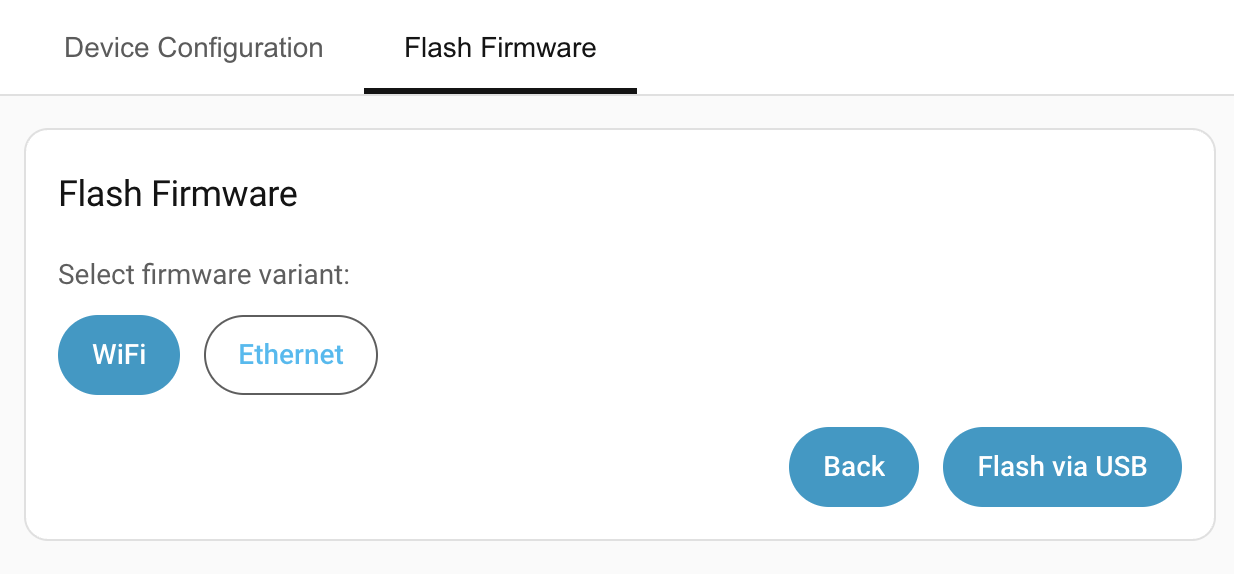
Everything Presence Pro — pick how it connects to your network, then flashing starts:
- WiFi — connect over Wi-Fi.
- Ethernet — connect over an Ethernet cable (PoE optional). Pro only; the Wi-Fi-only Lite never shows this.
-
Couldn't identify it (for example a blank board) — choose the model, and the network type for a Pro, by hand. See the hardware comparison if you're not sure which you have.
-
-
The device flashes and reboots automatically when done.
-
(WiFi variant only) After the device reboots, set up Wi-Fi: scan for networks or enter the SSID manually, then the password.
Warning
If the browser shows no ports when you click Connect, the cable is the most common cause. Swap for a known-good data cable before troubleshooting the device.
Add the device to ESPHome
The Wi-Fi flashing flow usually adds the device to Home Assistant automatically via ESPHome. If not — or if you flashed the Ethernet variant — add it manually:
- In Home Assistant, go to Settings → Devices & services.
- Look for a Discovered card for your device. Click Configure and follow the prompts.
- If the device isn't discovered, click Add Integration, search for
ESPHome, and enter the device's hostname (typically
everything-presence-pro-<suffix>.local) or IP address.
Once the device is added to ESPHome, it shows up in the Everything Presence Grid panel within a few seconds.
After flashing
Once the device joins your network, the Everything Presence Grid panel detects it and opens a dialog to finish setup:
- Enter a Device name (for example, "Living Room").
- Assign an Area so it groups with the rest of that room.
If you change the name, a Recreate entity IDs toggle appears (on by default) — keep it on to rename the device's entities to match the new name.
The button reads Skip and finish if you haven't made any changes, or Finish after making a change. Either way, you land on the device's config page where Calibrate room size is available.
Note
Everything Presence Grid identifies each device by its MAC address. Re-flashing or swapping variants keeps your saved zones, calibration, and settings — they're keyed to the MAC.
Reconfiguring Wi-Fi
To change Wi-Fi credentials on an already-flashed device without a full re-flash:
- In the Flash Firmware tab, click Configure WiFi under USB Connection.
- Connect via USB, scan for networks or enter the SSID manually, enter the password.
- Click Continue.
Troubleshooting
| Symptom | Likely cause | Fix |
|---|---|---|
| Browser port picker shows no devices | Charge-only USB cable | Swap for a data cable. |
| Repeated error messages while flashing | Browser's USB serial connection got into a bad state | Refresh the page and try again. |
| Device flashed but doesn't appear in HA | ESPHome hasn't discovered it yet | Add ESPHome manually with the device's hostname or IP, per the steps above. |
| Device is on ESPHome but not showing in the Everything Presence Grid panel | Device is still running the original firmware | Check for a Firmware Version sensor on the ESPHome device page. If missing, re-flash. |
Where to next
- Placement → — mount the device so the sensors can see the room.