Furniture
Furniture is a purely visual layer. You place icons for sofas, beds, tables, and appliances on the grid so the live overview is easy to read. Furniture does not affect detection in any way; it's decoration.
Adding furniture turns the live overview into something that looks like your actual room. Real-time targets make intuitive sense ("that's someone walking past the dining table"), ghost detections become explainable ("that's always the ceiling fan over the reading chair"), and when you come back to tune zones six months from now, you still know what each cell represents.
Note
Only the Detection zones editor (room boundary and named zones) and the Overlays editor (Entry/Exit, Interference, Suppress) change how the zone engine behaves. Anything you do in the Furniture editor is cosmetic.
Adding furniture
- Switch to the Furniture editor mode in the sidebar.
- The sidebar lists the preset stickers — beds, sofas, tables, kitchen and bathroom items, doors, plants, and so on. Use the search box at the top to filter by name.
- Click a sticker. The item lands centred in the room at its default real-world dimensions (in millimetres).
- Drag the item to position it on the grid.
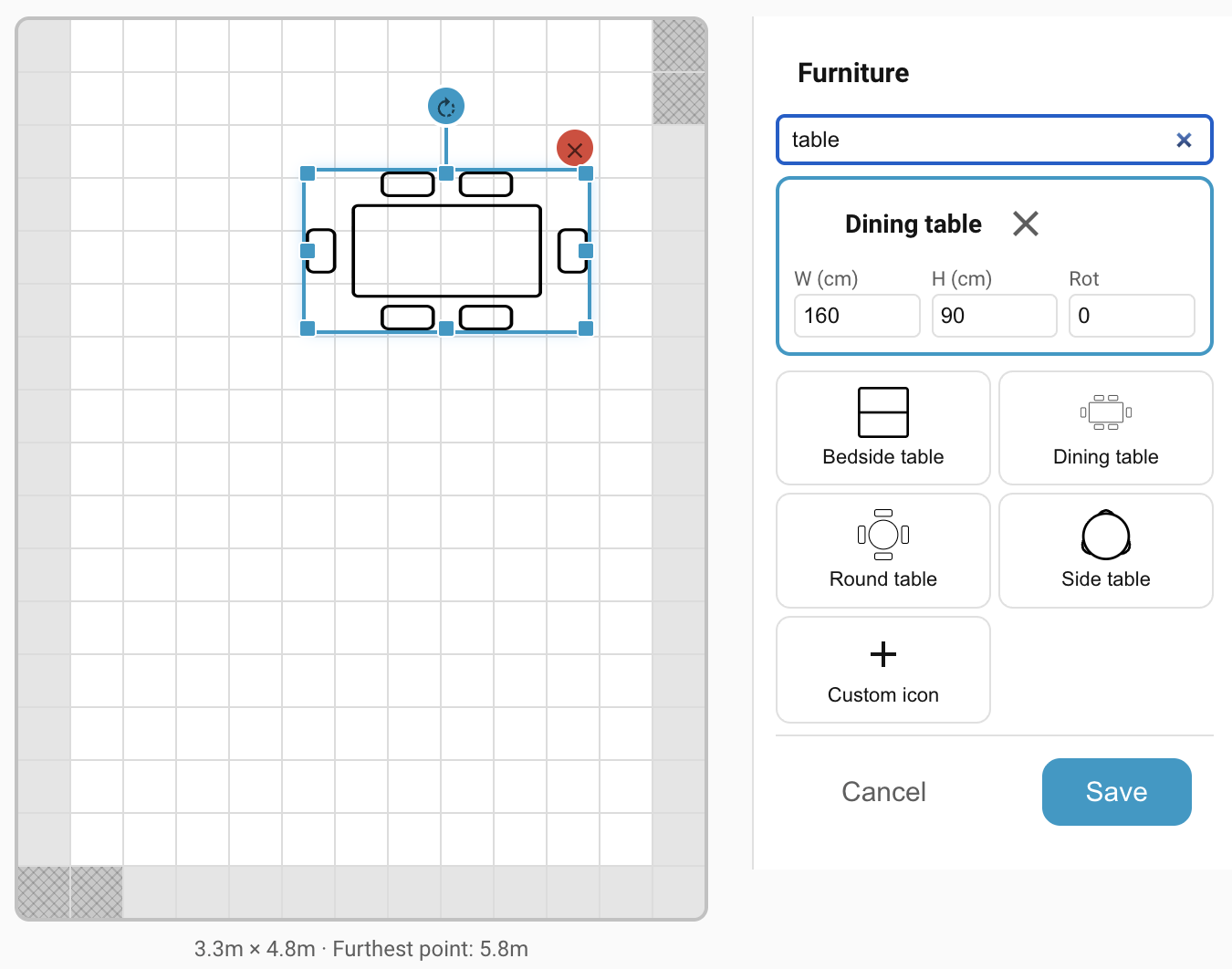
Moving, resizing, rotating
Click a furniture item on the grid to select it. Handles appear for every operation:
- Move: click and drag anywhere inside the item.
- Resize: drag one of the eight handles. Corner handles resize proportionally — the item keeps its shape. Edge handles (top, bottom, left, right) stretch just that one dimension — use them when your real furniture isn't the same proportions as the preset. The defaults match typical real-world dimensions, so a corner drag is usually all you need to scale an item to your room. (Plain icon stickers always keep their proportions; very small items show only the corner handles.)
- Rotate: drag the circular handle on the rotation stem that extends above the item.
- Delete: click the red × button at the top right of the selected item.
Tip
Place the door stickers (door-left-swing, door-right-swing, sliding-door)
exactly where you've drawn Entry/Exit overlays. The doorway icons
make it easy to see why the hatched overlay cells are there.
Keyboard shortcuts
When a furniture item is selected, the following keyboard shortcuts are enabled:
| Key | Action |
|---|---|
| Delete / Backspace | Delete the selected item |
| Escape | Deselect |
| Ctrl/Cmd + C | Copy |
| Ctrl/Cmd + X | Cut |
| Ctrl/Cmd + V | Paste. The new item lands one cell offset from the original so you can see it |
Custom icons
If none of the presets match what you want to represent, pick the +
custom-icon slot at the end of the sticker list. It opens Home Assistant's
built-in icon picker, which lets you choose any icon from the standard Material
Design Icons set (mdi:*) bundled with HA. Once added, a custom icon behaves
like any other piece of furniture.
Text labels
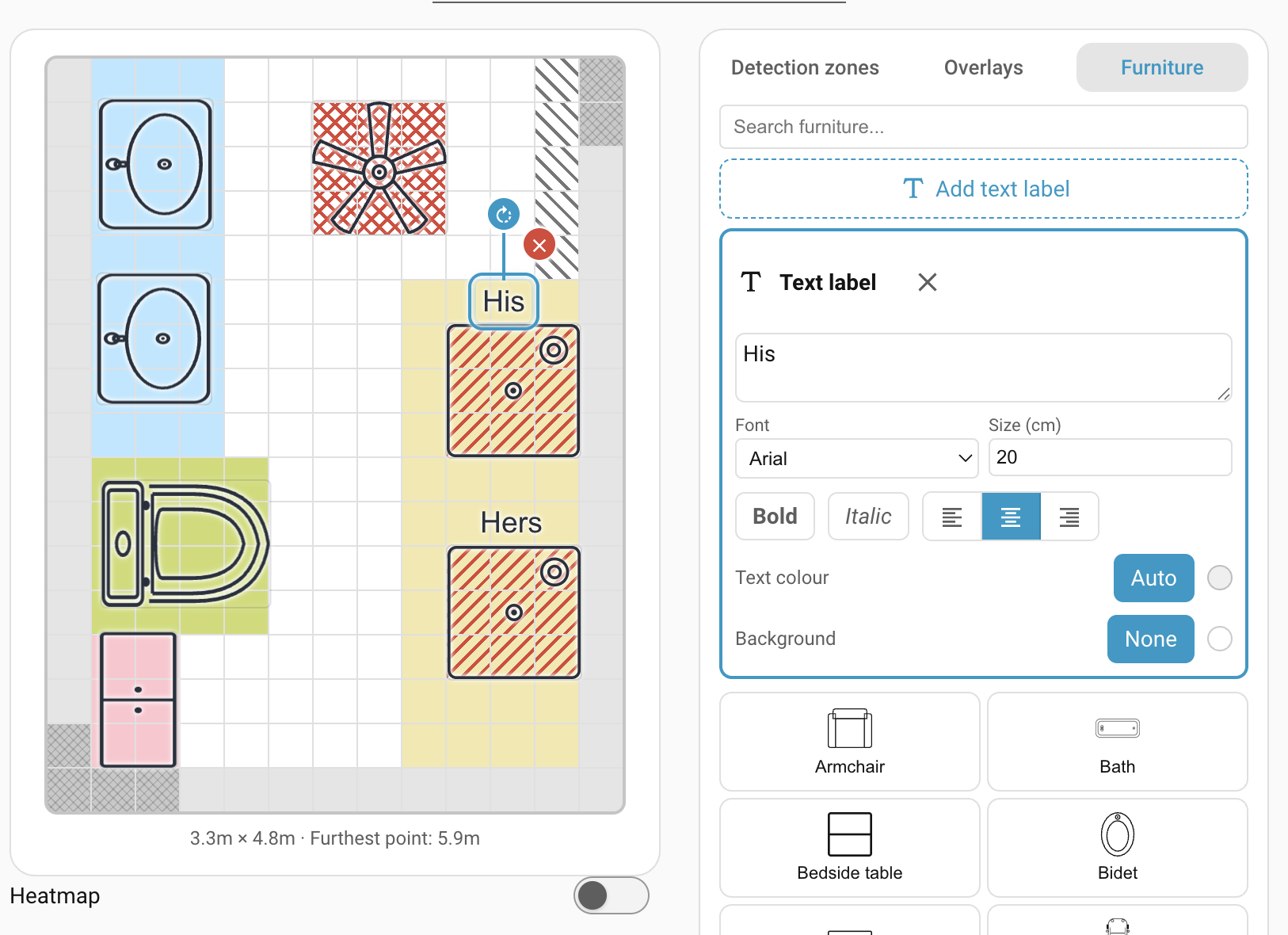
Text labels let you annotate the layout — room names, a "TV" caption over the media unit, a note next to a tricky corner — as free-floating text that scales with the room, just like furniture.
-
In the Furniture sidebar, click Add text label. A label lands centred in the room.
-
Move, resize, and rotate it on the grid exactly like a furniture item (corner handles keep its proportions).
-
With the label selected, its options appear in the sidebar:
- Text — the words to show.
- Font — pick from the built-in fonts.
- Size (cm) — the real-world text height. Like furniture, it scales with the room, so the label keeps its size relative to everything else.
- Bold, Italic, and Alignment (left, centre, right).
- Text colour — choose a colour, or leave it on Auto to automatically contrast against whatever is behind it.
- Background — leave it as None for plain text, or pick a colour for a filled box behind the text.
To remove a label, click the × next to its name in the sidebar, or select it and press Delete.
Troubleshooting
Still stuck? See Troubleshooting for how to open an issue.
Where to next
- Backup and restore → — save the device configuration so you can roll back after recalibration or experiments.
- Settings → — tune detection, reporting, environmental offsets, LED and relay behaviour.
- Automations → — put it all to use with worked examples.