Introduction
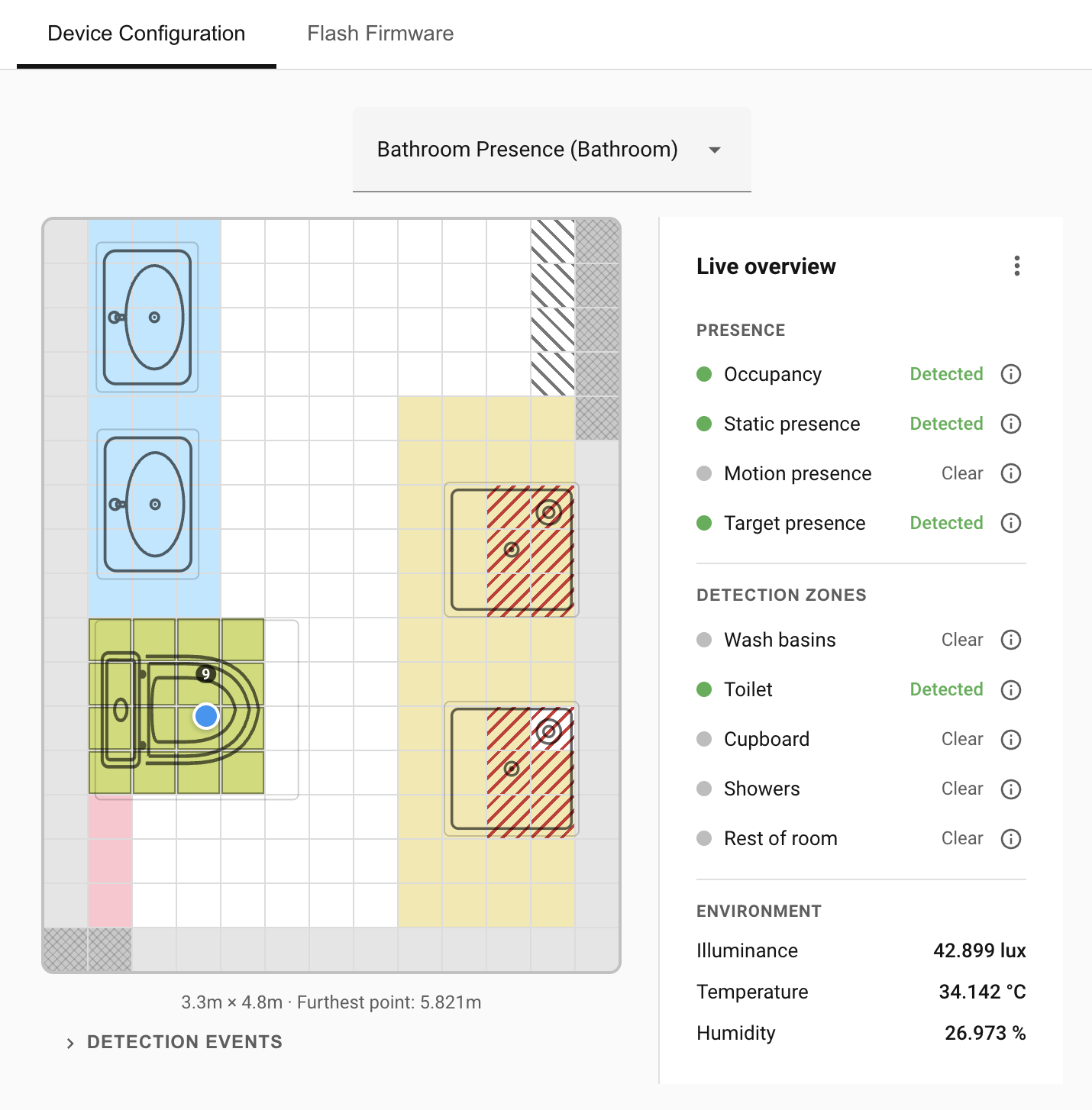
Everything Presence Grid (formerly Everything Presence Pro Grid) is a Home Assistant integration for the Everything Presence Pro and the lower-cost Everything Presence Lite mmWave radar sensors. It ships with custom firmware that runs all the detection work — target smoothing, zone tracking, presence logic — on the device itself. The integration provides a Home Assistant panel for configuration, calibration, live overview, and firmware flashing, built around a calibrated grid that matches the real geometry of your room.
Both models share the same firmware core and zone engine, so the spatial features work identically on each; the Lite is a hardware subset of the Pro. See Hardware → Models for the full comparison, then Placement and Installation for setup.
What is the Everything Presence Pro?
The Everything Presence Pro (EPP) is a presence sensor from Everything Smart Technology. Its low-powered mmWave radar gives it two big advantages over a regular motion sensor: it can detect people who are sitting or lying still, and it tracks them as they move around the room — which is what makes zone-based automations possible.
The Everything Presence Pro contains three main sensors (the Lite has only the LD2450 target tracking radar — see the models comparison):
- PIR (passive infrared) motion sensor. Reacts the instant someone enters the room — ideal for triggering main lights.
- Target tracking radar (LD2450). Follows up to three people moving around the room, so automations can react to them entering or leaving specific zones — turning on the extractor fan when someone uses the toilet, the towel rail when someone showers.
- Static presence radar (DFRobot). Picks up subtle movement like breathing, so a room stays marked occupied while someone is sitting still. Lets automations turn lights off only when the room is genuinely empty.
There are now two models. The Everything Presence Pro described above is the full-featured unit. The Everything Presence Lite is a lower-cost version that keeps the spatial features this integration is built around — zones, the grid, target tracking, room calibration, and heatmaps — along with CO₂ and light-level sensing. It drops the static-presence radar, the PIR motion sensor, temperature/humidity, the relay, the addressable RGB LED, Bluetooth, and Ethernet. Everything in this guide applies to both models except where noted; see the hardware comparison for the full breakdown.
Problems with the original firmware
The original firmware does basic "in zone or not" detection on the device and forwards raw target data to Home Assistant. That leaves a few gaps:
- Noise. Target coordinates aren't smoothed. The radar is jittery, and that jitter produces unreliable zone transitions.
- Distortion. The radar's native view is distorted, so straight walls don't appear straight. That makes laying out a room tricky.
- Limited zones. Only four detection zones and two exclusion zones, all rectangular and aligned with the sensor. Combined with the distortion above, a real rectangular zone isn't rectangular when drawn against the radar's coordinates. (Note: the original firmware now provides polygonal zones.)
- Coarse settings. A target is either in a zone or it isn't. There's no way to express where it came from (the doorway vs. mid-room), how long it's been there, or how long since it last moved — which matters when someone is asleep.
- Chattiness. Every device streams high volumes of coordinate updates that Home Assistant mostly discards. With 10–15 sensors that adds up.
What this integration does differently
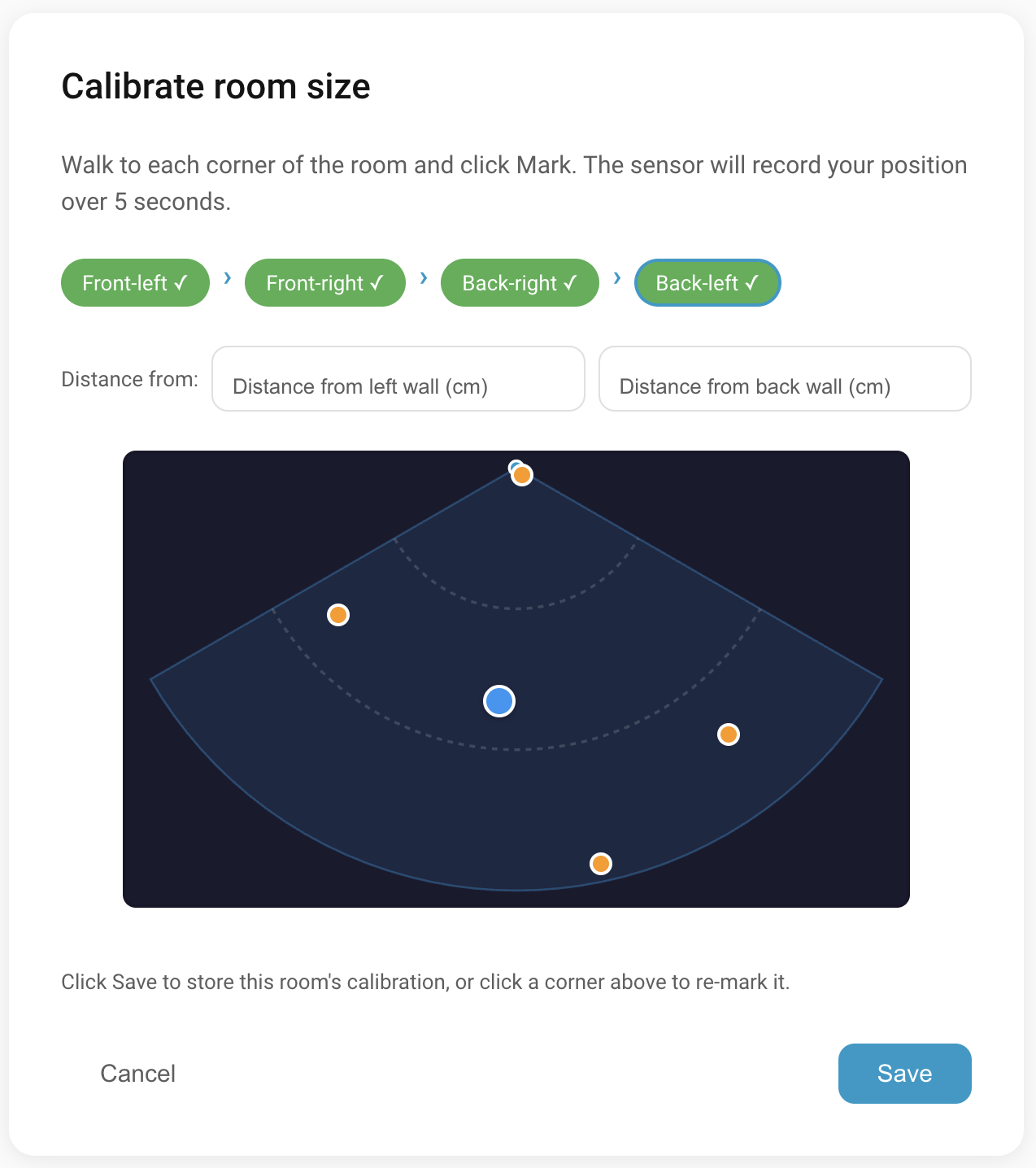
- Perspective-corrected grid. A four-corner calibration wizard maps the radar view onto your actual room. Walls are straight, and zones line up with real-world geometry. Cells are 30 cm × 30 cm (1 ft × 1 ft).
- Seven painted zones, plus an eighth "Rest of room" fallback. Zones are polygonal, can be discontinuous, and are drawn by clicking grid cells.
- Zone types —
Default,Bed,Seating,Transit— bundle sensible thresholds and timeouts for each kind of area, so a bed zone can hold presence for minutes while a hallway zone clears in seconds.Customexposes the underlying parameters. - Cross-zone target tracking. Targets are followed as they move from one zone to another, so the handoff between zones is clean.
- Overlays for refining detection. Mark doorways with Entry/Exit overlays, and noise sources with Interference or Suppress overlays.
- Furniture layout. Drop furniture stickers on the grid so the live overview is easy to read. Visual only — they don't affect detection.
- On-chip processing. Home Assistant gets a single
Occupancybinary sensor plus per-zone presence sensors, instead of a constant stream of target coordinates. - Smoothed positions. Brief radar jitter is filtered out before it reaches the zone engine, so zones don't flap when a target is near a boundary.
- Auto-dismiss for stuck targets. A target reported at exactly the same coordinates for several minutes is automatically dropped, so a phantom the radar got fixated on stops keeping a zone occupied. The threshold is configurable; set it to 0 to disable.
- Quiet network. Only what Home Assistant needs goes across the wire.
- Built-in flasher. Install and update firmware from the panel.
What you'll typically use in automations
Most rooms only need a handful of entities. The Occupancy binary sensor
(binary_sensor.<device>_occupancy) combines the motion, static-presence, and
target-tracking signals into a single "anyone in the room" entity. For
zone-specific actions, each named zone has its own Zone Presence entity
(binary_sensor.<device>_zone_<N>_presence).
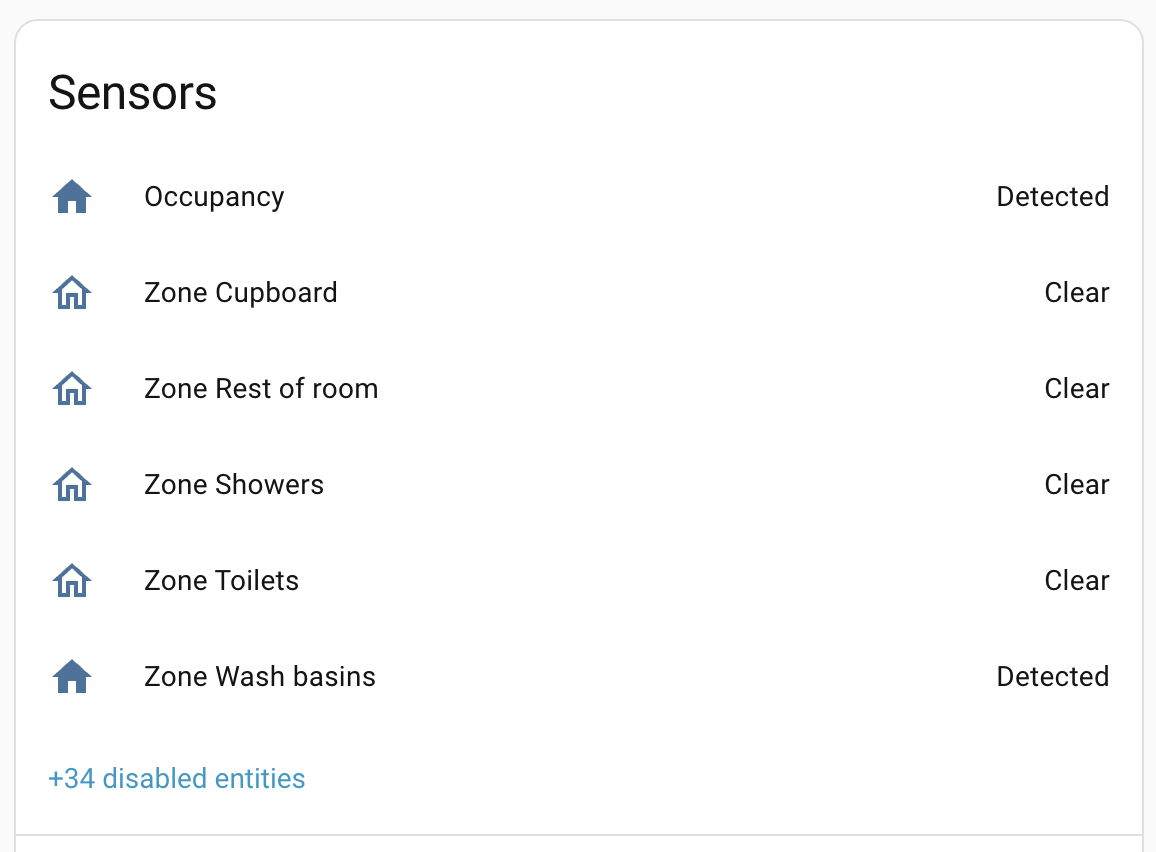
These sensors are enough to build quite sophisticated automations. See Automations for worked examples.
Where to next
- Hardware → — what's inside the device.
- Installation → — install the integration and get going.