Device Groups
A single Everything Presence Grid sensor may not cover a whole room. Device Groups let you combine 2 or more physical sensors into a single virtual device in Home Assistant — so automations can target "Master Bedroom" without ORing multiple sensors by hand.
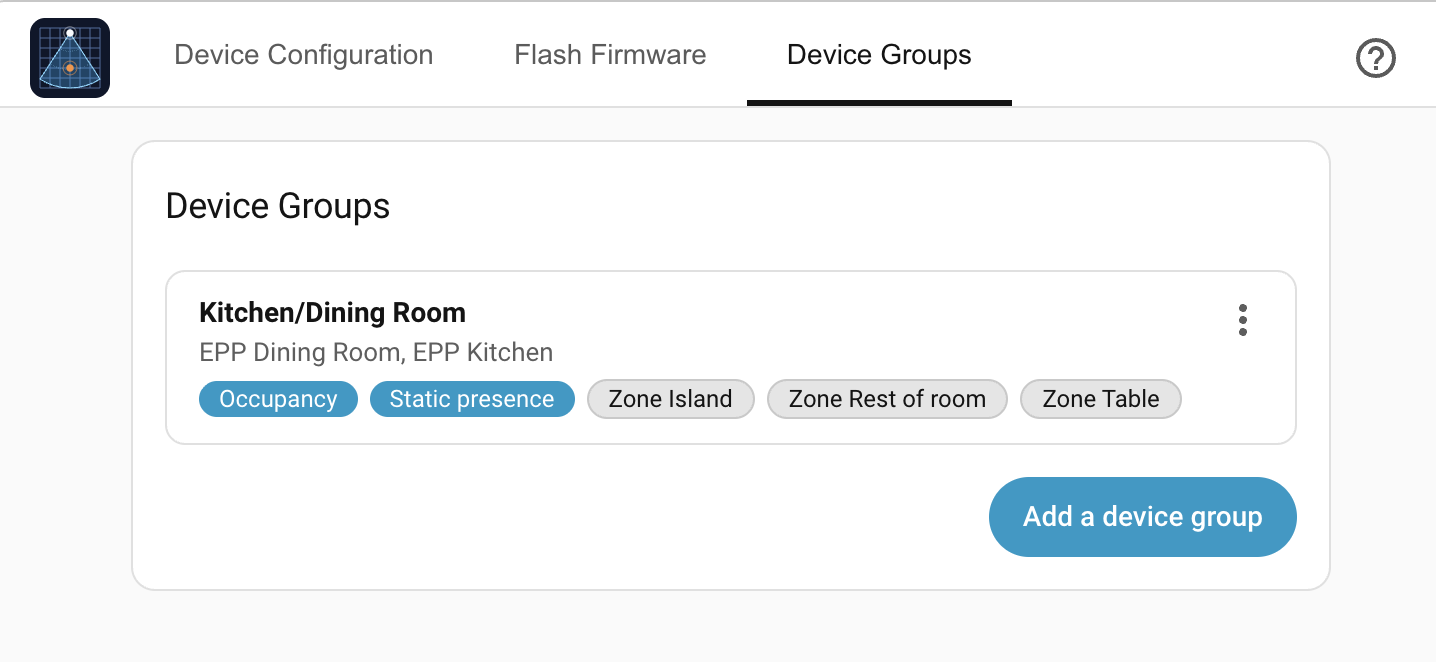
A device group exposes:
- One occupancy binary sensor that is on if any source sensor's occupancy is on.
- The same for static presence, motion presence, target presence, and mmWave presence — each only created if at least one source has that entity enabled.
- One Rest of room binary sensor, combined across all source devices.
- One binary sensor per zone (1–7) on each source — passing through with the zone's original name.
- One binary sensor per merged zone you define — for combining named zones from different sources into a single sensor.
Every sensor can be turned off in the editor if you don't want it in the group. If a source goes offline, the device group ignores it. The helper becomes unavailable only when every source is unavailable.
Creating a device group
- Open the Everything Presence Grid panel and switch to the Device Groups tab.
- Click Add a device group.
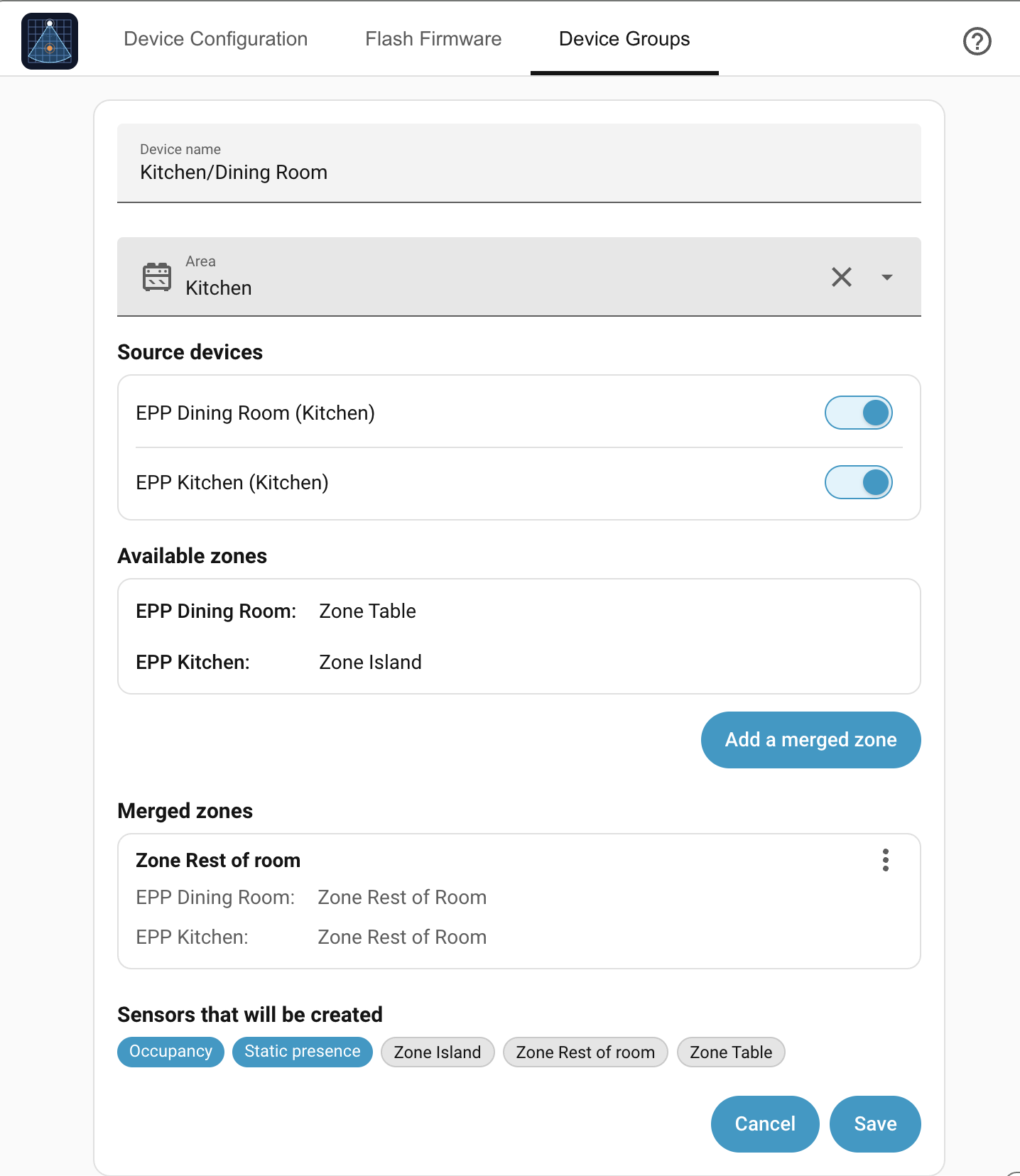
- Enter a Device name; optionally choose an Area to assign the virtual device (and its source devices) to.
- Under Devices, toggle on the sensors to include. Each shows whether it is Online, Offline, or no longer exists.
- Under Sensors, every sensor from the included devices is on by default — toggle off any you don't want. Presence sensors show which devices provide them and flag any device where the sensor is disabled in HA.
- To combine named zones from different devices into a single binary sensor, switch the Sensors list to Merge zones, tick two or more zones, give the merged zone a name (e.g. "Bed"), and click Merge. The merged zone appears in the list and becomes a single binary sensor.
- Click Save.
The new virtual device appears under Settings → Devices & Services → EPP Grid with all its aggregated entities.
Editing or deleting
Each device group in the list has a ⋮ menu:
- Edit reopens the editor — change the name, devices, area, sensors, or merged zones and Save.
- Delete removes the group and all its helper entities.
A merged zone has its own ⋮ menu inside the editor for editing or removing just that zone.
What happens when…
| Event | Behavior |
|---|---|
| A source device goes offline | It's ignored. Helper still tracks the rest. |
| You delete a zone on a source | If it was in a merge group, the group keeps its definition but the entity goes unavailable. Add another zone to the group or delete it. |
| You rename a source device or zone | Display names update; the helper's entities keep their unique IDs and don't break. |
| You remove a source device entirely | The group keeps it in its source list but shows it as unavailable, and the helper ignores it. Edit the group to remove or replace it. |
| You need one device's rest-of-room separately | The group exposes a single combined Rest of room sensor. Use the physical device's own Rest-of-room entity for per-device tracking. |
Where to next
- Overview dashboard card → — add a live map and sensor view for a device to any Home Assistant dashboard.