Live overview
The live overview is the home page of the Device Configuration tab. It shows the calibrated grid with your zones, overlays, and furniture in place, and updates as the sensor tracks targets. It shows the current state of all the sensors, even if they are not enabled in Home Assistant.
The grid
The grid is a top-down view of your room after calibration. Each cell is a 30cm x 30cm unit of detection — the zone engine decides presence and target counts in terms of cells.
- White cells are inside the room but don't belong to any named zone. They make up the "Rest of room" fallback.
- Grey cells are outside the room.
- Grey cells with cross-hatching are outside the LD2450's 120° field of view, so the sensor can never see them.
- White cells with cross-hatching are inside the field of view but past the Max distance you configured under Settings → Detection Ranges. The sensor could see those cells but you've told it not to. Lowering Max distance turns more inside-room cells into this state.
- Detection zones are drawn as coloured regions using the colour you picked in the zones editor.
- Overlays show as hatched patterns: Entry/Exit cells use a grey 45° diagonal stripe; Interference cells use a single red -45° diagonal stripe; Suppress cells use red cross-hatching (both diagonals).
- Furniture sits on top of zones and overlays as a visual layer.
Below the grid, the panel shows the room's width × depth plus the distance to the furthest point the sensor can still track. That's useful for sanity-checking that important corners are inside the LD2450's 6-metre tracking range.
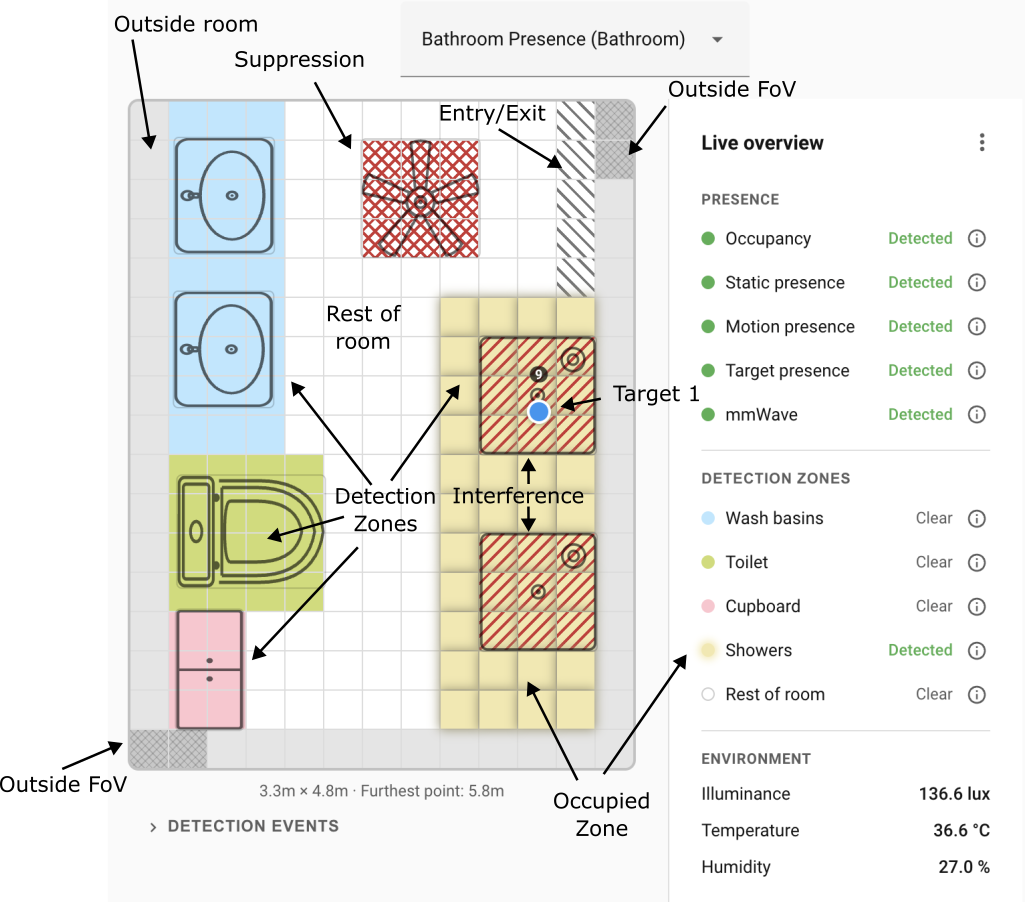
Target markers
The LD2450 tracks up to three targets at a time. Each is drawn as a dot on the grid.
- Per-target colours — each tracked target slot has its own colour from a fixed palette, so you can tell separate targets apart at a glance. The colour identifies the target slot and stays the same as the target moves around.
- Signal label — a small label above the dot shows the target's signal-strength value (1-9).
Side bar
The right-hand side bar shows live data straight from the sensor. Not every reading has a matching entity enabled by default; you can switch entities on under Entity Settings.
Presence sensors
- Occupancy (
binary_sensor.<device>_occupancy) — the combined signal from the motion sensor and both presence sensors, and the one you'll usually use for automations. - mmWave Presence (
binary_sensor.<device>_mmwave_presence) — radar-only presence. Combines the static-presence sensor and the LD2450 zone activity, ignoring the PIR. Useful when you need to limit the range of detection, which you can't do with the motion sensor. - Motion Presence (
binary_sensor.<device>_motion_presence) — the PIR (passive infrared) sensor. - Static Presence (
binary_sensor.<device>_static_presence) — the SEN0609 static-presence radar. - Target Presence (
binary_sensor.<device>_target_presence) —onwhenever the LD2450 is tracking at least one target.
Only Occupancy is enabled by default. The other four are useful for debugging or for automations that need a specific source as a separate trigger. Enable them under Settings → Entities if you want them.
Zone occupancy
When a zone is occupied, its cells on the grid take on a 3D relief shadow, the
matching dot in the sidebar brightens with a subtle glow next to a Detected
marker, and the Zone Presence entity
(binary_sensor.<device>_zone_<N>_presence) in Home Assistant shows
Detected (on).
Zone presence entities are enabled by default.
Environmental sensors
The Environment section shows the four environmental sensors:
- Illuminance (lux)
- Temperature (°C)
- Humidity (%)
- CO2 (ppm) — an optional add-on. The reading only appears here if the chip is fitted and producing data. See Everything Smart's Integrate the Carbon Dioxide (CO2) module for the hardware install.
All four entities are disabled in Home Assistant by default. Enable the ones you want from the device page (Settings → Entities). The Calibrate CO2 button is also off by default and follows the same path.
Detection events
A collapsible Detection events log sits below the grid once the room is calibrated. Expand it to watch a readable, real-time timeline of what the zone engine is doing — zone and sensor transitions, room occupancy changes, sensor-assisted clears, stuck-target dismissals, and target movement — instead of a raw state dump. It's the quickest way to see why a zone turned on or off.
- Copy all copies the current log to the clipboard — handy for attaching to a bug report.
- Clear empties the log so you can capture a clean run.
Requires firmware v1.2.0 or later.
Connection and firmware-status banners
If the device can't be reached or the integration and firmware versions don't line up, the live grid is replaced by a banner informing you of the problem:
- Offline device — a connection banner tells you the device has dropped off the network. The grid is hidden until the device reconnects. If this sticks, check that the device is still powered and on the network.
- Firmware / integration version mismatch — a protocol banner appears when the integration is older than the device firmware, or vice versa. The banner explains which side to update. Usually: open HACS to update the integration, or the Flash Firmware tab to OTA-update the device.
Troubleshooting
| Symptom | Likely cause | Fix |
|---|---|---|
| The grid is blank or shows no sensor data | Device is offline | Check Settings → Devices & Services → ESPHome — the device should be listed and marked online. |
| Targets jump around or drift outside walls | Calibration is off | Re-run the calibration wizard. See Calibration. |
| Target stuck on a fixed cell with nobody there | Interference source at that cell (fan, curtain, reflective surface) | Add an Interference overlay at that cell — fixes it preventively. If it's still problematic, escalate to Suppress. See Overlays. The firmware also auto-dismisses targets that report identical coordinates for the Stuck target timeout (default 5 minutes, set to 0 to disable, configured under Sensor calibration → Target sensor). |
Still stuck? See Troubleshooting for how to open an issue.
Where to next
- Detection zones → — paint named regions on the grid so each one fires its own presence entity.
- Heatmap → — turn on the Heatmap layer to see where people spend time and how they move through the room.