Sensor calibration
Sensitivity and timing for the presence sensors, plus the offsets that correct the environmental readings. Lives under Settings → Sensor Calibration in the panel.
The motion and static-presence settings here also feed into the sensor-assisted clear, the rule that lets the zone engine drop pending zones early once both hardware sensors report inactive (when that feature is enabled). Lowering a timeout therefore affects more than just that one sensor's entity: it can also shorten how long an empty room stays marked occupied by the Occupancy and mmWave presence sensors.
Motion sensor (PIR)
The Panasonic PIR is the low-latency entry trigger. See Hardware → Motion.
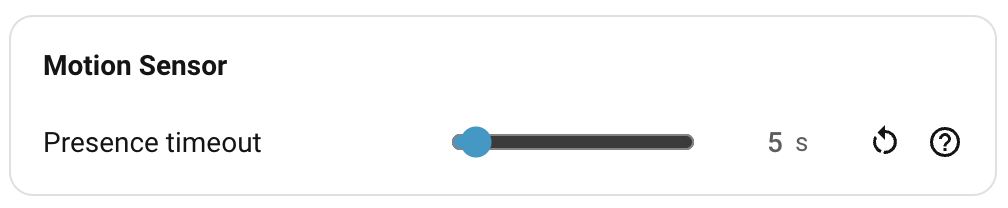
| Control | Default | Notes |
|---|---|---|
| Presence timeout | 5 s | Time after the last motion before the sensor clears. Range 0–120 s. |
The PIR has no range or sensitivity controls; it's a fixed lens on a heat-signature element. The only setting is how long it holds presence after the last movement.
Static sensor (SEN0609)
The SEN0609 mmWave radar reports a single "someone here / not here" signal. Range is set under Detection ranges; the controls here govern the chip's own sensitivity and the timing around its output.
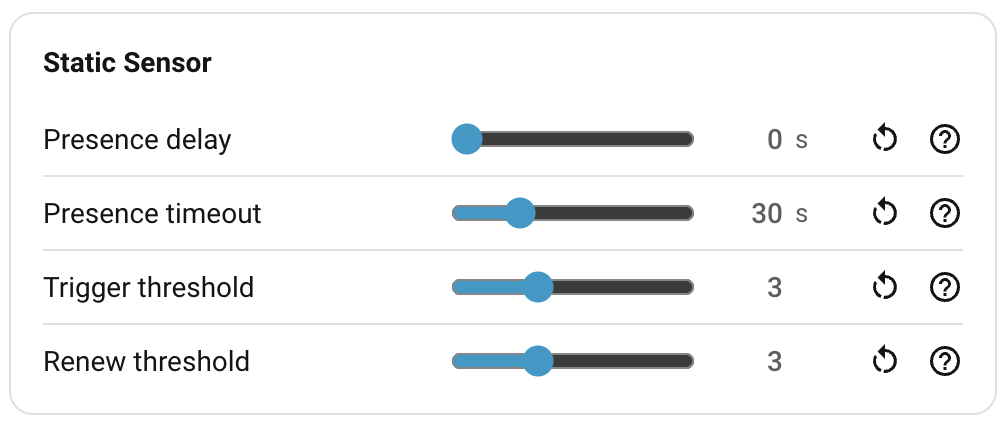
| Control | Default | Notes |
|---|---|---|
| Presence delay | 0 s | Delay before the sensor first reports presence. Filters brief false positives. Range 0–30 s, in 0.5 s steps. |
| Presence timeout | 30 s | Time after the last detection before the sensor clears. Range 0–120 s. |
| Trigger threshold | 3 | On-chip sensitivity for first detection. 1–9. Higher = harder to trigger. |
| Renew threshold | 3 | On-chip sensitivity for sustaining detection. 1–9. Higher = harder to maintain. |
Presence timeout is important for the sensor-assisted clear: once the static sensor reports inactive (and the motion sensor is also inactive, and no zone is currently occupied), every pending zone is cleared after the Clear delay (below), provided the feature is enabled. Lowering this timeout speeds that up, at the cost of clearing zones a little more quickly after someone genuinely leaves.
Target sensor (LD2450)
Range and the auto/manual toggle for the LD2450 live under Detection ranges. The control here governs how the engine handles a target that gets stuck.

| Control | Default | Notes |
|---|---|---|
| Stuck target timeout | 300 s | A target reported at exactly the same (x, y) for this long is auto-dismissed by the firmware, the same way a manual click-dismiss in the live overview does. Range 0–600 s. Set to 0 to disable. |
The radar occasionally fixates on a phantom — a fan blade in just the right position, a reflection off a glass cabinet — and reports it at byte-identical coordinates indefinitely. A real person never sits perfectly still at the radar's resolution, so this rule is safe by default. The dismissed target re-appears the moment the radar reports it at any different coordinates, so it'll come back if it was real.
See How detection works → Auto-dismiss for stuck targets for the full pipeline.
Sensor-assisted clear
The zone engine can drop pending zones early once the room reads empty — both
the motion and static sensors are inactive and no zone is currently occupied.
This stops a long pending state (a Bed zone holds it for ten minutes) from
keeping Occupancy and mmWave Presence on after everyone has left. See
How detection works → Sensor-assisted clear.
Pro only. Sensor-assisted clear relies on the static and PIR sensors to confirm the room emptied, so it is absent on the Everything Presence Lite (which has neither) — the card does not appear there.
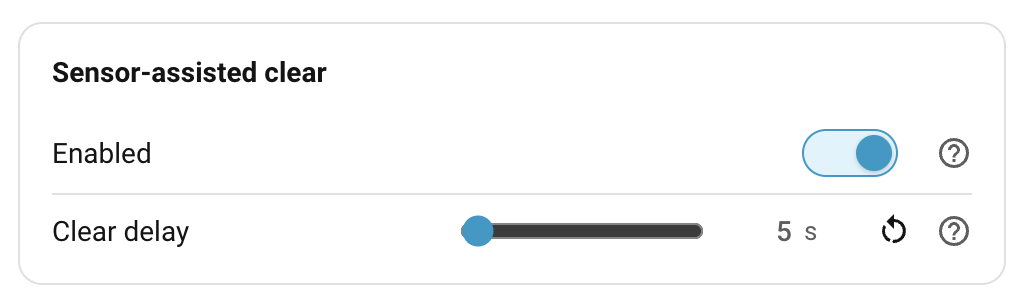
| Control | Default | Notes |
|---|---|---|
| Enabled | On | Turn off to rely only on each zone's own Presence timeout to clear it. |
| Clear delay | 5 s | Grace period the room must stay empty before pending zones are cleared. Range 0–600 s. 0 = clear immediately. Greyed out when Enabled is off. |
The delay is a grace period, not an extra wait on top of nothing: the timer only runs while the room reads empty, and any re-detection during it (either sensor going active again, or a target re-occupying a zone) cancels the clear and resets the timer. New installs default to a 5 s delay; installs upgraded from an earlier version keep clearing immediately (0 s) until you change it.
Environmental offsets
The environmental sensors support fixed offsets that nudge the on-board temperature, humidity, and illuminance readings towards a reference instrument. The device runs warm and is often mounted high in a corner, so temperature and humidity readings drift accordingly. An offset gets the average closer to truth, but it doesn't make the sensor accurate. See Hardware → Environmental sensors.
CO₂ module
The optional CO₂ add-on isn't calibrated from this page; there's no offset slider for it. To fit the module and run its forced-recalibration routine, follow Everything Smart's CO₂ module integration guide.
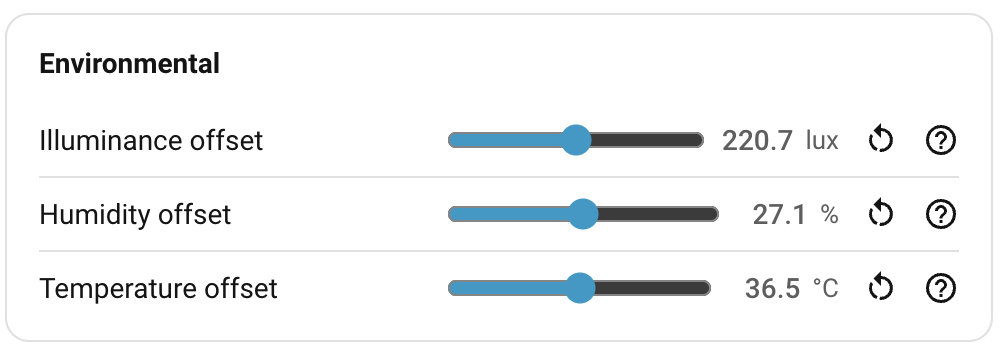
| Reading | Range | Step | Sensor |
|---|---|---|---|
| Illuminance | −500 to +500 lux | 1 | BH1750 |
| Humidity | −50 to +50 %RH | 0.1 | SHTC3 |
| Temperature | −20 to +20 °C | 0.1 | SHTC3 |
The offset is added to the raw reading on the device before publishing. The slider next to each row shows the adjusted reading in real time as you drag, so you can match it against a reference instrument without saving and waiting.
Calibrating against a reference
- Place a known-good thermometer, hygrometer, or lux meter next to the sensor (same spot, same airflow, same minute). Wait for both to stabilise.
- Drag the slider for the relevant reading until the displayed value matches the reference.
- Click Save.
For temperature in particular, leave the device powered up for at least 15–30 minutes before calibrating. A cold device reads close to true; one that's been on for an hour reads several degrees high. You're calibrating the steady-state offset.
Note
A single fixed offset is a rough correction. The self-heating curve depends on ambient temperature and on how much radio traffic the device is doing, so an offset that's right at 20 °C ambient won't be exactly right at 28 °C. Aim for "close enough across normal conditions".
The illuminance slider clamps the displayed value at a minimum of 0 lux.
Resetting
Each row has a ↺ reset button that returns just that control to its default.
Where to next
- LED and relay — LED modes and the relay output.
- Logging — per-component firmware log levels.