Backup and restore
A backup is a saved snapshot of everything the panel knows about a device, except the four-corner calibration. Backups live in the integration on your Home Assistant instance, so they survive panel reloads and follow the device through firmware upgrades.
The main reason to keep a backup is recalibration. The calibration itself can't be replayed automatically: it's specific to where the device is physically mounted. Anything that disturbs the mount (moving or rotating the sensor, reshaping the room, replacing the device, or re-flashing firmware that wiped its calibration) invalidates it.
The typical flow:
- Backup the current configuration.
- Recalibrate the room. This deletes zones, overlays, and furniture as part of resetting the grid.
- Restore the backup. Zones, overlays, furniture, and settings come back.
It's also worth backing up before any sweeping change you might want to undo, like reworking a tricky overlay layout or trying a Custom-zone tuning.
What's in a backup
Everything the panel knows about the device apart from the calibration itself:
- Room boundary and dimensions: the painted room shape and its width × depth in metres.
- Zones: all eight slots (room (zone 0) plus the seven user-paintable zones), with each zone's name, colour, type, and (for Custom zones) the four thresholds Trigger / Renew / Presence timeout / Handoff timeout.
- Overlays: Entry/Exit, Interference, Suppress markings on every cell.
- Furniture: every placed item with position, size, rotation, and icon.
- Settings, in full:
- Detection ranges (target / static, auto and manual values)
- Sensor calibration (motion timeout, static delay/timeout, static trigger/renew thresholds, environmental offsets)
- LED mode, brightness, occupancy colour
- Relay trigger and contact mode
- Per-component log levels
- Entity enable/disable flags
- Update rates (zone and target)
What's not in a backup
| Excluded | Why |
|---|---|
| The four-corner calibration | Specific to where the device is physically mounted. Two devices in the same kind of room will have different calibrations; the same device after being moved will too. |
The room dimensions travel with the backup (so the grid stays coherent), but the calibration that maps radar coordinates onto that grid does not. After restoring on a freshly-calibrated device, the grid is the right shape and the zones land in the right cells; the calibration you just did is what tells the radar where to put targets within them.
Saving a backup
- Open the sidebar overflow menu (⋯) and click Backup configuration.
- Enter a name and click Save.
Backups are stored per-Home-Assistant-instance, so any backup you save can be restored onto any device on the same HA instance.
Restoring a backup
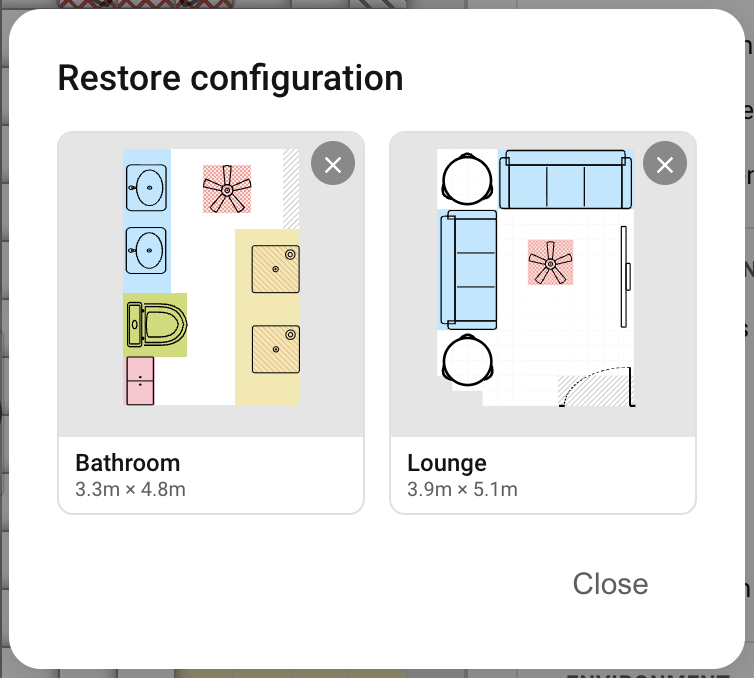
- Open the sidebar overflow menu and click Restore configuration. A grid of saved backups appears, each with a thumbnail showing its zones and furniture.
- Click a card to apply it. The panel immediately replaces the current grid, zones, overlays, furniture, and settings with the backup's contents and pushes the new configuration to the device.
Clicking a card applies it straight away, with no confirmation dialog and no preview. If you want to keep the current state before trying something else, save a fresh backup first.
Deleting a backup
Open the Restore dialog, hover a card, and click the X in the top-right corner. The backup is deleted immediately, with no confirmation and no undo. Deleting only removes it from the library; any device that previously had it applied keeps its current configuration.
Troubleshooting
| Symptom | Likely cause | Fix |
|---|---|---|
| Restore dialog says "No configurations" | No backup has been saved on this Home Assistant instance yet | Save a backup first from any device. Backups are shared across all devices in the same HA instance. |
| Restored backup but the radar puts targets in the wrong cells | The device's calibration doesn't match the room dimensions in the backup | Recalibrate the device. The backup's grid is fine; the calibration needs to be redone. |
Still stuck? See Troubleshooting for how to open an issue.
Where to next
- Settings → — tune detection, reporting, environmental offsets, LED and relay behaviour.
- Calibration — the one thing a backup doesn't restore for you.