Day
Checks whether today's date matches a set of calendar criteria: the day of the week, a day of the month, a specific annual date, a date range, whether today is a workday or a holiday, and more.
The Day condition editor has two sections: Include and Exclude. A scene matches on a given day if that day is covered by at least one Include entry (or if the Include list is empty, which means "every day") and is not covered by any Exclude entry.
Use the + Add include item and + Add exclude item dropdowns to build up your list. Each item has a kind, chosen from the options below.
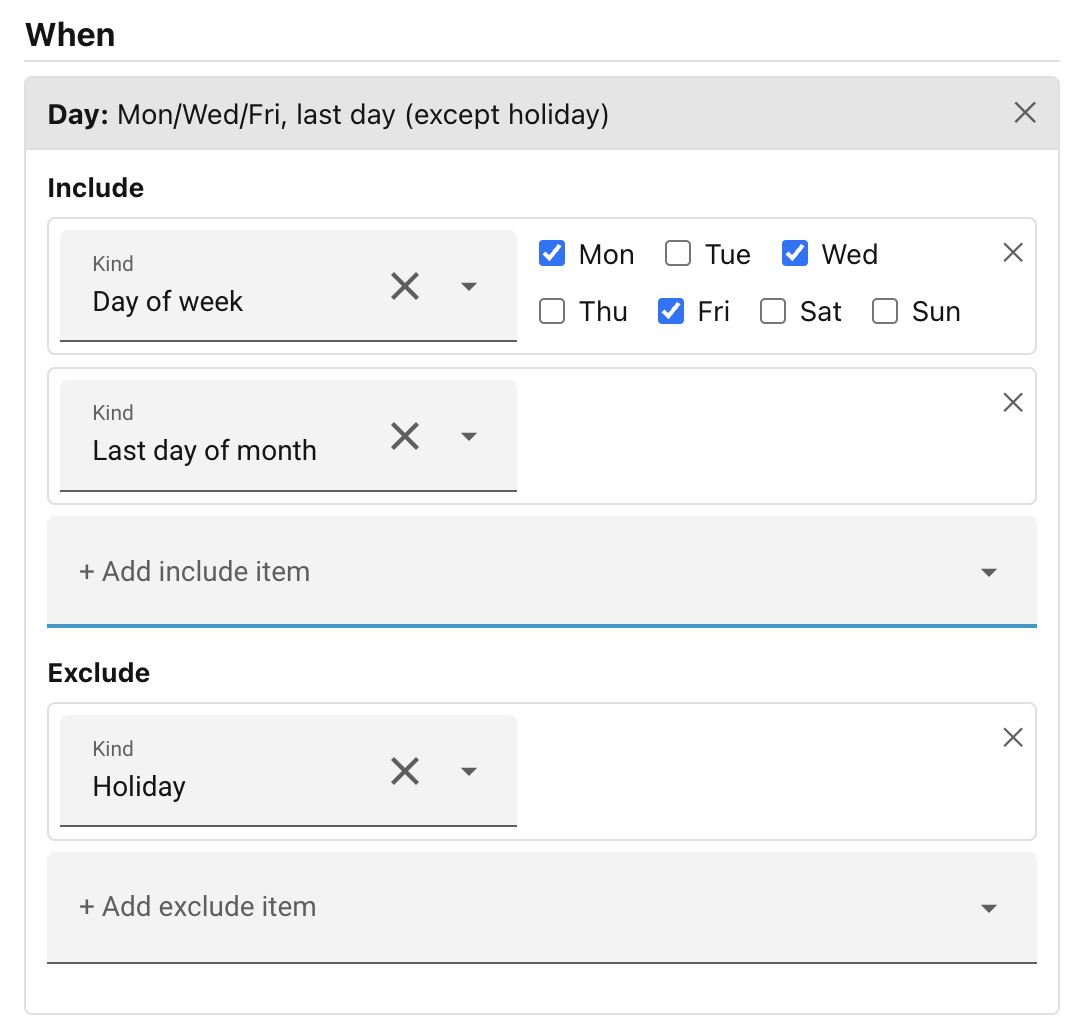
Day of the week
Pick Day of week and tick the days you want to match: Monday through Sunday. For example, tick Monday through Friday to cover all working weekdays (without reference to public holidays).
Day of the month
Pick Day of month and type a spec into the text field. A spec is a comma-separated list of single day numbers and inclusive ranges, for example:
1— the first of the month only1, 15— the 1st and 15th1-10— the 1st through the 10th1-5, 20-25— two separate ranges
Days run from 1 to 31. If a month has fewer days than the upper end of a range, the extra days simply never occur and the entry never matches in that month.
A specific date (every year)
Pick Date (annual) and choose a month and a day. The condition matches on that month/day combination in any year, so you can target, say, 25 December without specifying a year. February 29 is accepted — it only matches in leap years.
A date range (every year)
Pick Date range (annual) and set a From month/day and a To month/day. The condition matches any date falling within that range, inclusive of both endpoints, in any year. Ranges can wrap the year boundary: a range from 20 December to 5 January matches from 20 Dec through to 5 Jan the following calendar year.
The last day of the month
Pick Last day of month. This matches the 28th, 29th, 30th, or 31st, depending on the month, so it works correctly in February and in months with 30 days.
Workday/Holiday
Pick Workday or Holiday. These match on days when the workday sensor reports "on" (for Workday) — typically weekdays excluding public holidays — or "off" (for Holiday) — usually weekends and public holidays — according to whatever country and configuration you have set up in the Workday integration.
Workday sensor required
These options requires a workday sensor to be configured before it can be used. See Settings below.
First/Last workday of the month
Pick First workday of month or Last workday of month. These match on the first or last day in the current month that the workday calendar records as a working day. It is useful for triggering things like a start-of-month or end-of-month report or reminder.
Workday calendar required
These options requires a workday calendar to be configured before it can be used. See Settings below.
Settings
Several day types — Workday, Holiday, First workday of month, and
Last workday of month — need a source of workday information. Configure this
in the Conditions tab of the Settings modal (open it from the cogwheel ⚙ in
the Ambience panel header). The sensor powers the Workday and Holiday types;
the calendar powers First workday of month and Last workday of month.
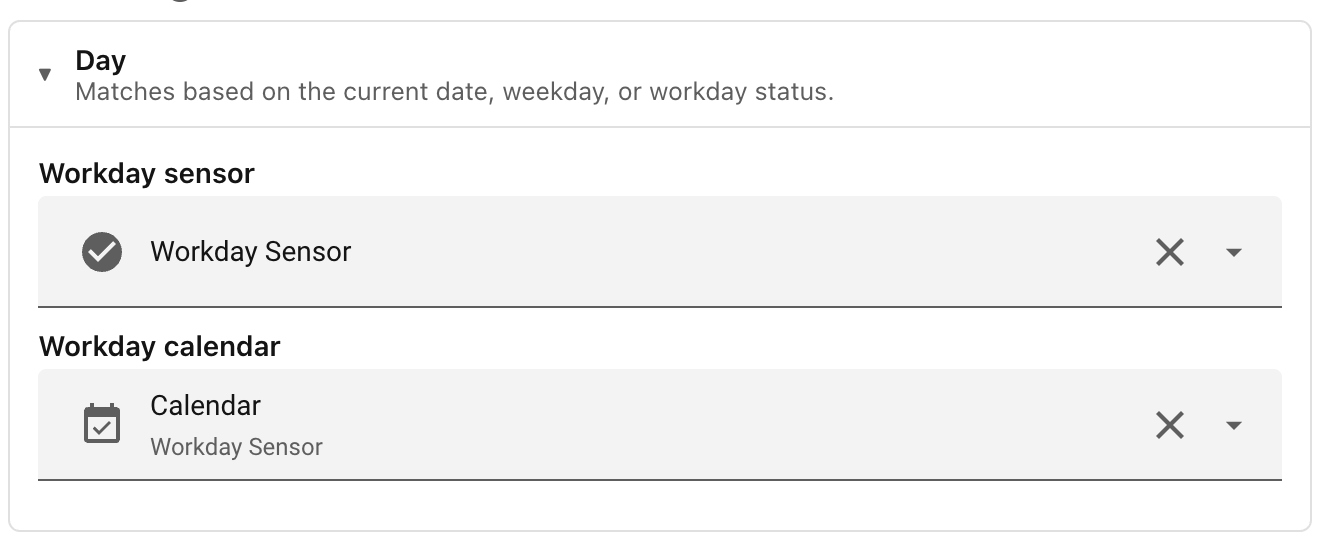
Workday sensor Select a binary_sensor entity provided by the HA
Workday integration. The
picker is filtered to show only entities from that integration. When set, scenes
using the Workday or Holiday day type read their state from this sensor.
Workday calendar Select a calendar entity provided by the Workday
integration. This is an alternative source — configure one or the other
depending on which the Workday integration exposes in your setup.
If you remove either entity from HA after scenes have referenced it, Ambience shows a warning listing the affected scenes by name.
Next: Entity state.