Lux
Checks whether ambient-light (illuminance) sensors fall inside a lux range, such as: "the lounge is dark", or "the office is brighter than 300 lx".
This is the natural condition for daylight-aware lighting: instead of guessing
from the time of day or the weather, it reads what your light sensors actually
measure. It is used with sensor entities whose device class is illuminance.
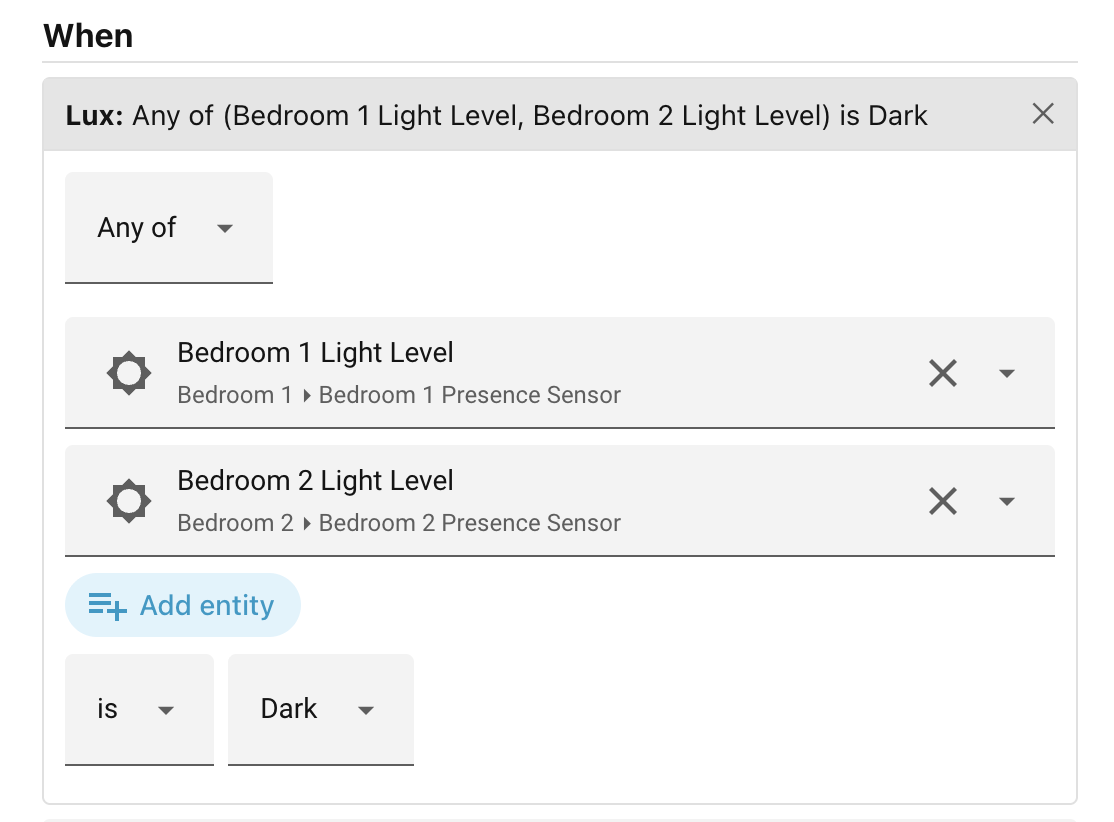
When you add a Lux condition to a scene, the editor shows (top to bottom):
- Any of or All of — shown above the sensors once you pick more than one. "Any of" passes when at least one sensor reads inside the range; "All of" requires every sensor to match.
- Entity — a picker listing your illuminance sensors. Pick one or more. Leaving it empty makes the condition match anything (no constraint).
- is / is not — whether each reading must fall inside the chosen range (is) or outside it (is not). "is not" inverts the whole test — the band and the Any-of/All-of quantifier — so Any of (hall, landing) is not Dark matches when neither sensor reads below 10 lx.
- Range — either a named lux range (see below) or a custom inline band
with a Min and/or Max in lux. A band is half-open: it matches when
min ≤ reading < max. Either bound may be left empty for an open-ended range.
A sensor reporting unavailable, unknown, or a non-numeric value never counts
as inside or outside a range — it is treated as unobservable, so neither
is nor is not passes on it. An "is not bright" test will not fire just
because a sensor dropped offline.
Examples
| Setup | Meaning |
|---|---|
| Lounge sensor, range Dark | The lounge reads below 10 lx. |
| Office sensor, min 300 | The office is at 300 lx or brighter. |
| Office sensor, is not, range Dark | The office is reading, and not dark (≥ 10 lx). |
| Hall + landing, Any of, range Dim | At least one of the two reads 10–50 lx. |
Named lux ranges
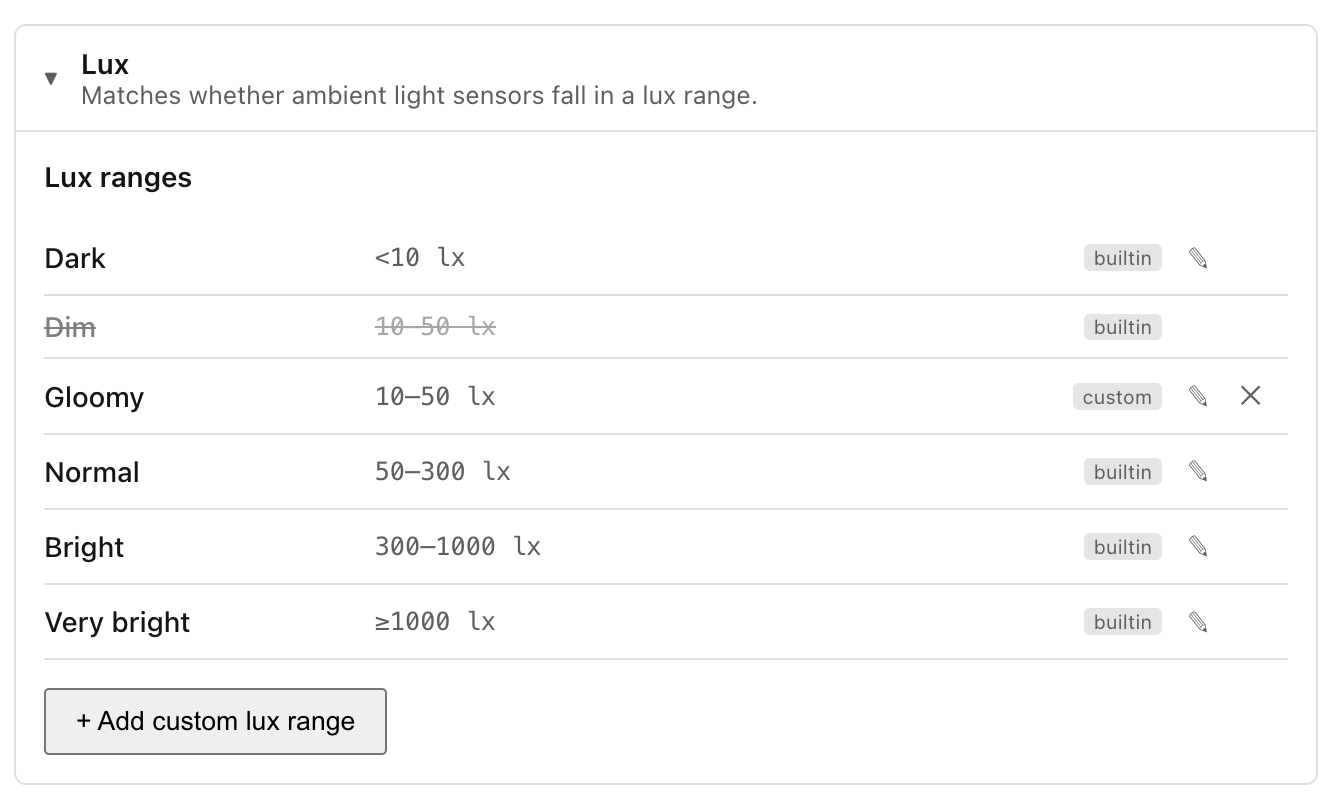
Ambience ships five built-in ranges:
| Range | Band |
|---|---|
| Dark | below 10 lx |
| Dim | 10 – 50 lx |
| Normal | 50 – 300 lx |
| Bright | 300 – 1000 lx |
| Very bright | 1000 lx and above |
You can change these, hide them, or add your own in the panel's Settings → Conditions tab → Lux ranges. Scenes that reference a named range pick up any later edits to it automatically.
Next: Occupancy.