Script
Advanced
This condition requires you to write and maintain a Home Assistant script. Most situations are covered by the built-in conditions; reach for this one only when nothing else fits.
Checks the result of a Home Assistant script that you write. The script runs, does whatever logic it needs, and reports back whether the condition is met. Because the script runs inside Home Assistant, it can query anything available there — helper states, statistics, REST endpoints, custom integrations — that Ambience has no built-in condition for.
When you add a Script condition to a scene you configure three things:
1. Choose a script
Select one of your existing script.* entities from the dropdown. The list
shows every script registered in Home Assistant.
The script you choose must end by returning a response variable containing
match: true or match: false. Without that, Ambience treats the result as no
match. The standard way to do this is a stop action that sets a response
variable:
- stop: "return result"
  response_variable: result
  # result must be a mapping with a `match` key
See the Home Assistant documentation on stopping a script sequence for the full syntax.
2. Pass arguments (optional)
If your script declares fields, the editor shows a form for those fields and
pre-fills any defaults. Fill in the values you want Ambience to pass when it
calls the script. If your script takes no inputs, this section does not appear.
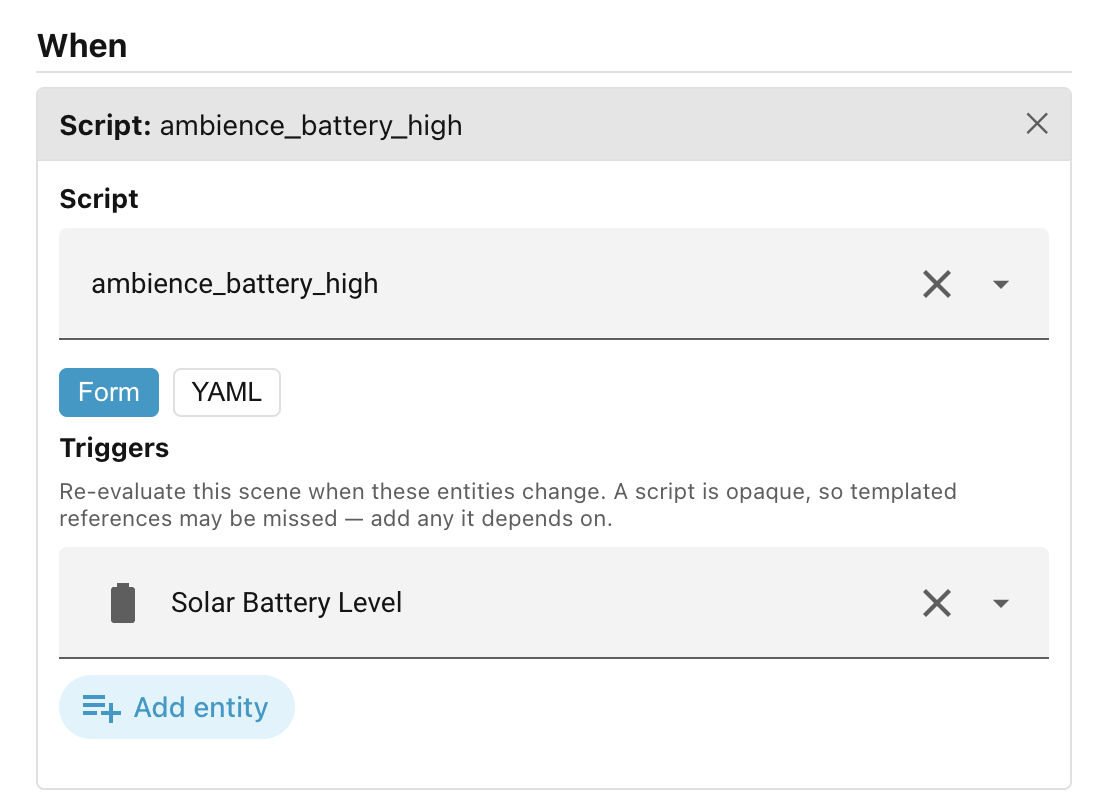
3. List triggers (optional but usually necessary)
Ambience watches your entities and re-evaluates scenes when something changes. However, it cannot see inside a script — it does not know which entities the script reads. If you leave the Triggers list empty, the scene may not update when the underlying data changes.
Add the entity IDs that the script depends on. Whenever any of those entities changes state, Ambience will call the script again and re-apply scenes if the result has changed. Use the entity picker to add entities one at a time; they appear as chips below the picker. Click the × on a chip to remove it.
If you need finer control — for example, the script depends on a template or a REST call rather than an entity — you can switch to the YAML tab and edit the condition directly.
How Ambience calls the script
Ambience calls the script with blocking: true so it waits for the script to
finish before deciding which scene applies. Calls are cached for a few seconds
so a single evaluation snapshot does not trigger the script multiple times. The
call times out after five seconds; a timeout counts as no match and is logged as
a warning.
Example
Suppose you want a scene to activate only when your solar battery is above 80 % charge, and you have a REST sensor that exposes the value but no built-in Ambience condition covers it.
You write a script called ambience_battery_high that reads the sensor and
returns whether the level is high. Set a response variable holding a match
key, then stop the script and return it:
sequence:
  - variables:
      result:
        match: "{{ states('sensor.solar_battery_level') | float(0) > 80 }}"
  - stop: "done"
    response_variable: result
In the scene editor you add a Script condition, select
script.ambience_battery_high, and in the Triggers field you pick
sensor.solar_battery_level. Ambience will now re-evaluate the scene whenever
that sensor changes, calling the script each time and activating the scene only
while the battery is above 80 %.
Next: Sun.